
If you are looking for some great tips to help with your Google Display Campaigns, then this is the video to watch…
Hello, I’m Uzair and thanks for watching this video, where I’m going to give you three of my top tips to help you with your Google Display Network Ads Optimization.
Get Found, Get Chosen, Get Your Time Back
A free one-day marketing seminar in Milton Keynes · 10 November 2026
So, let’s look at a few ways to make sure your Google display campaigns are in tip-top shape.
Get your free Marketing Action PlanNot sure where to start? Answer a few questions and get your plan in about a minute. No email needed.
Get my plan →1. Review Placements Report
The first thing you need to look at is Google’s placement report, also named in the interface as “Where ads showed”, where you’ll find the list of sites, mobile apps and YouTube channels where your ads have appeared across the Google Display Network.
By reviewing the Placements report, you can help save budget, by excluding placements with poor performance and identifying top-performing URLs, which you can then add as managed placements – I’ll talk more about this in a moment.
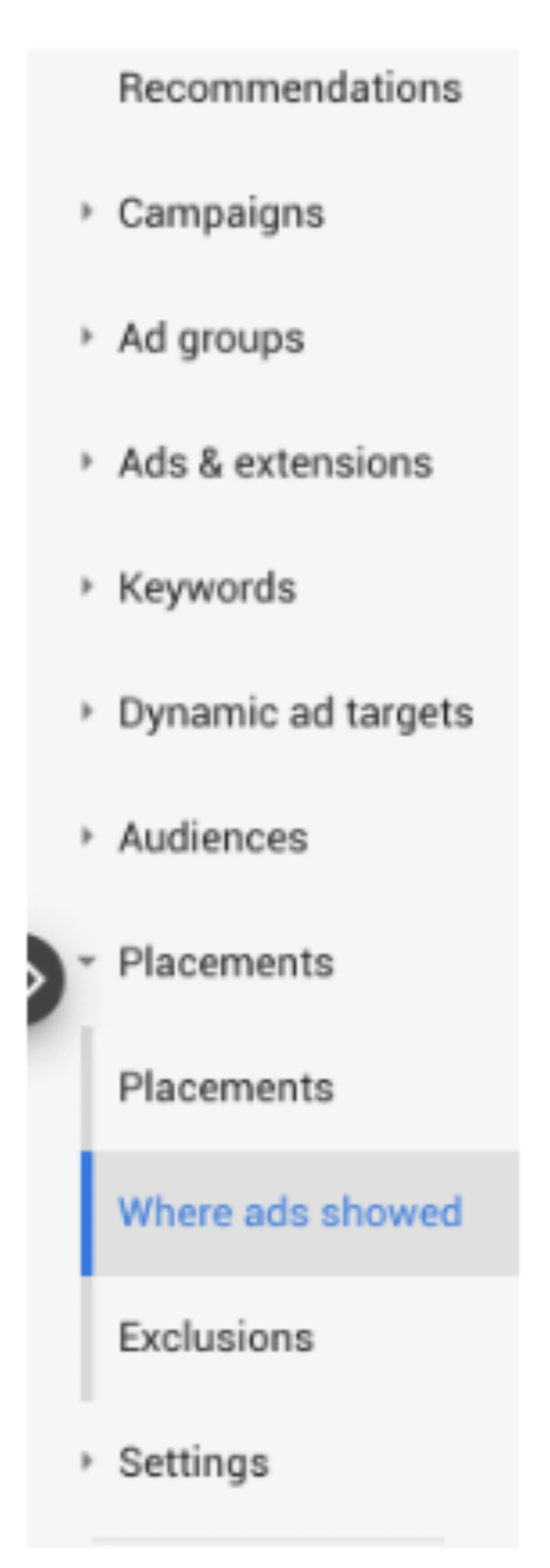
You can access this report by going to Placements >, and then choosing ‘Where ads showed’ in the left navigation bar.
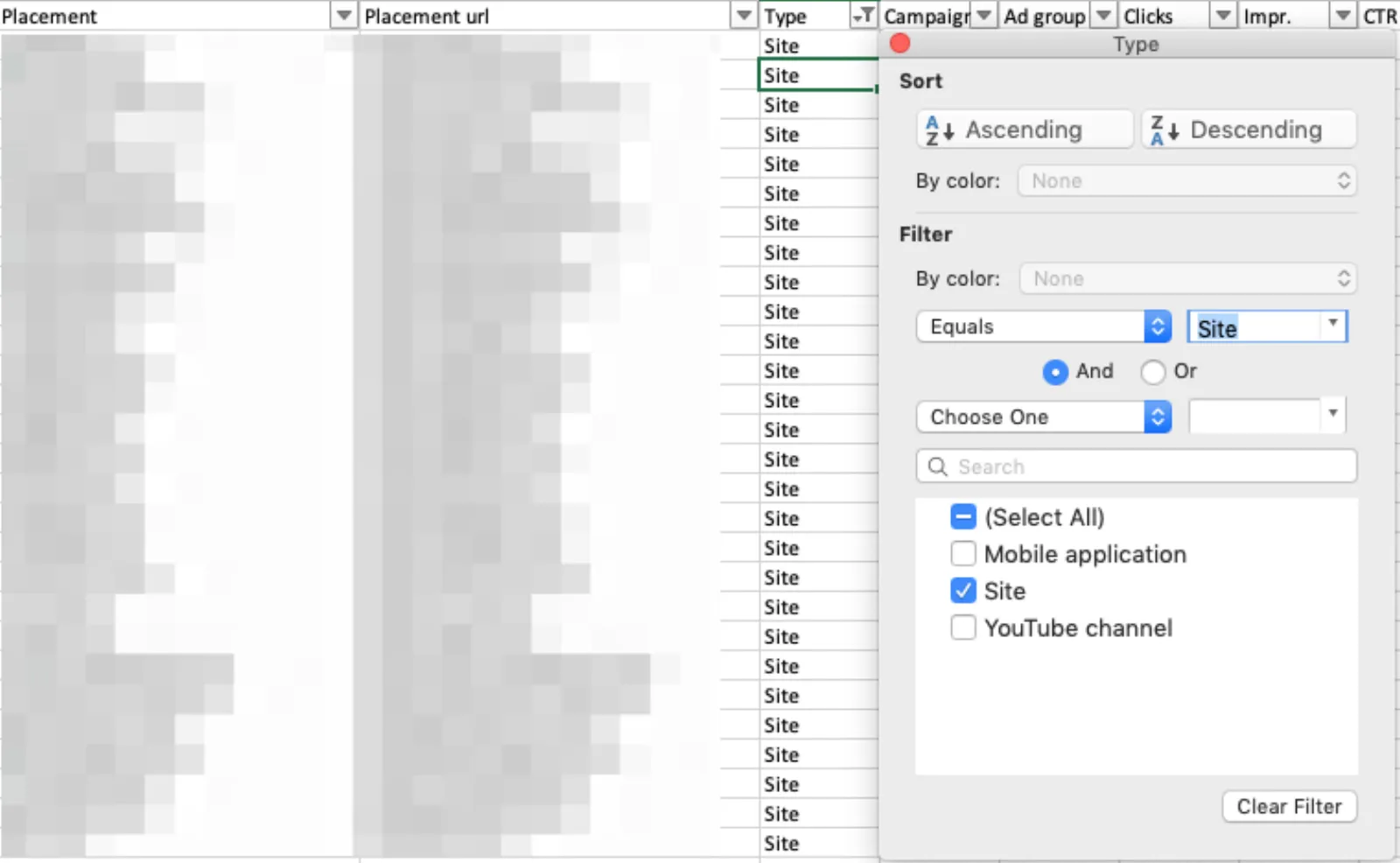
Another easy way to sort the data is by order of highest spending or highest converting placements first so that it’s easy to review top performers.
You might also want to quickly identify poor performers – all you do is use the filter function to find the URLs with high impressions but no conversions, or high cost with no conversions.
To help make the data more manageable, you can set an impression threshold and only review placements with that number of impressions or greater. This tip also ensures that you do not filter out placements too soon without a proper review.
I would highly recommend that you create separate pivot tables from these placement URLs, that will allow you to review performance at the aggregate level as well as the campaign level, so you can really get to grips with GDN performance.
Add Placement Exclusions
Once you have reviewed where your ads have appeared, you can exclude poor performing placements in three ways:
The first way is to use a method called Exclusions in the Interface.
This is great when working with only a small number of exclusions, as you can quickly find these within the interface.
 LIVE
Live every Tuesday at 2pm UK. Bring your marketing questions.
Get your Google, local SEO and AI questions answered live.
All you do is click on the placement and either select “Exclude from ad group” or “Exclude from campaign”.
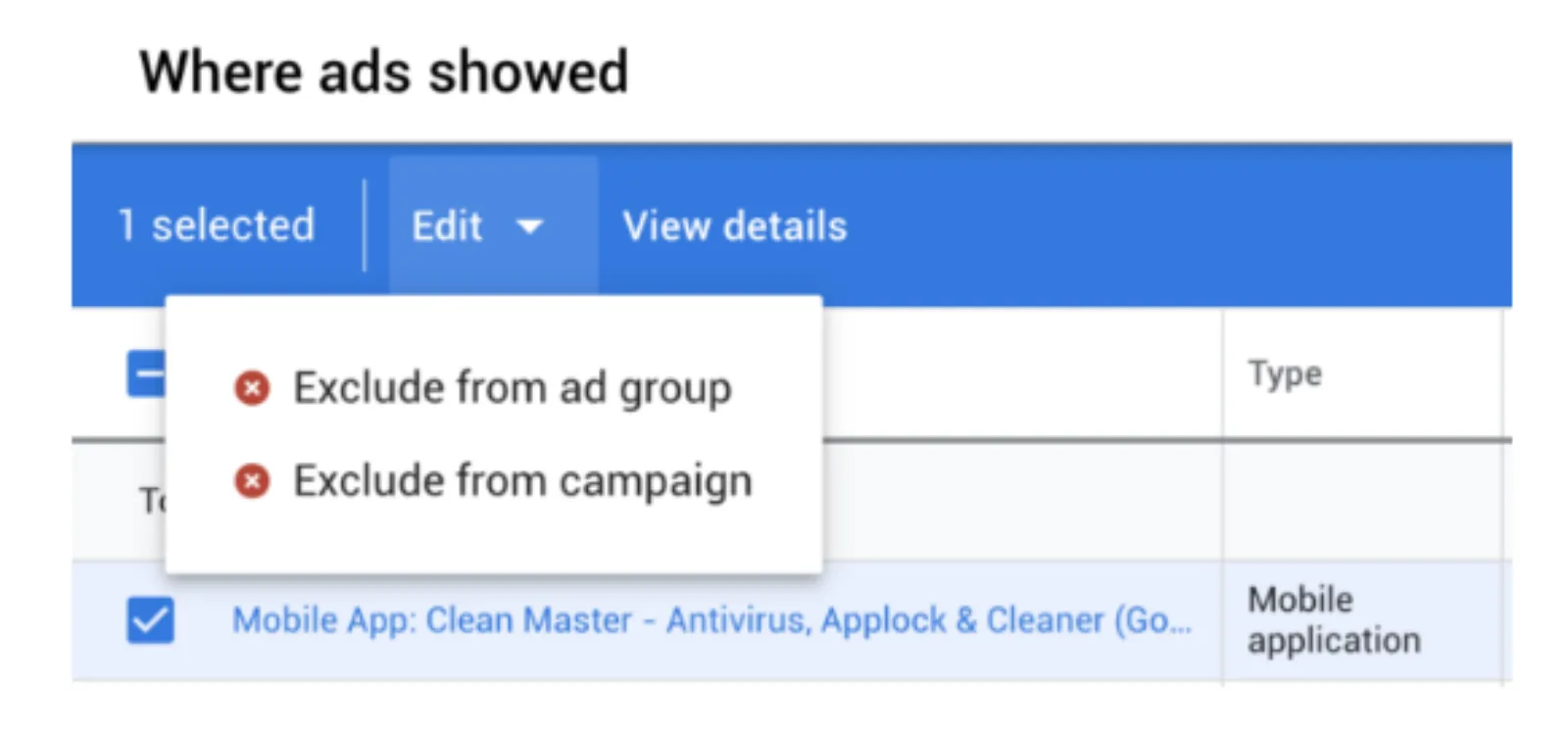
The second way to exclude poor performing placements is to use Exclusions in Google Ads Editor.
This is a much better way of excluding if you have a lot of exclusions to do as you can upload these in bulk from Google Ads Editor.
But, you will have to separate out the URL, mobile app and YouTube exclusions, as these are separate exclusions types within Google Ads Editor.
For URLs, you can do this by going to ‘Keywords & Targeting’ and then choosing ‘Placements, Negative’.
You can then upload the placement URL column and if needed, the campaign and ad group columns.
For YouTube exclusions, whether it’s by channels or videos, you will need to upload exclusions separately, by either choosing ‘YouTube videos, Negative’ or ‘YouTube Channels, Negative’ within Google Ads Editor.
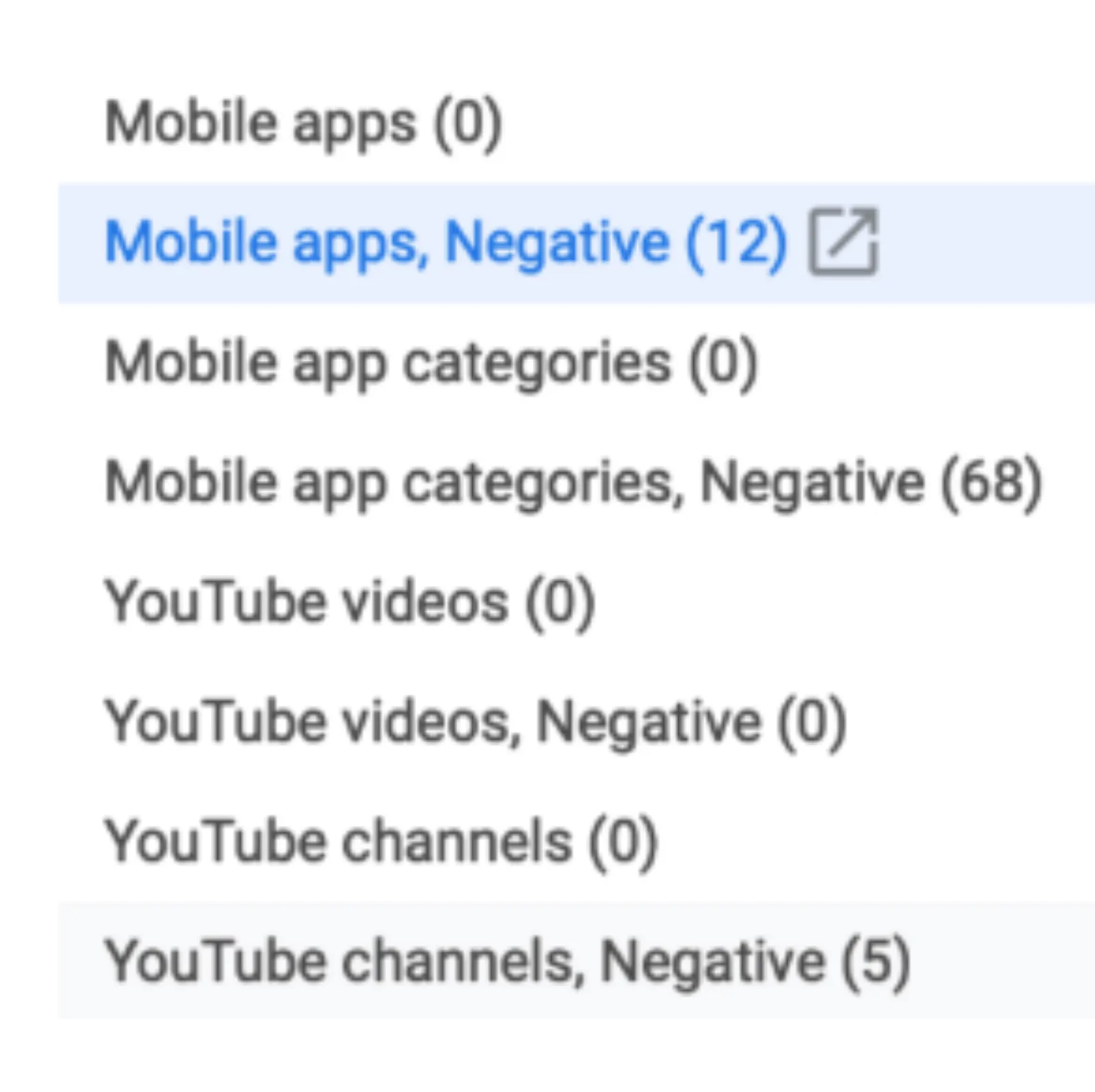
Don’t forget that for channels, you’ll need the Channel ID, which is the string of letters and numbers that appears after the .com/ in the placement URL.
The third way of dealing with exclusions that I’m going to recommend is by using Placement Exclusions Lists, which you can create within theGoogle Ads interface.
This method is very similar to a negative keyword list, as the tool allows you to add all URL, mobile app or YouTube exclusions in one list and apply to multiple campaigns, so it’s very efficient too.
I’ve found that if there is an underperforming YouTube channel or video in one campaign, I want to make sure that that same placement is stopped from reappearing in my other campaigns. because clearly that placement is not working for me.
In my opinion, this is the most efficient way to remove low performing placements, like, let’s say, YouTube kids’ channels, across your whole account.
You’ll find and be able to create Placement exclusion lists under Tools & Settings > Shared Library.
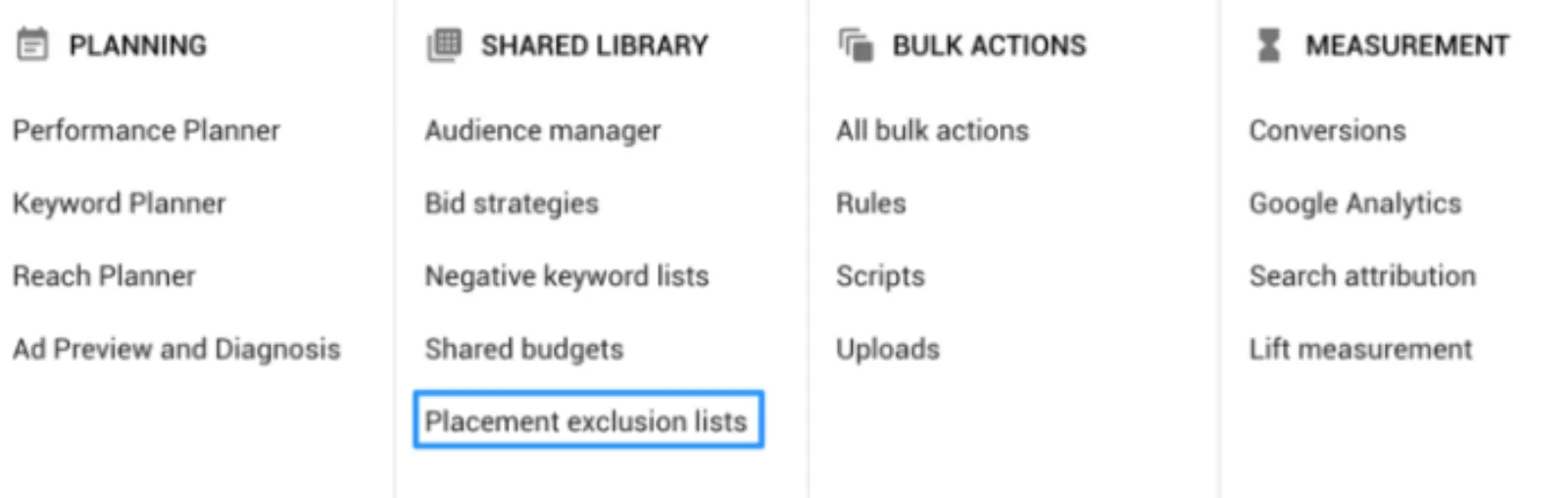
Once you’ve created your list and applied it to all the necessary campaigns, I’d recommend you use the ‘Upload a list’ bulk upload function to speed things up.
And don’t forget to Drop in the list of URLs and the type of placement you want to exclude, so for example, it could be kids YouTube channels, or sits and channels for brands that are little risky and you’d prefer to steer clear from or even unrelated placements that just don’t match your target audience.
You might also want to steer clear of any sites that are NOT .com, .net, .co.uk, .org, etc.as other endings are often spammy and you’ll just end up wasting your budget.
I hope you’ve managed to pick up some useful tips about how to review the Placements Report and how to add Placement Exclusions and enjoy putting them into practice.

Written by Uzair Kharawala
Partner at SF Digital Studios, a Google Premier Partner agency. Uzair has been helping businesses grow with Google Ads since 2002 and teaches it every week on YouTube.
Get our best Google Ads tips by email
New articles and videos, straight to your inbox. Unsubscribe any time.