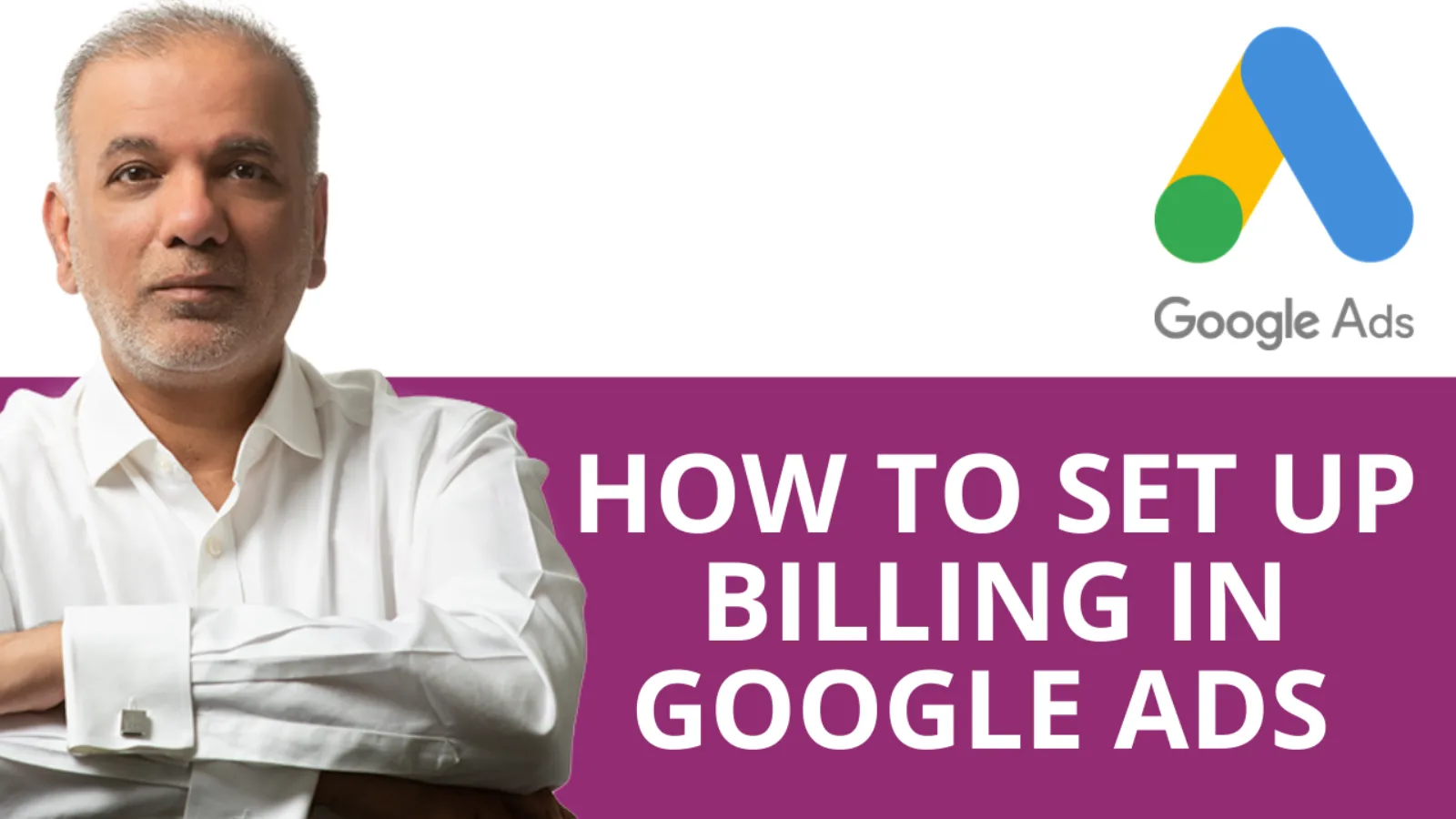
Knowing how to set up billing in Google Ads can be complicated when you are getting started. In this video, you will learn how to get started.
Here’s how to find all things billing in the interface:
Get Found, Get Chosen, Get Your Time Back
A free one-day marketing seminar in Milton Keynes · 10 November 2026
Click Tools & Settings.
Get your free Marketing Action PlanNot sure where to start? Answer a few questions and get your plan in about a minute. No email needed.
Get my plan →And under the Billing tab, you’ll see all your billing details and settings.
Payment Options
There are three ways to pay for Google Ads:
Automatic Payments: Google charges you after your ads run. Payments are due 30 days after your last automatic charge, or when you reach your payment threshold.
Manual Payments: Pay before your ads run. This account credit will spend as your ads run. As your clicks (and costs) increase, your credit decreases. Your ads stop when your credit runs out.
NOTE: Paying with manual payments is not an option for new accounts in many countries, including the United States and Canada. You should, however, be able to make manual payments on an existing account by clicking Make a Payment from your Google Ads Billing and Payments screen.
Monthly invoicing (credit line): Eligible businesses can pay monthly invoices via a Google credit line. If eligible for this payment option, pay Google monthly (via bank transfer or check) by the date specified.
NOTE: Most companies who pay with monthly invoicing has been registered as a business for at least one year, and have had a minimum ad spend of $5,000 for three out of the previous 12 months.
Payment Threshold
If you make automatic payments, your automatic payment will cover charges up to a certain amount— this amount is your billing threshold (or payment threshold). You will be charged when your account spending reaches that threshold, even if your next automatic payment is not yet due.
If you reach the threshold before 30 days (the period covered by your automatic payment), your threshold will rise. Depending on how quickly you accrue pay-per-click costs, you could be charged multiple times monthly.
You are not notified when Google Ads billing raises your threshold. I recommend checking your threshold often to ensure you are not overspending your digital advertising budget.
Payment Method
According to the country of your business address (and your payment option), you can pay your ads by credit, cheque, debit card, or bank transfer. To set your primary and backup payment methods, do the following (from the Billing and Payments screen): find your preferred payment method and select “primary” or “backup” according to your preference.
Your payment frequency and payment method options vary by country. You can discover what options you have by clicking the link below, selecting AdWords/Google Ads from the drop-down, and choosing your country and currency.
SEE YOUR PAYMENT OPTIONS
Account Budgets
 LIVE
Live every Tuesday at 2pm UK. Bring your marketing questions.
Get your Google, local SEO and AI questions answered live.
Formerly called budget orders, these allow you to specify a set amount you’d like to spend on your PPC campaigns over a designated period of time. Once you reach your budget end date or your spending limit, your ads will stop. You can also set daily budgets. This option is only available to eligible advertisers who use monthly invoicing.
View Billing Activity
There are several ways to view your billing activity and transaction history within Google Ads billing.
If you need statements or other documentation of ad spending for budget or tax purposes, you can find that information in your account and save it to your computer, or print it for your records.
From the Billing and Payments screen, take the following steps:
Click Transactions.
Click View Transactions.
Set the date range according to the dates of the statements/local tax invoices you’re looking for.
Click Documents to see available billing documents for that time period.
Choose the document you want to view and click download.
Right-click to save to your computer, or select File —> Print from your browser window to print the documents.
Billing Activity: Tips and Troubleshooting
Here are some things to keep in mind when searching for statements, transactions, and local tax invoice information.
Local tax invoices and statements for a given month are available on the 5th business day of the following month. There are sometimes delays if this date is near a weekend or holiday.
If there are no payments made or no account usage, no documents will be generated for the date range you selected. Your documents should automatically download as PDFs for viewing and printing. Turning off your pop-up blocker makes downloading these documents easier.
If you need to download or print a receipt for a specific charge, go to your Billing and Payments menu, then Transactions —> Detailed Transaction view. Click the payment link for the receipt you want to view and download/print the information for that payment.
If you can’t find this information, double-check your date range, and confirm your ad spending and activity for that time period with your marketing team or agency.
What’s’ the Best Way to Pay?
Since manual pay isn’t available for new accounts and hasn’t been an option for US and Canada advertisers, most businesses (if their monthly ad spend is under $5K) will be using automatic payments. So, here’s the question: prepay or post-pay?
Google Ads billing prefers post-pay because your ad spending doesn’t stop mid-month. The advantage for you? Your ads don’t stop running either. That’s good news for your marketing strategy, and your Search Engine Optimization (SEO).
Pre-pay, on the other hand, maybe the best choice if you’re testing a particular type or group of ads for a designated period of time, or if you’re on a tight budget.
Whatever your payment options, keeping an eye on your Google Ads account (to track your spending and analytics) is a great way to stay in the black. Knowing best practices for crafting and bidding on ads keeps overspending to a minimum, too.

Written by Uzair Kharawala
Partner at SF Digital Studios, a Google Premier Partner agency. Uzair has been helping businesses grow with Google Ads since 2002 and teaches it every week on YouTube.
Get our best Google Ads tips by email
New articles and videos, straight to your inbox. Unsubscribe any time.