Hello. I've just found a little corner of the internet from where I can drive very targeted traffic to my website. I don't need to do much work, create a lot of content, and the best of all is there is hardly any competition on it. Keep watching and I'll show you how.
Hello and welcome back. I'm Uzair, and thanks for joining in. If you like videos like this one, then please don't forget to subscribe and hit the bell notification button, and you'll be the first one to get notified when I upload similar videos like this one. So let's get started.
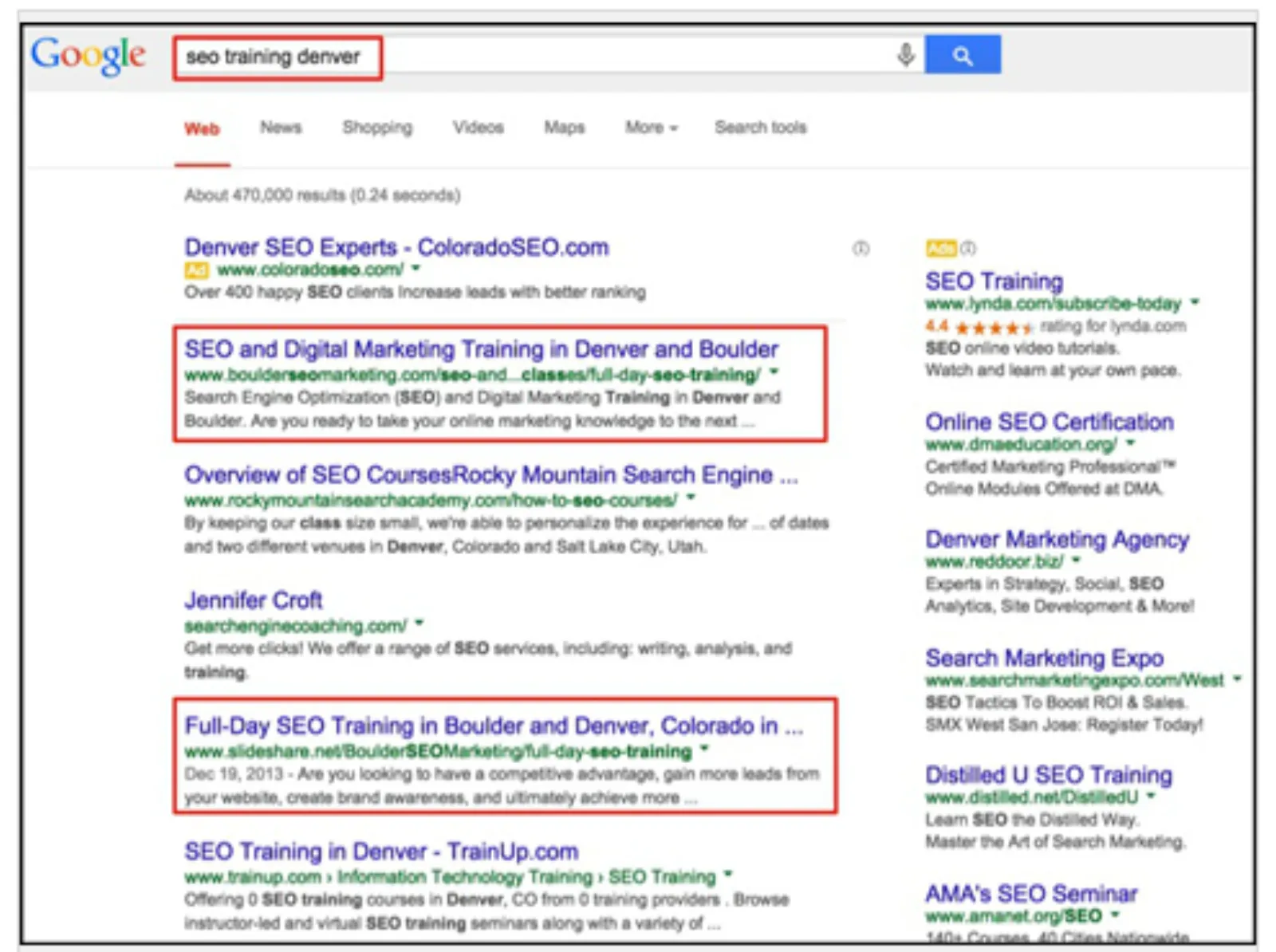
So recently I was on Google and I was searching and looking for something, and I came across a link on Google page one from a website called SlideShare. Now, I had heard of it, because I do use LinkedIn quite a bit, but I had never paid any attention to it. So I looked at it and I thought, this is quite interesting. Then I went to a business networking event and I found out that how big and huge SlideShare is.
So I looked into it and tried to find out how I can leverage this network as well, or channel, to put my message out there and put my content for my audience, and obviously drive traffic to my website. And I found a way which is extremely easy. I don't have to do much work, and I'm going to show you how I'm doing it. So I'm also fairly new, I'm learning along probably with you as I'm go along, so if you do see anything which may help others, please put that in the comment box below and I'll really appreciate that.
Okay, so what is SlideShare? SlideShare is part of LinkedIn now. It was started in, I believe, around 26, 2006, and was taken over by LinkedIn, and now it is part of LinkedIn. So you need to have a LinkedIn account as well, but I believe you can have an independent account on SlideShare and to, are to run one as well. But as you can see, the LinkedIn logo is over there. So people and professionals put up the PowerPoint presentations over here.
It is, I believe, now in 2018 is in the top 100 websites of the world. Not many people are using it. It has got about over 80 million visitors per month. Although it is big numbers, comparatively your competitors are probably not using it. So I would highly recommend that you can get started, repurpose your blog post or your videos or presentations and put it out there, because this will get indexed in Google very, very quickly. Just like Pinterest does, you get ranked very high, very easily.
So lots of companies over here, and also professionals, business owners, upload their PowerPoint presentation. Now that's quite a bit of work if you haven't got a PowerPoint presentation, so you need to create one, repurpose your blog post, etc. So the way I am using a SlideShare is to upload my YouTube videos, which like this one, on SlideShare, to put, to make it into a video presentation, which is even more powerful than a deck of slides.
So let's have a look at this example of this slide and see what we get. So you can see this one has got about 55 slides, and that's all you can do, is to just go through it and go through the slides and see it. But what I'm doing is I'm going to insert my video on it to make it even more powerful. So let's get started.
So first of all I need to go into my Google Drive, and now created a Google slide. All you need is two slides. One is a front cover and the other one is the last one, which is the thank you one. On the front cover, I then, for the, for the front cover, I then go into Canva and I design a cover. So for this one, for this video, I'm going to put up that video for how to set up your website goals. So I put in a photo, and if you haven't used Canva, it is super easy, super quick. It hardly takes a few minutes to create that.
Once I've designed it, I'm going to download that as a PNG, and it's going to take a couple of seconds. So I'm really excited to be using a SlideShare as well as part of my content distribution strategy, and it is definitely one of the channels which, where I am going to repurpose all my content on there.
So, then, then I go back to my slides, insert image, and once the computer wakes up. So always the case, when you are trying to make a presentation or a video, the computer goes super slow. Okay, it's my PNG. Okay, so there it is. I'm just going to stretch it a little bit so it fits the whole slide. Okay, so now that's done.
So that's all I need to do. I don't need to create dozens and dozens of slide decks. All I need is the front cover and, well, the back cover, other, and when, where I've got my message for a thank you message and all my contact details in here. Then I'm going to export or download it as either a PowerPoint presentation or as a PDF, whichever one you want. So I'm going to create, download that as a PDF. Okay, now that's download it.
Then I'm going to go into my SlideShare account. So I'm already logged in, as you can see, it's my little photo up there, and I'm going to upload. So now you get the choice of whether, which file size you want to upload, or you can also upload from these various cloud hosting services. I'm going to upload my file as a PDF. There it is.
Then you can put up a little bit of description. So I'm just going to copy that's from my blog post. Now, I'm not sure how was the maximum number of characters which are allowed in the description box, but I copied about four paragraphs or so. I'm mistaken that I'm gonna read the full blog post here, so there's a link to my, back to my website.
Now, what most people do is they will just link up just like that, the HTTP or www. But what I want to do is to be able to track where this traffic is coming from. So I'm going to go into a little web page which is the Google URL builder, so the Campaign URL Builder. Go in there. Campaign source is SlideShare, and the campaign medium is website goals, which is the name of the blog post.
Then at the bottom over here you get this long URL. First you need to convert that into your shortened URL, copy that and paste it here. So now when someone does come through this link, either by clicking or by tapping in their browser, I'll be able to see in Google Analytics that this person or this traffic has come through SlideShare. So it's a great way to track traffic and to see the effectiveness of your traffic channels.
Okay, so category. I would imagine either business, or I think there was marketing in here as well, some put in marketing. Privacy, you've got public, limited or private. I'm going to leave it as public. Tags, I'm going to add as Google Analytics, because this is all about Google Analytics, digital marketing, and I'll put in two or three tags. Again, I don't know what's the best way or to put up the tags, because I'm fairly new to this as well, but I'm going to just put in a couple more, because we do Google AdWords as well. So okay, I'm gonna put these three, and I'll put in the description.
Now, what I want to do is to insert a YouTube video between the first and the second slide, but I can't do that right now. So all I need to do is to publish it first. But before that I need to change the title, so I'm just gonna copy that from my blog, because it takes the file name as the title. So just make sure that you put in a title which makes sense. So, how to increase website conversions using goals. Okay, publish.
Once it's published, then you go into, and now you can see there are two slides, one of two and then the second one. So it has uploaded properly and it's working fine. But now I need to put my YouTube video. So I go to edit and then add YouTube video, and then you put in the YouTube video URL, which I'm going to grab from my other screen. I copy that, and that's how easy and simple it is. Just paste the URL, and then you can select the position or the placement of your video.
So whether you want it before slide one, after slide one, after slide two. I want to be between 1 and 2, so it will be after slide 1. If you want another YouTube video, so if you've got four slides and then you got on another one in there, all you do is add another video and then you'll be able to select where that video placement is. And then you insert and publish, and I've got the message: your video has been successfully inserted into your presentation, view it here.
So let's go and see how it looks. Now I've got it as one of three. But every time you see a SlideShare presentation document and it has got a video in it, you will get that little YouTube logo on the top left hand corner, that YouTube video inside. So people can see that there is a video in there, which is great actually, because people won't know whether there is a video in there or not. So now I go to the second slide, and there you go, my video has been inserted. I'm going to play it and check if it is working fine.
And see how powerful this is, because you can really engage with your audience by pretty much making a presentation to a worldwide audience, rather than a handful of people in a room when you're doing a business presentation. And it is a lot more powerful compared to just a slide, deck of slides which has got, just got image, images and some text on it. So that's all done, and that is it pretty much. I'm not forgetting anything, I don't think. I'll just check.
Now, at the moment these hyperlinks are not working right now, because I've got less than five uploads. So after the fifth one, they all become hyperlinks. So when you do upload a PDF with hyperlinks in it, so they are all clickable links. But I don't believe that you can get backlinks from here. But I would recommend that you put in a bit of text so that it is all about that video and also about your blog post. And that's about it. I believe there isn't anything else to do.
The other thing which you can do is, if you go to my uploads, you can then share that to your LinkedIn profile. But I tried to do that before and it wasn't working for some reason. Let me try it again. And it was giving me some kind of an error. Yeah, I think there's some kind of bug on, on here. So you can try it and see if it works for you or not, and if it does, then please do let me know in the comment box below.
So as you can see, I've uploaded other slides as well. So what I'm doing is I'm repurposing my content. It's a great way to put your content without having to do a lot of work or creating additional or new content. All I'm doing is, I've got that video on YouTube, or sitting on YouTube, all I'm doing is putting one up over here, as I've been demonstrating to you how to create a SlideShare upload.
It usually takes less than five minutes, literally, you know, once you've done your two slides. You download that, upload that, upload it to SlideShare, put the description, add the YouTube video and job done. And hopefully from here I will start to get more traffic to my website, and also get my message across to my targeted audience.
So that is it for this video. I hope you enjoyed it. If you do want me to create similar videos like this one, then put that in the comment box below and I will do my best to create one for you. I really do appreciate your time with me, and I thank you for that, and I hope to see you in my other videos sometime very soon. Bye for now.



 LIVE