
Ad extensions expand your ads and increase CTR, ad rank, quality score and decrease spending while increasing conversions. Let’s learn a little more about each Google Ads ad extension type in this video.
The main Ad Extensions within Google Ads are:
Get Found, Get Chosen, Get Your Time Back
A free one-day marketing seminar in Milton Keynes · 10 November 2026
Sitelink Extensions
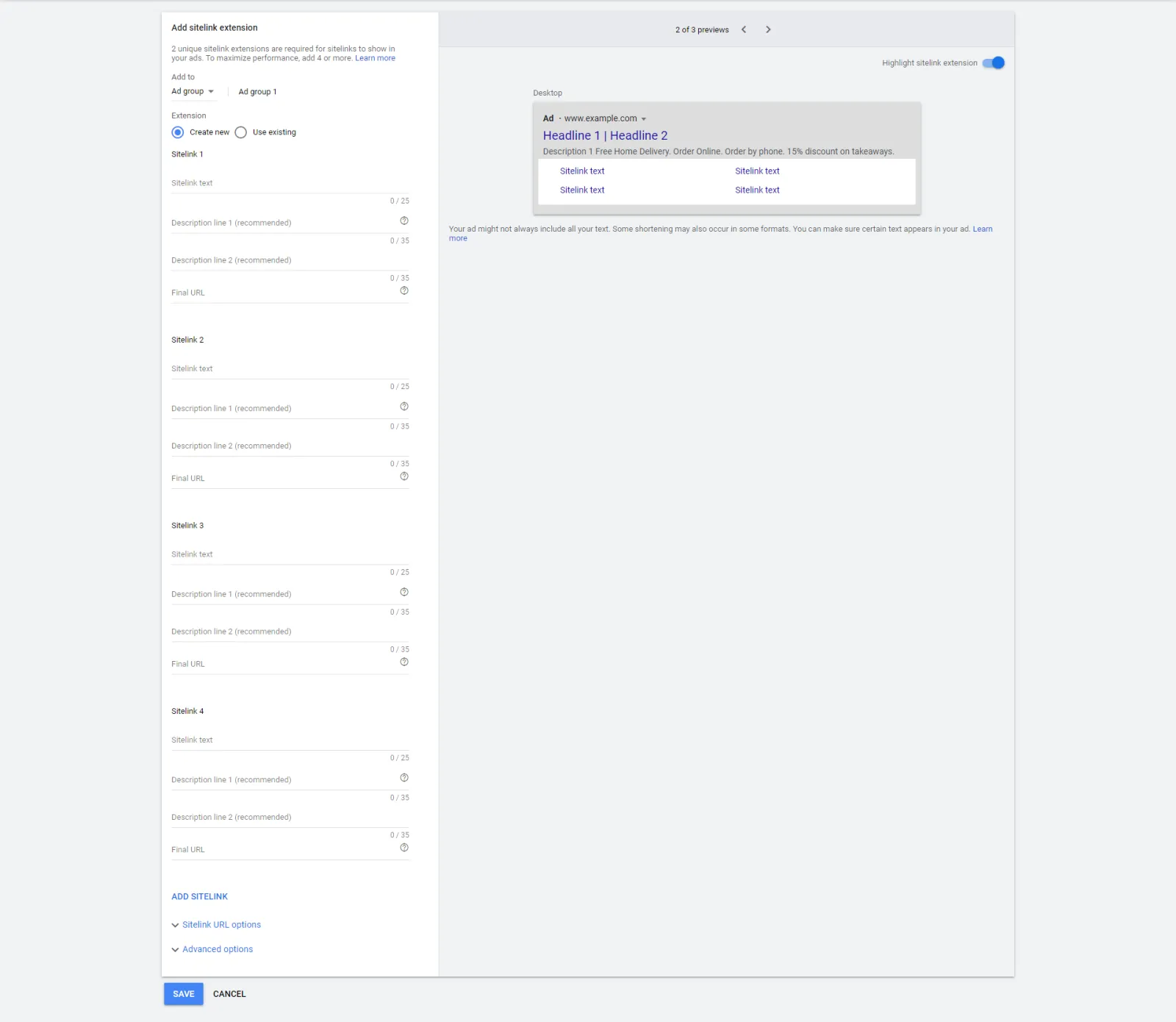
Adds additional links under the main copy of text within an ad. These links go straight to other pages on your website that you want customers to visit.
Get your free Marketing Action PlanNot sure where to start? Answer a few questions and get your plan in about a minute. No email needed.
Get my plan →Callout Extensions
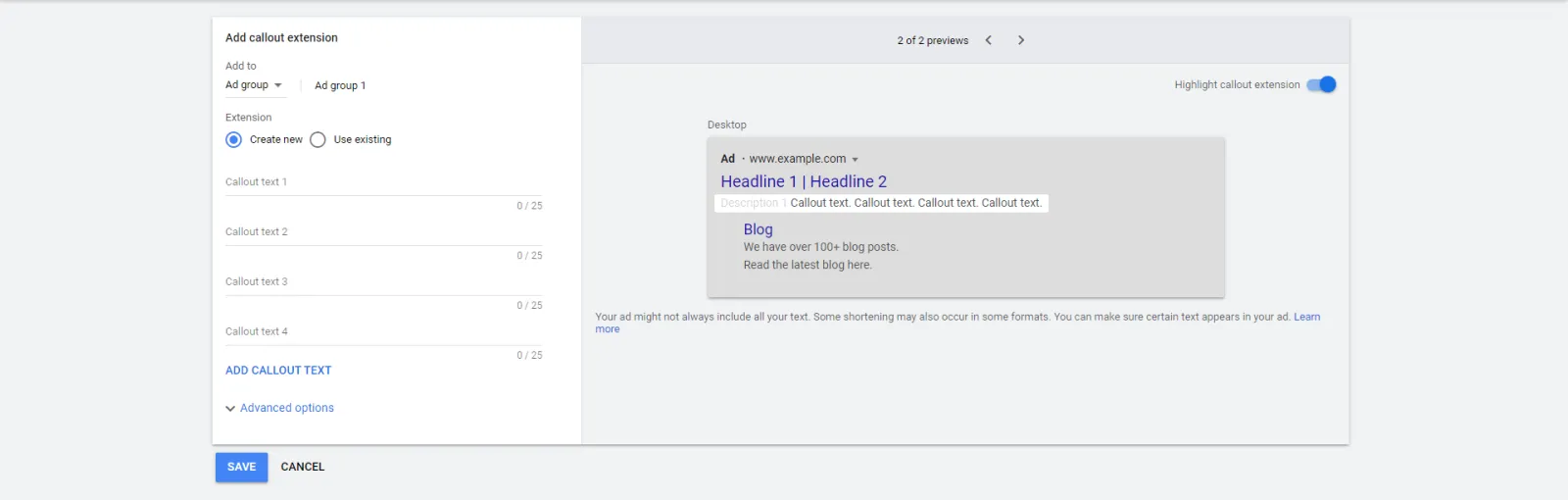
Callout Extension is short bits of text describing the most interesting and valuable qualities of your business or whatever you are promoting.
Structured Snippet Extensions
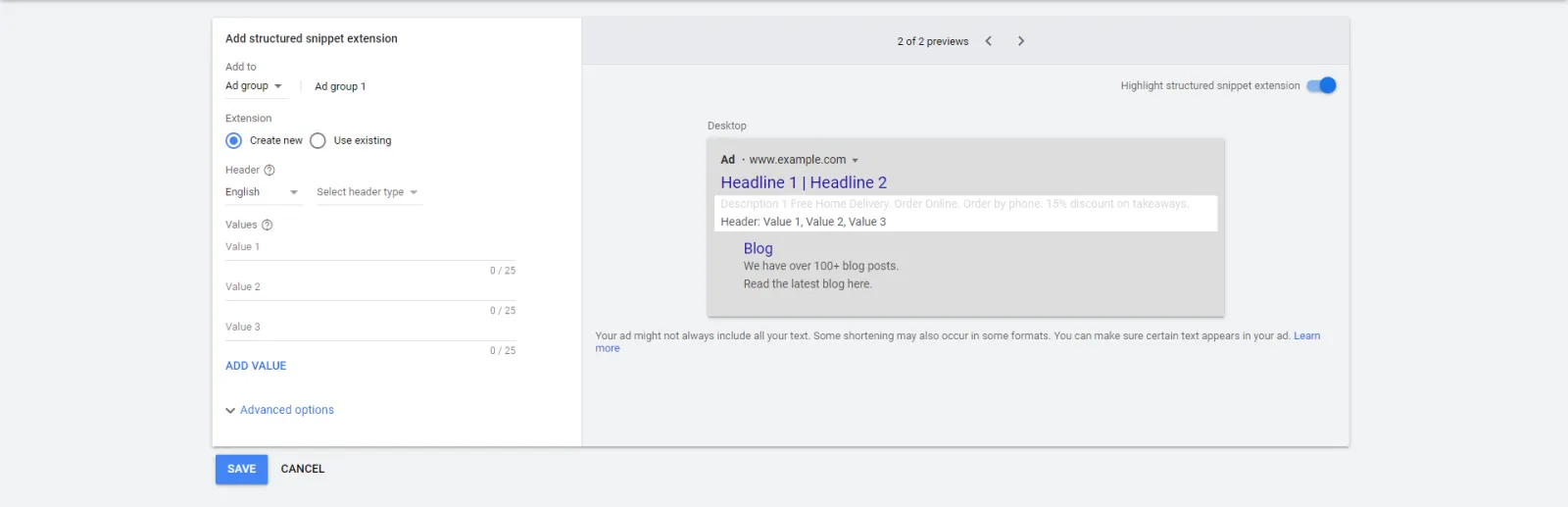
Structured Snippet Extensions zoom in on specific bits of information that you think will be valuable to your customer and will attract their attention to the ad and your brand.
Image Extensions
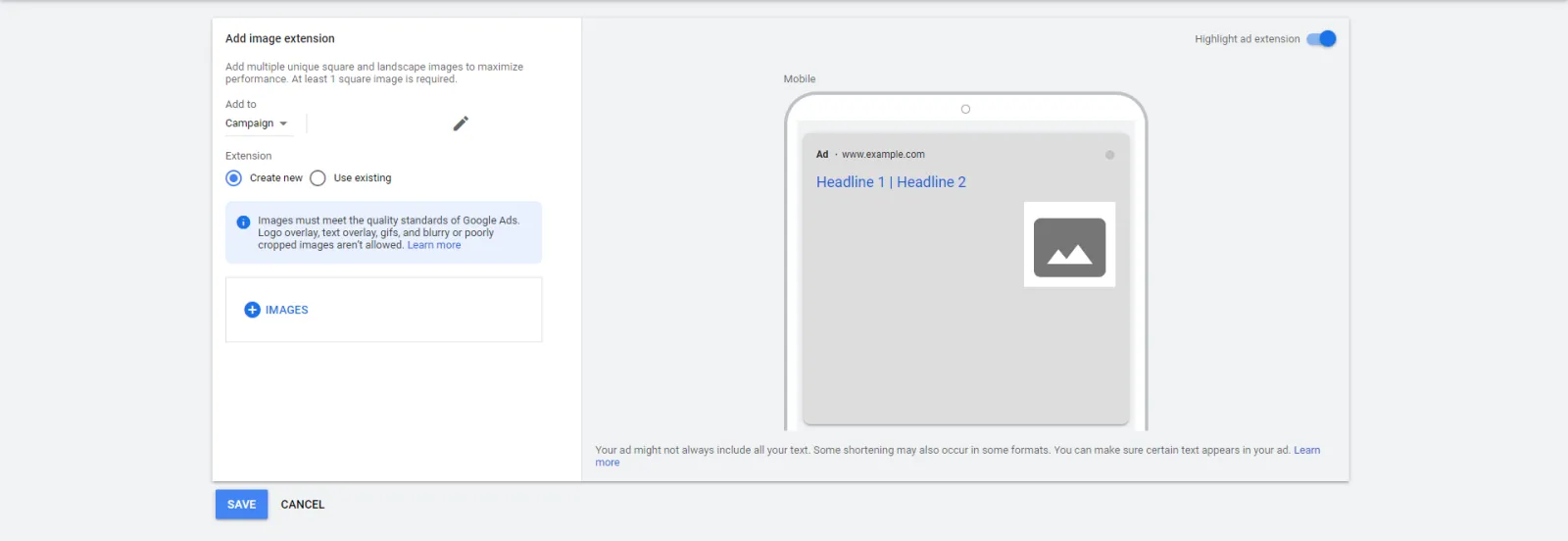
Allows businesses to upload relevant visuals to complement and add to their already existing text ad.
 LIVE
Live every Tuesday at 2pm UK. Bring your marketing questions.
Get your Google, local SEO and AI questions answered live.
Call Extensions
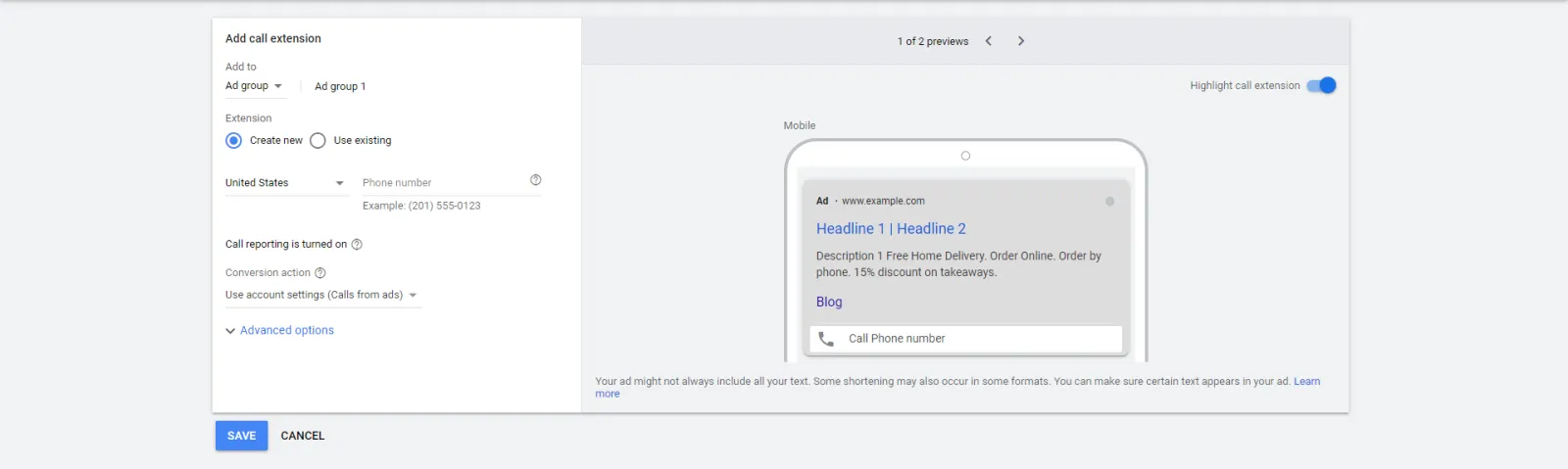
If your business has a phone number that you want your customers to use then the call extension is a must for your ads. On mobile, customers can just click the number and it will direct the call to your business.
Lead Form Extensions
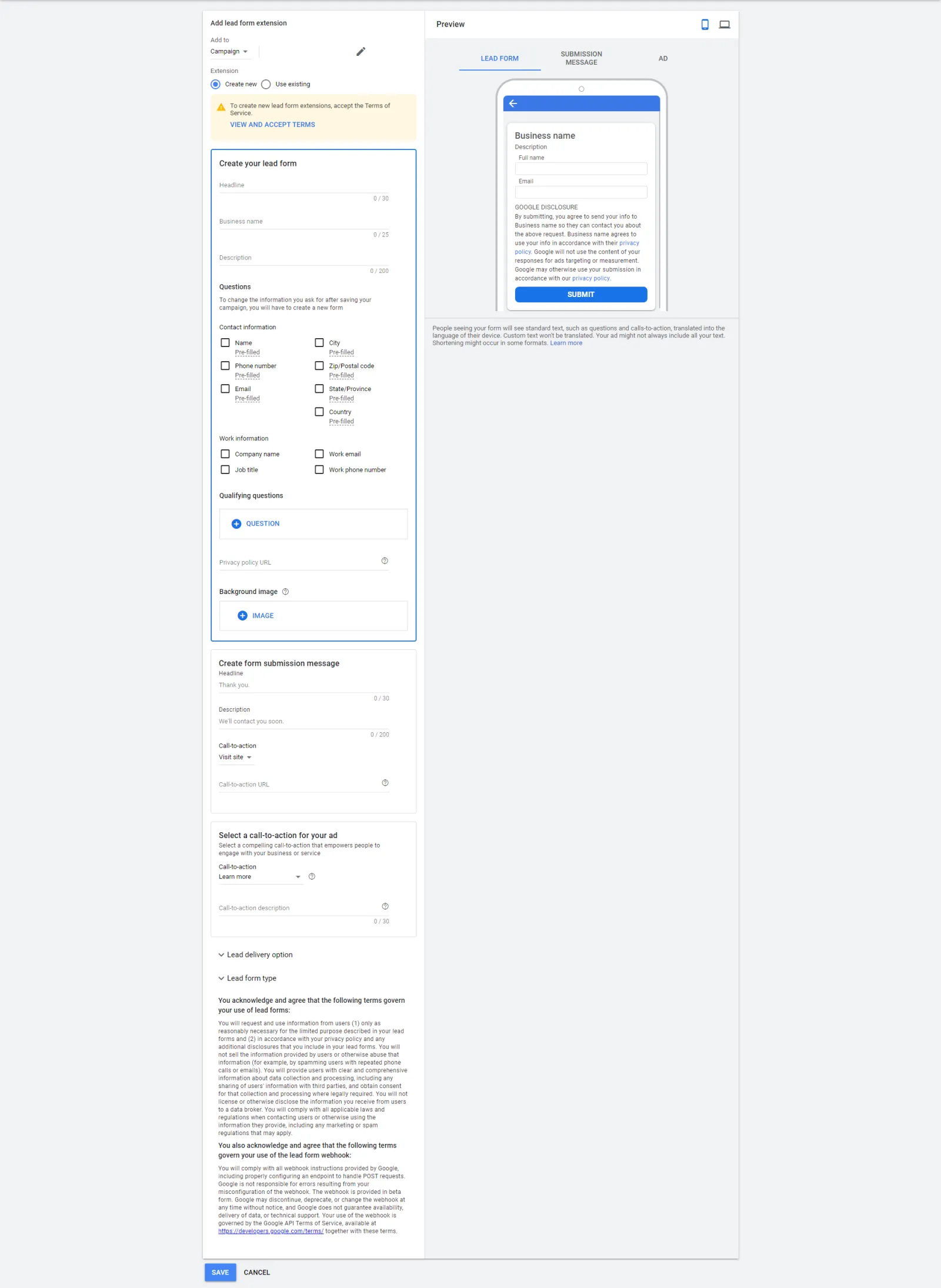
They are the newest form of Google Ad Extensions and allows customers to contact your business in few clicks, directly from the ad. They’re able to submit information from a form on your ad and you can contact them as soon as possible.
Location Extensions
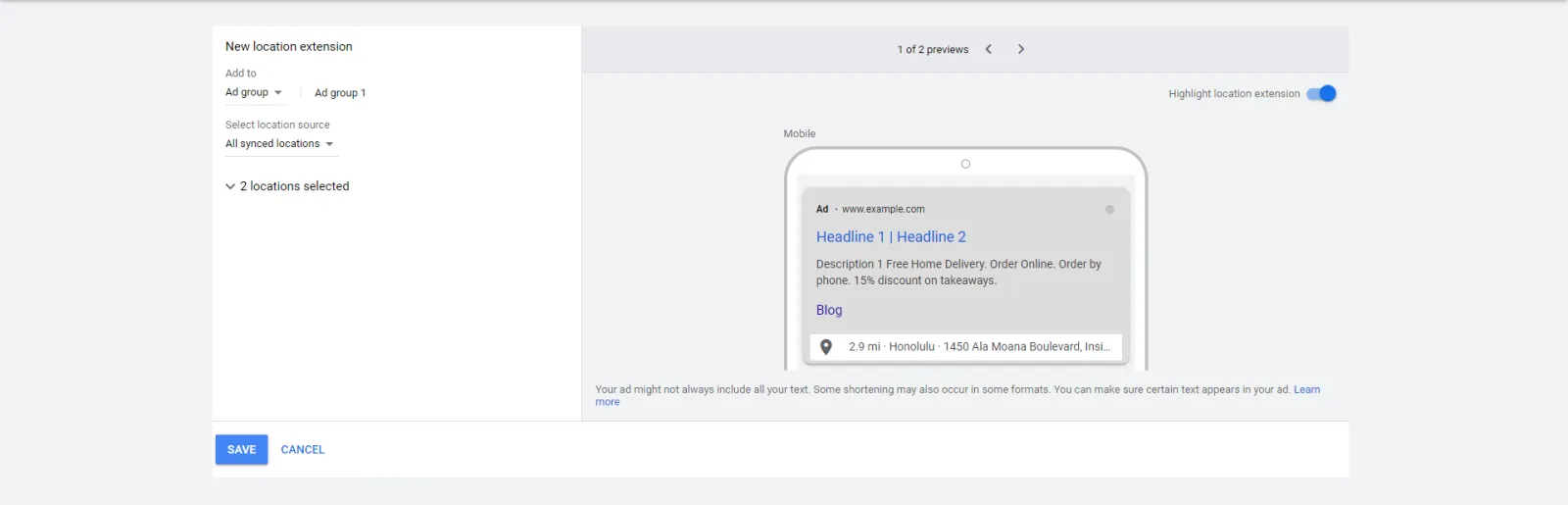
This extension highlights a business address, phone number and Google Maps link so you can click on it and find the directions to the business in a flash.
Affiliate Location Extensions
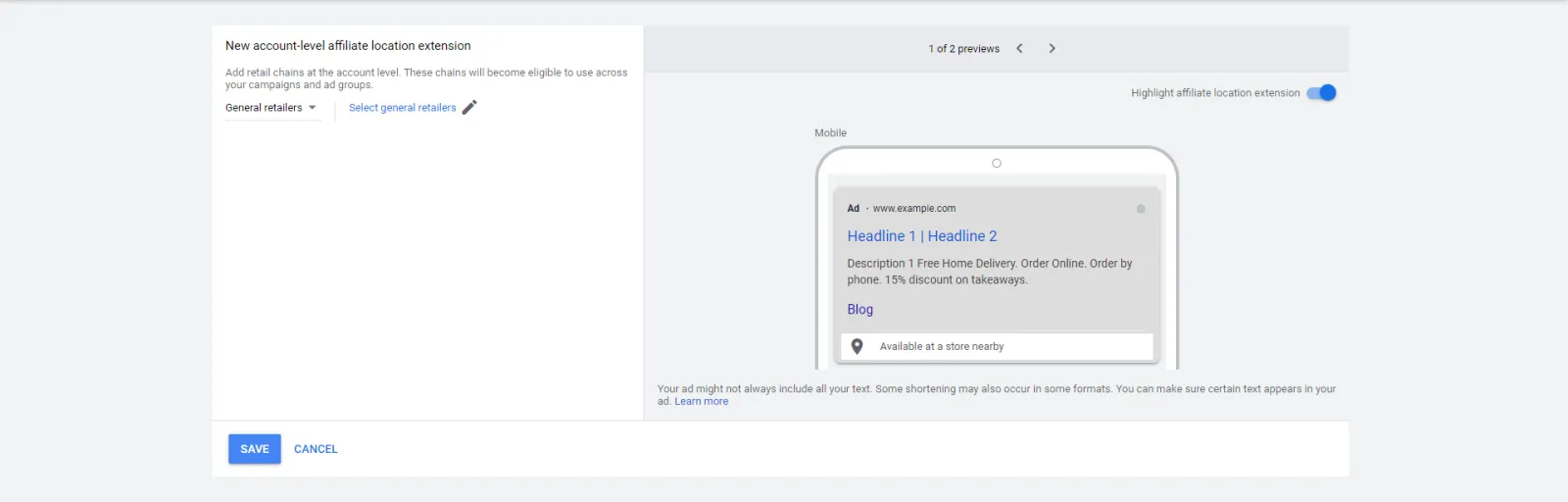
Use this extension to direct users to other locations that are authorized to sell your product. For example, a wholesaler or other store branch.
Price Extensions
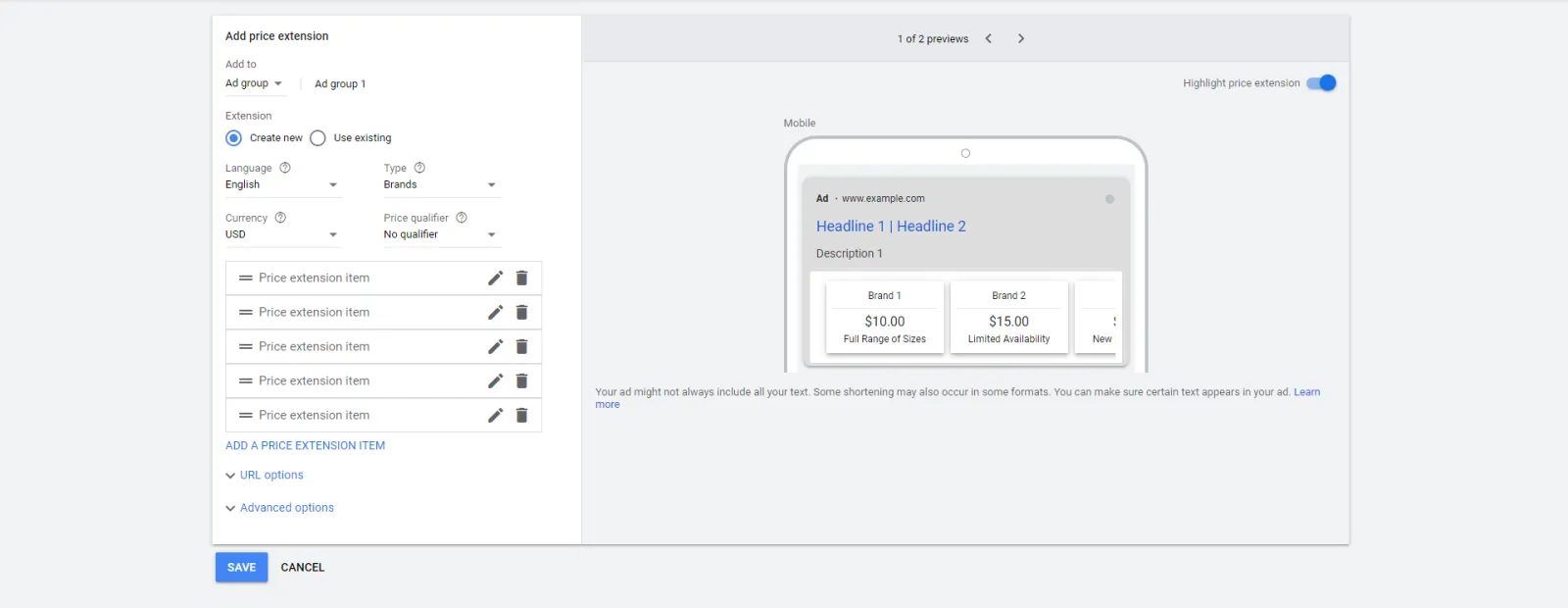
The Price Extension sets a clear expectation by informing users about pricing upfront and showing them what the actual price of the product is, not what it might be.
App Extensions
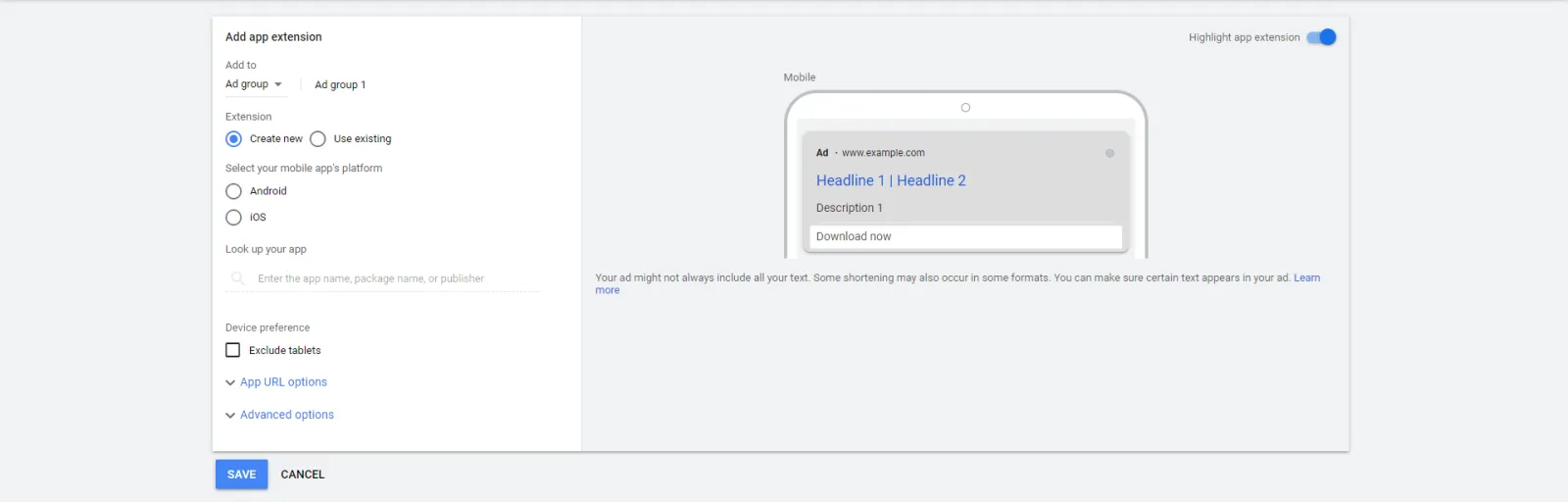
App Extensions are more visible and make it easy for customers to download the app directly from a text ad.
Promotion Extensions
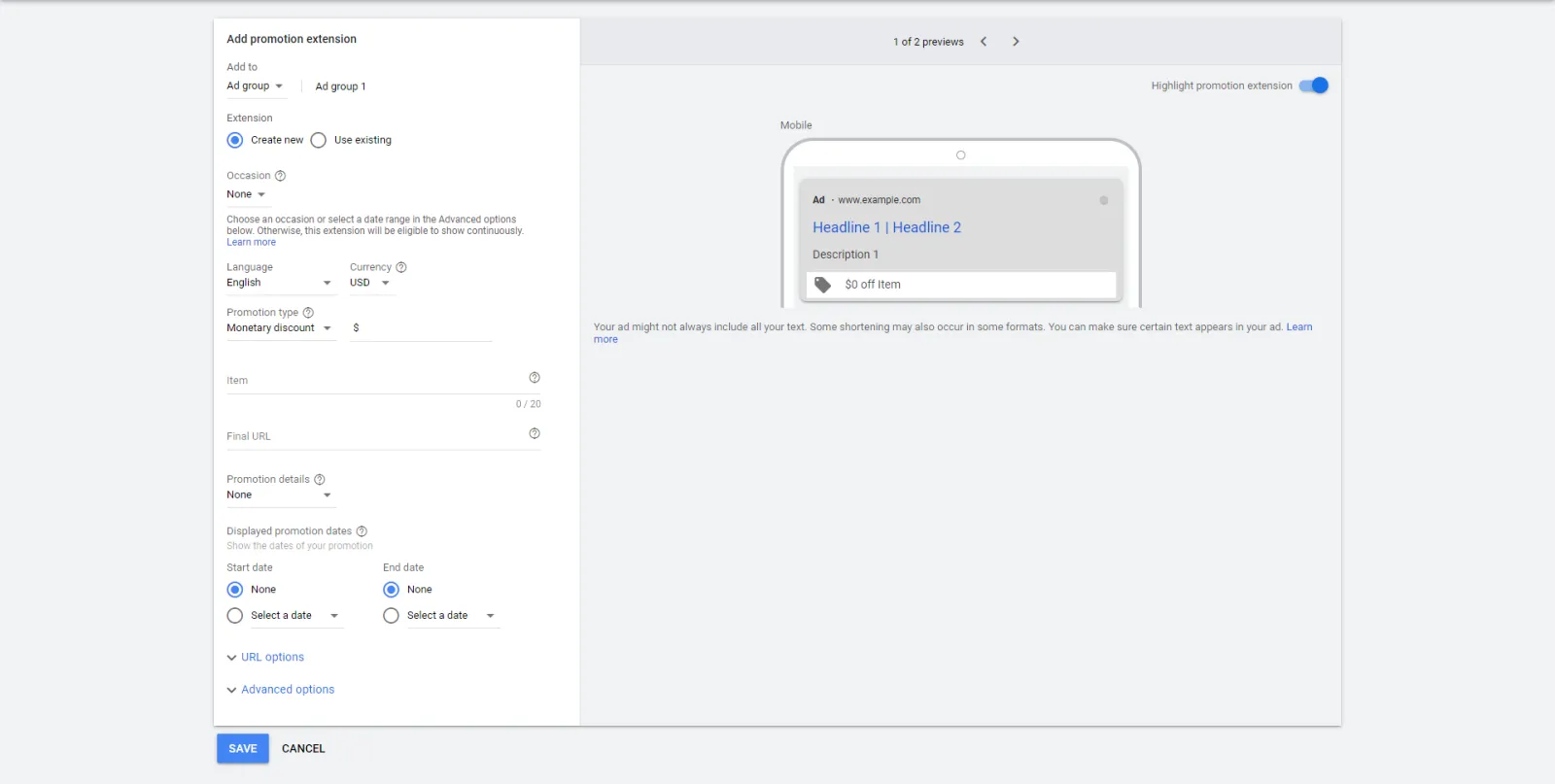
This extension highlights if your company has any deals going and if your customers are eligible to receive said discount or promotion.

Written by Uzair Kharawala
Partner at SF Digital Studios, a Google Premier Partner agency. Uzair has been helping businesses grow with Google Ads since 2002 and teaches it every week on YouTube.
Get our best Google Ads tips by email
New articles and videos, straight to your inbox. Unsubscribe any time.