
If you own a website or run a blog, chances are you’ve heard of Google Search Console. Maybe you even signed up once but weren’t sure what to do next. Don’t worry, it’s not as complicated as it sounds. In this post, I’ll walk you through what Google Search Console is, why it’s useful, and how to use it in a way that makes sense. Whether you’re a small business owner, blogger, or just curious, this guide is for you.
What is Google Search Console?
Google Search Console (GSC) is a free tool provided by Google. It helps you understand how your website is performing in Google Search. Think of it like a dashboard that shows you how your site is doing in search results, what’s working, and what’s not.

Get Found, Get Chosen, Get Your Time Back
A free one-day marketing seminar in Milton Keynes · 13 January 2027
With GSC, you can see which keywords bring people to your site, which pages are popular, whether Google can access all your pages, and if any issues are stopping your site from being found.
Get your free Marketing Action PlanNot sure where to start? Answer a few questions and get your plan in about a minute. No email needed.
Get my plan →Why You Should Care About It
A lot of people think they can just publish a website and wait for visitors. But it’s not that simple. Google needs to be able to find your site, understand what it’s about, and decide if it’s useful enough to show to users.
That’s where GSC comes in. It’s a communication channel between you and Google. You can use it to:
- See how often your site shows up in search
- Find out which search terms bring traffic
- Check if your pages are mobile-friendly
- Get alerted about errors like broken links or server issues
- Submit new content for indexing
And again, it’s completely free.
Setting Up Google Search Console
Getting started is simple. Here’s how:
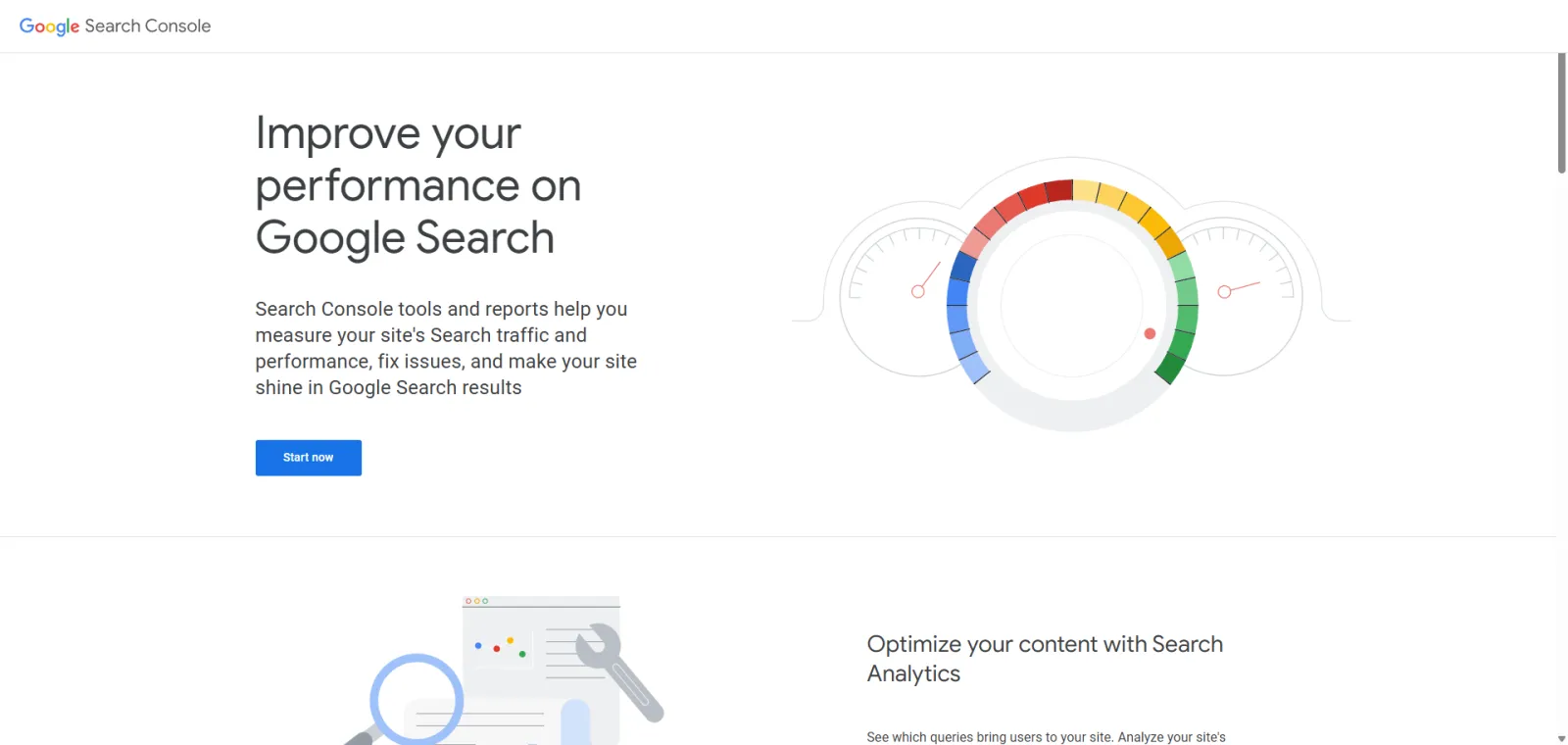
Go to Google Search Console.
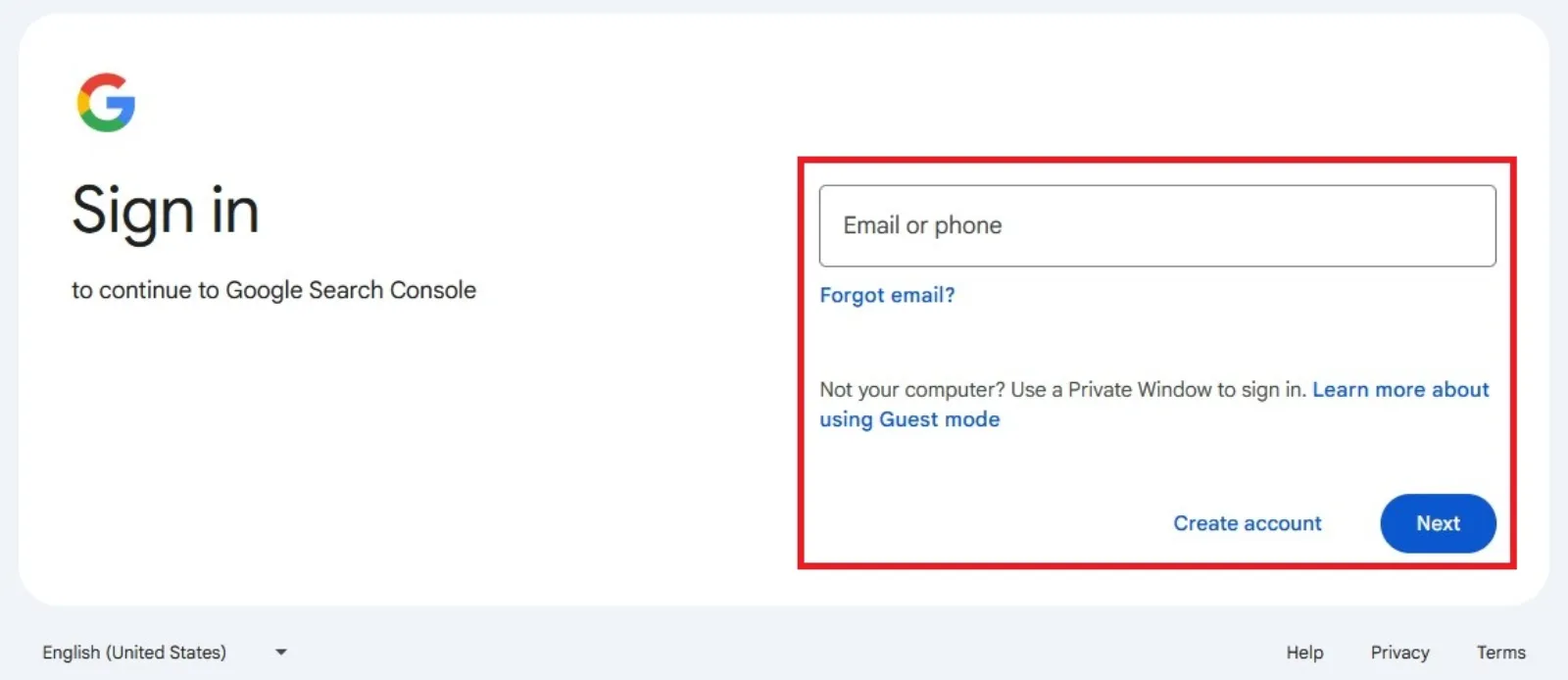
Sign in with your Google account (preferably the one linked to your website).
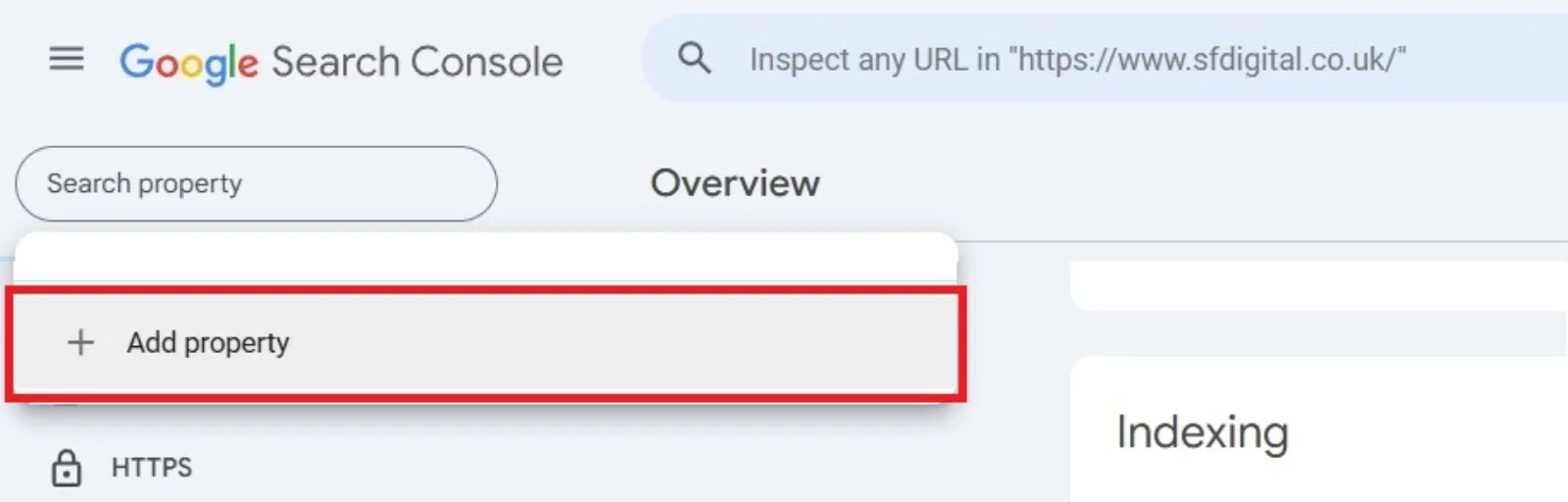
Click “Add Property.”
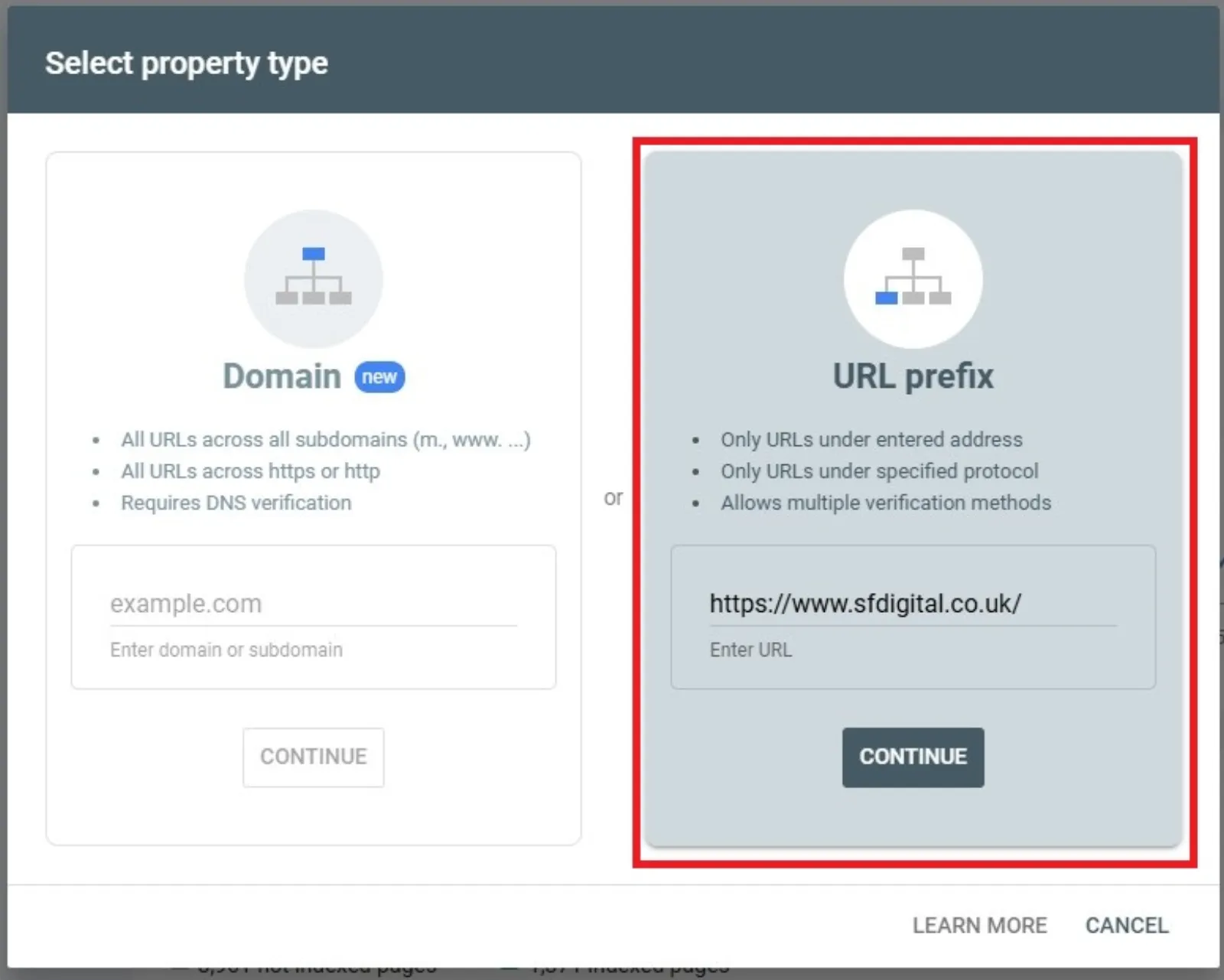
Choose either “Domain” (covers everything, including subdomains) or “URL Prefix” (for a specific address).
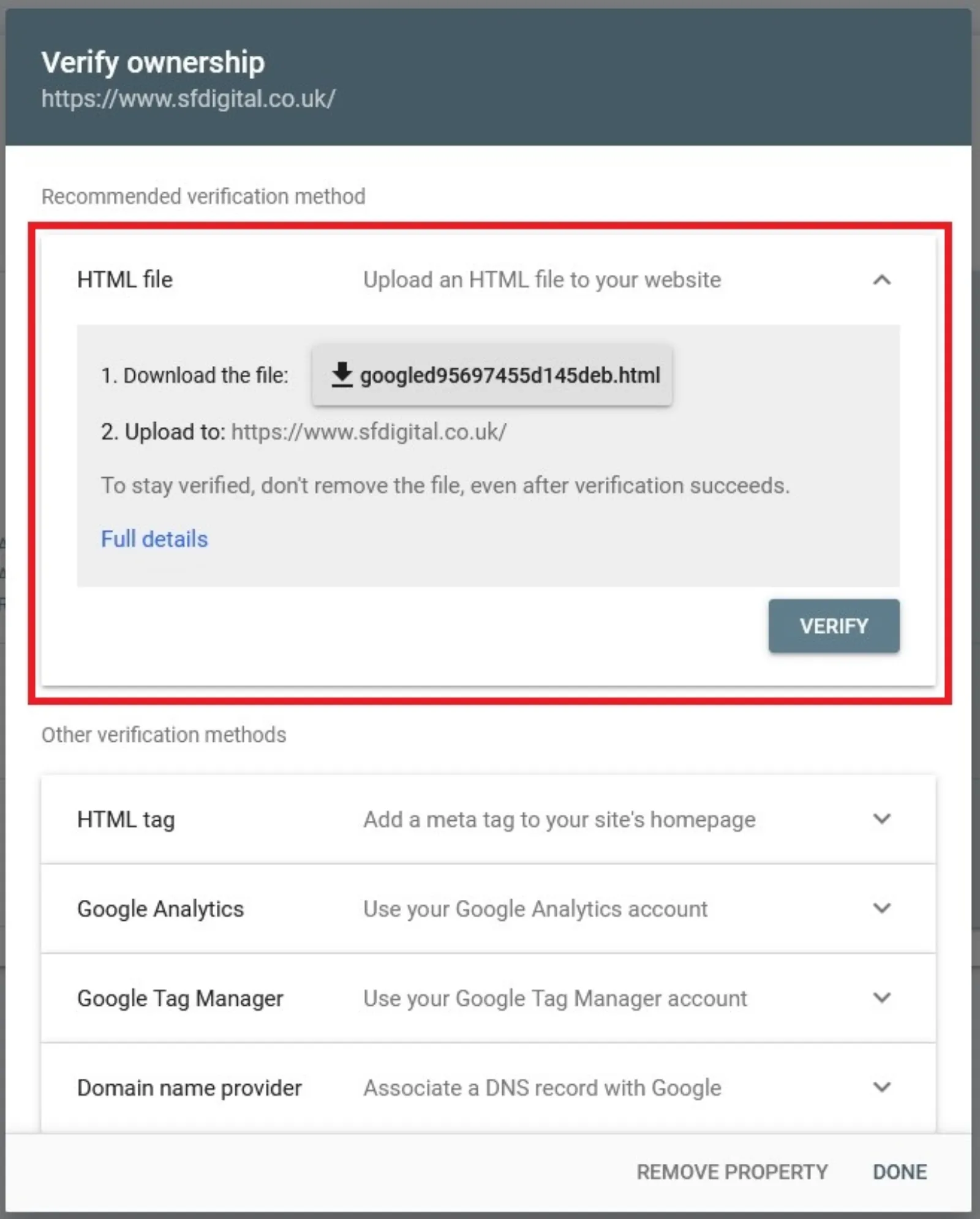
Verify that you own the site. The easiest method is uploading a file to your website or using your domain provider (like GoDaddy or Namecheap).
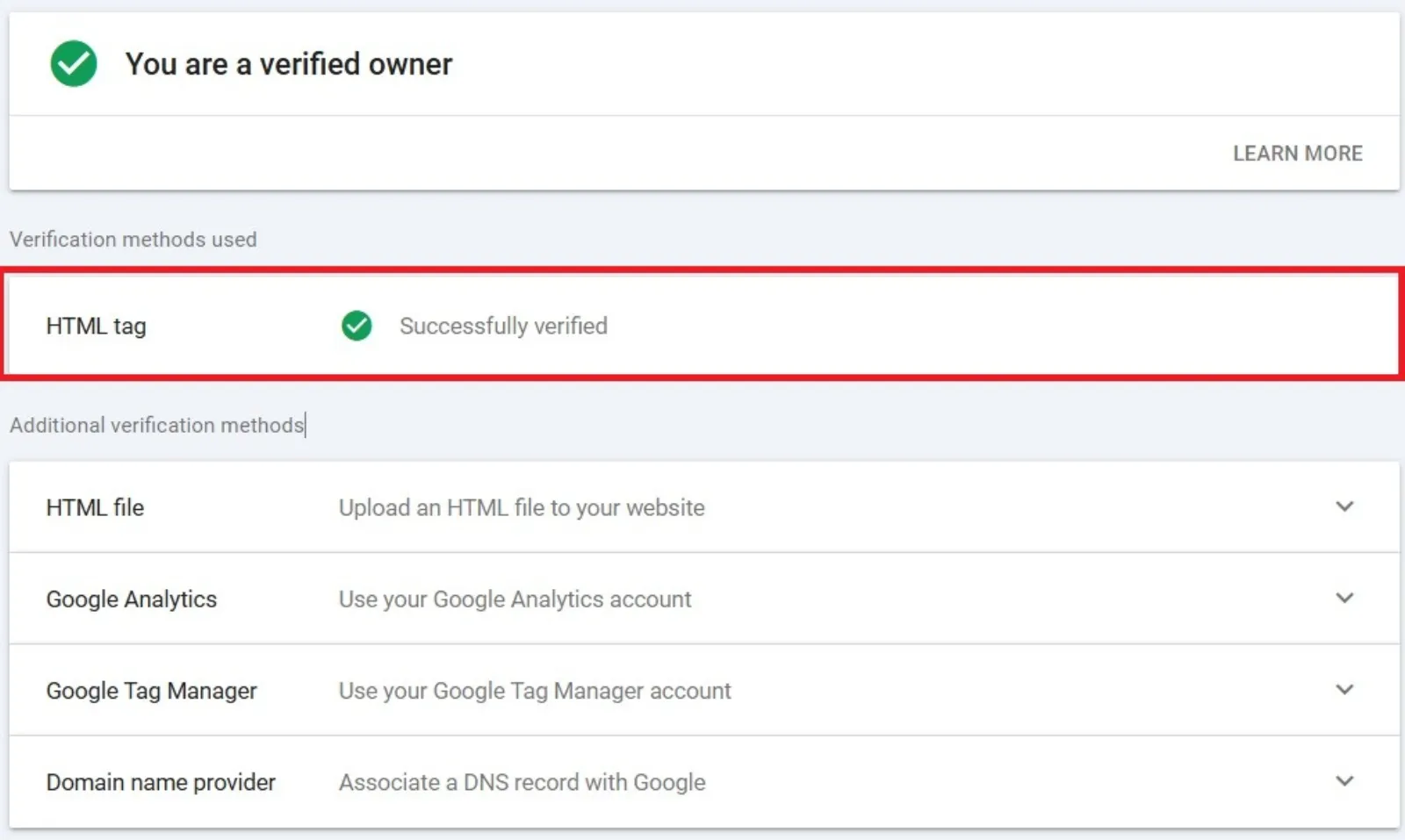
Once that’s done, Google will start collecting data about your site. It might take a day or two to see results.
Key Features to Know
Let’s break down the main parts of the dashboard that you’ll be using.
1. Performance Report
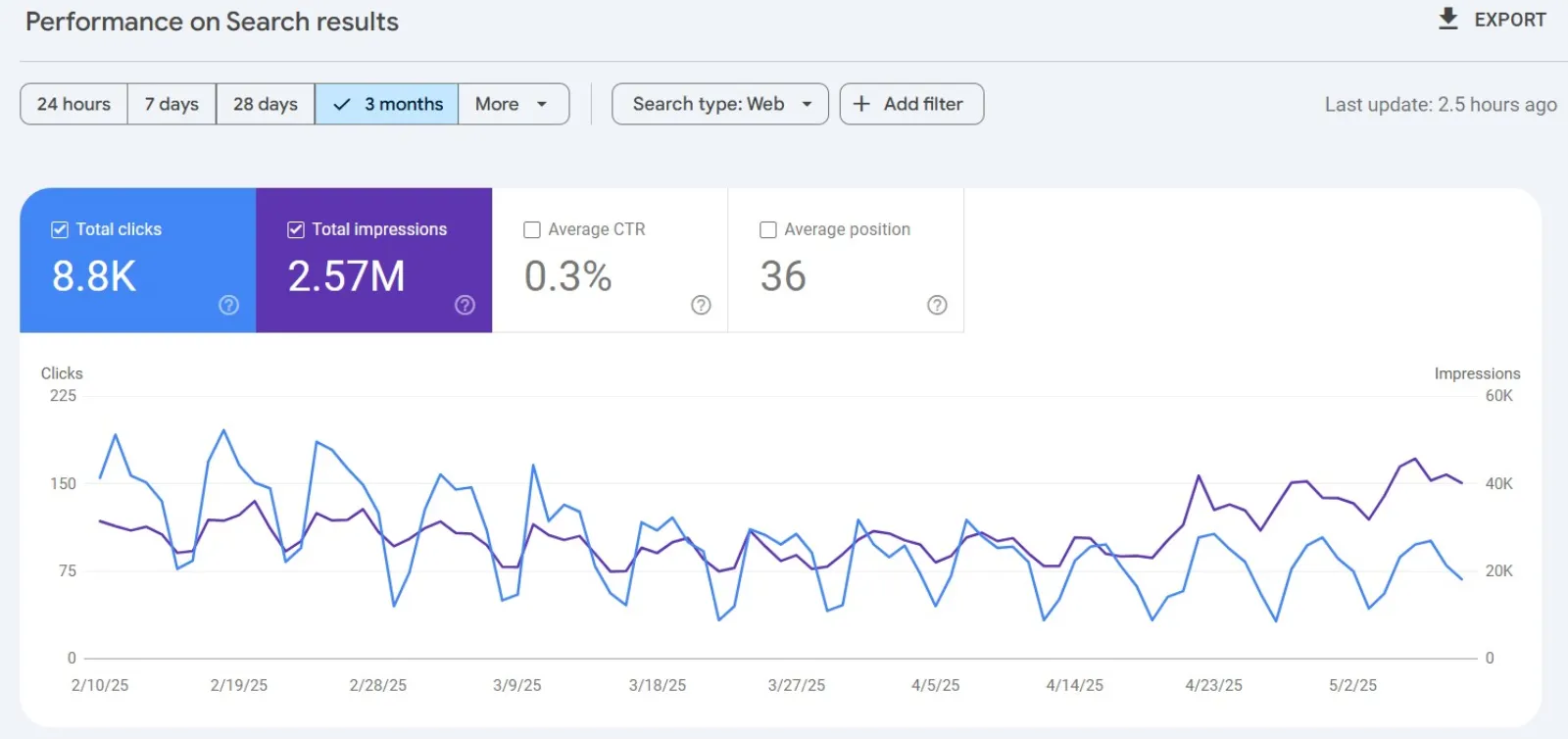
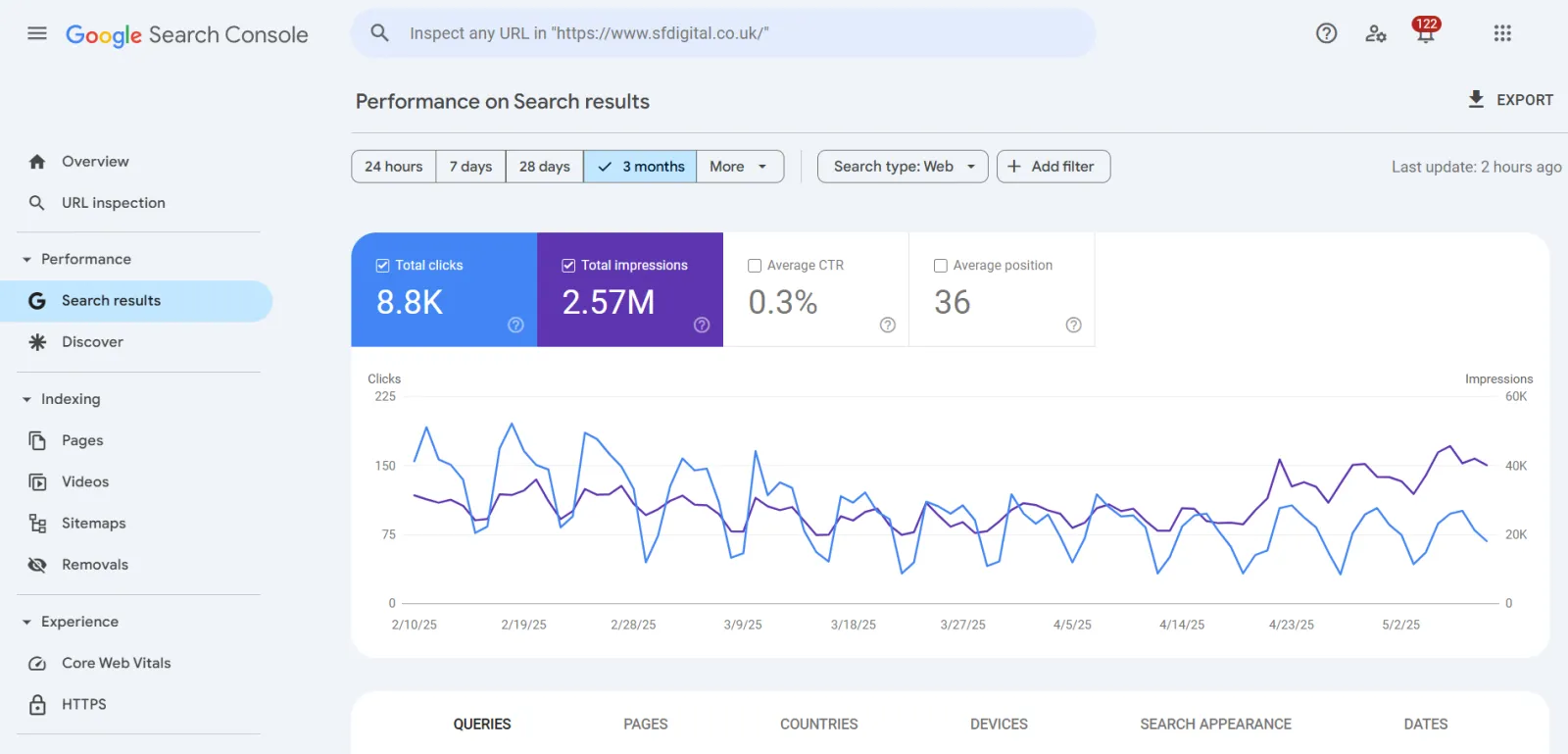
This is probably the most interesting part. You’ll see:
 LIVE
Live every Tuesday at 2pm UK. Bring your marketing questions.
Get your Google, local SEO and AI questions answered live.
- Total Clicks: How many times have people clicked your site in search results?
- Impressions: How often your site appeared.
- CTR (Click-Through Rate): Percentage of impressions that turned into clicks.
- Average Position: Where your site ranks for a keyword.
It also shows which queries (keywords) brought users to your site. This can help you figure out what content is working.
2. URL Inspection Tool
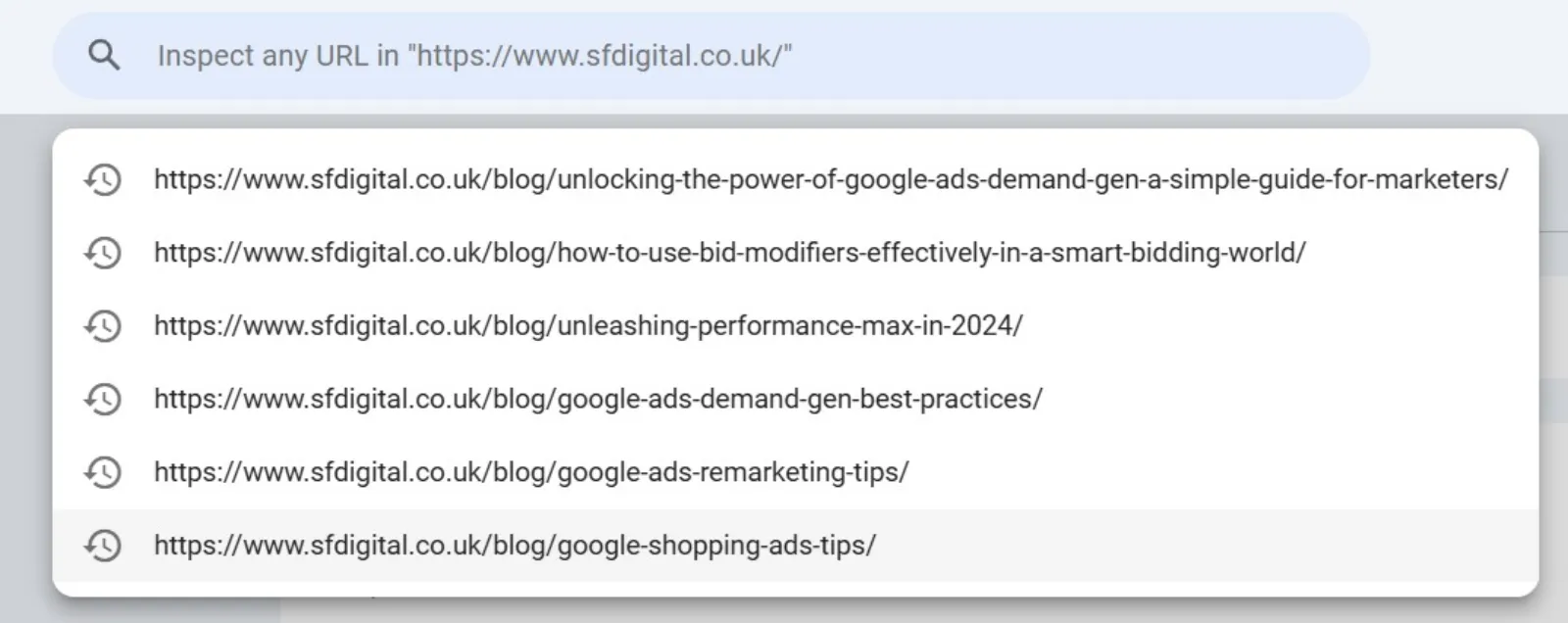
Want to check how a specific page is doing? Enter the URL and see if it’s indexed, when it was last crawled, and if there are any issues.
You can also ask Google to recrawl a page if you’ve made updates.
3. Page indexing
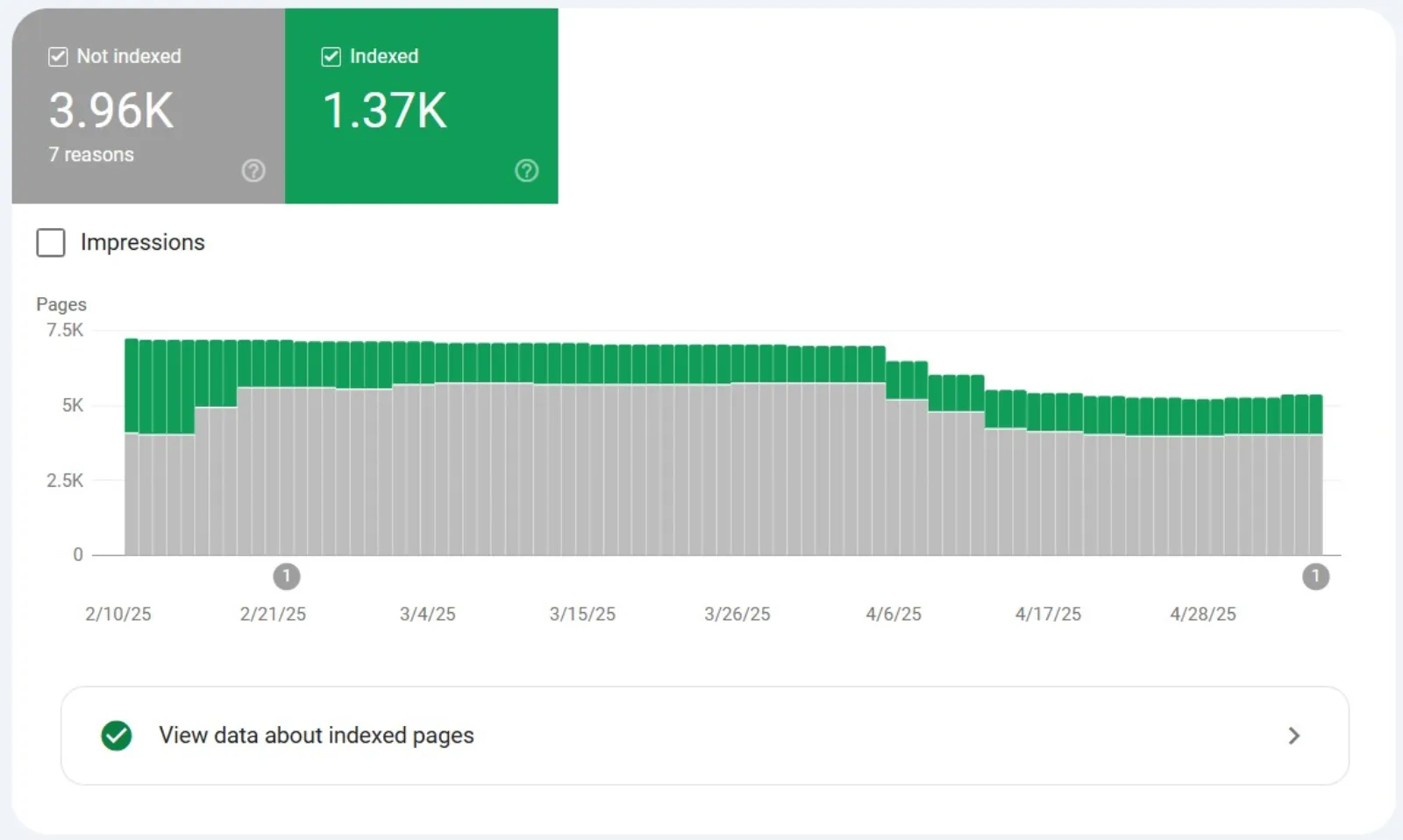
This tells you which pages are indexed and which ones aren’t. If something’s wrong (like a page is blocked by your robots.txt file or there’s a 404 error), it’ll show up here.
Fixing these errors can improve your site’s visibility.
4. Sitemaps
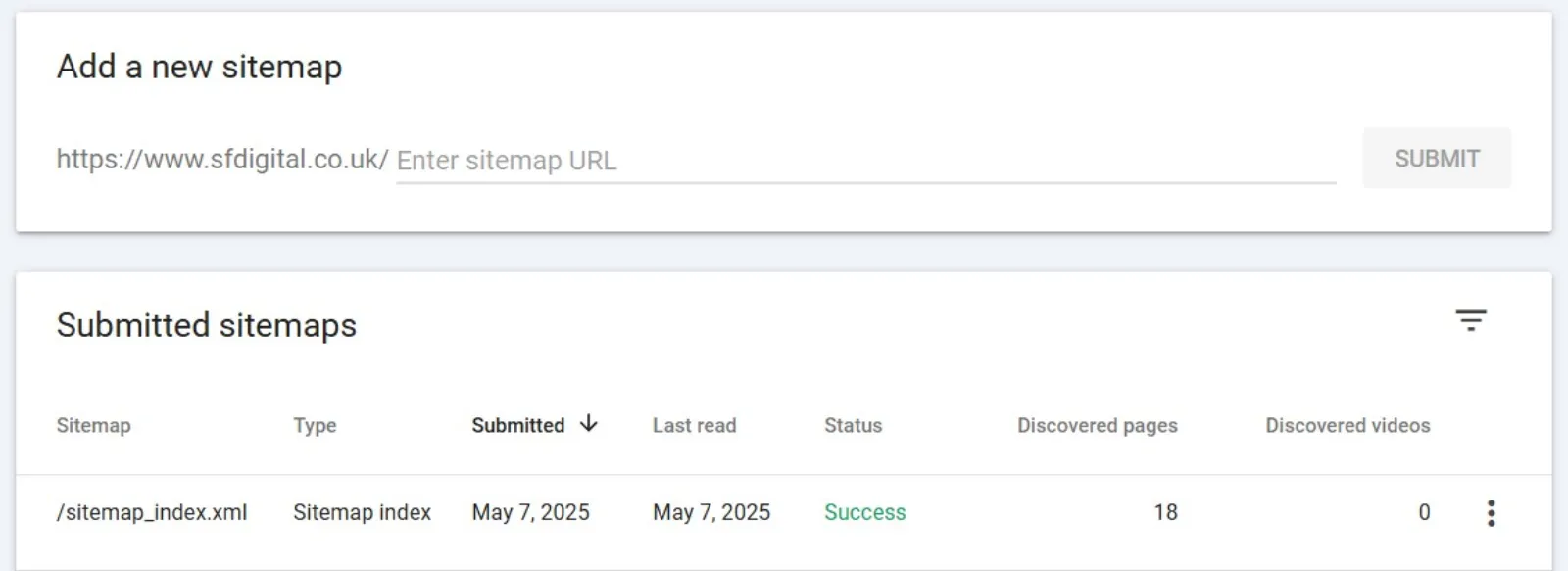
Submitting a sitemap helps Google understand your site’s structure. If you’re using WordPress and an SEO plugin like Yoast, this usually happens automatically. Still, you can manually submit it here if needed.
5. Mobile Usability
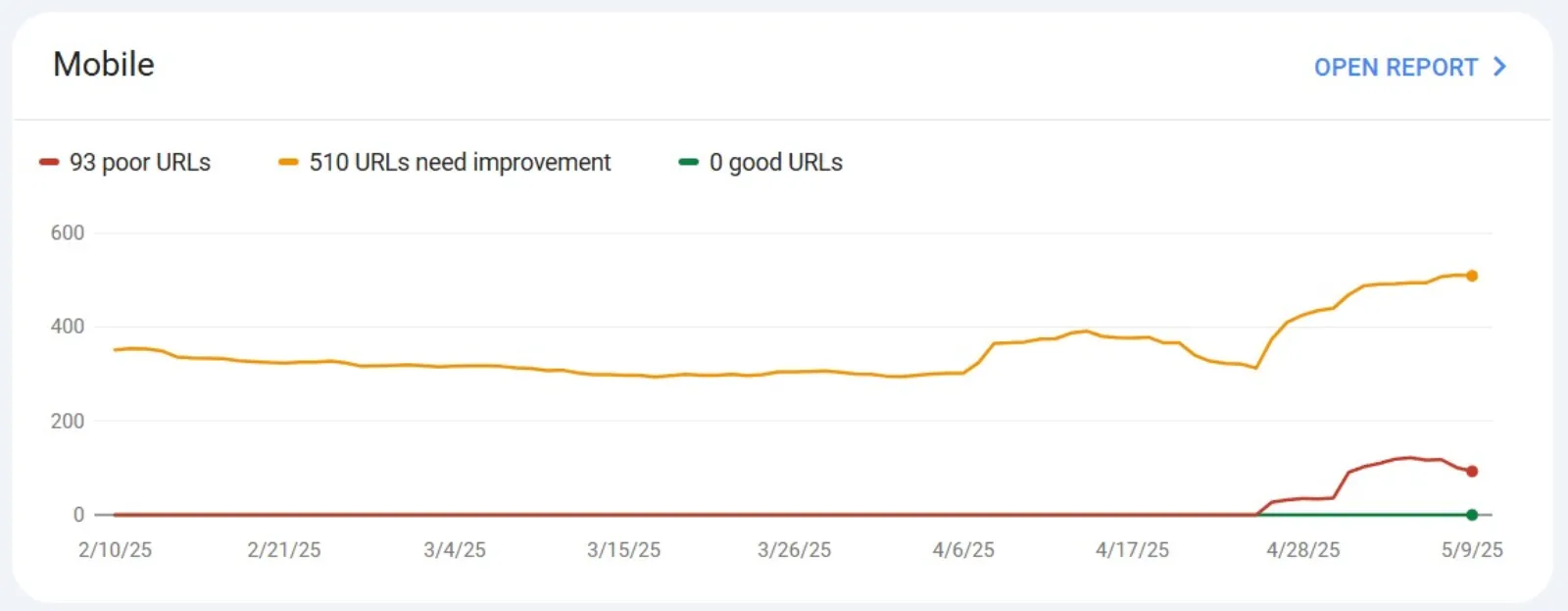
Google cares a lot about how your site looks on mobile devices. This report highlights issues like text being too small or clickable elements being too close together.
6. Manual Actions & Security Issues


If Google thinks you’re violating its rules (like using spammy backlinks), you’ll get a notice here. You’ll also see alerts about hacking or malware.
How to Use It to Improve Your Website
Now that you know what’s in GSC, here’s how you can use it to improve your site.
- Focus on High-Impression, Low-Click Keywords: Look for search queries that have high impressions but low clicks. Maybe your title or description isn’t catchy. Try rewriting them to make people want to click.
- Fix Errors Promptly: Check the Coverage and Mobile Usability reports often. Fix any broken pages, redirect old URLs, and make sure your content works on mobile.
- Submit New Content for Indexing: Wrote a new blog post? Use the URL inspection tool to request indexing. It speeds up the process of getting your content on Google.
- Watch for Declines: If your traffic suddenly drops, look at the Performance report. Did your rankings drop? Did a key page get deindexed? Catching problems early can help prevent bigger ones.
- Use Data for Content Ideas: The keywords report shows what people are searching for. If you’re getting impressions for a topic you haven’t covered in detail, maybe it’s time to write more about it.
Common Questions
Do I need Google Analytics too?
Yes, but they serve different purposes. Google Analytics tracks user behaviour on your site (like time spent on a page). GSC tracks how your site appears in search results.
How often should I check it?
At least once a week. If you’re publishing regularly or making changes, check more often.
Is it only for SEO experts?
Not at all. The interface is friendly, and once you know what to look for, it’s very useful even if you’re not super technical.
Final Thoughts
Google Search Console might seem a bit overwhelming at first, but it’s pretty straightforward once you get used to it. It doesn’t take long to set up, and the benefits are huge. You get free data straight from Google about how your website is performing, and you don’t have to guess what’s working or what needs fixing.
So if you haven’t already, set it up today and start exploring. Even a quick look once a week can give you great insights and help you improve your site’s performance over time.

Written by Uzair Kharawala
Partner at SF Digital Studios, a Google Premier Partner agency. Uzair has been helping businesses grow with Google Ads since 2002 and teaches it every week on YouTube.
Get our best Google Ads tips by email
New articles and videos, straight to your inbox. Unsubscribe any time.