

Google Ads is a powerful tool for reaching potential customers. One of its useful features is device targeting, which allows you to control where your ads appear based on the device people are using. This guide will walk you through the basics of device targeting in Google Ads, using simple steps that anyone can follow.
What is Device Targeting?
Device targeting in Google Ads lets you choose whether your ads appear on different types of devices, such as:

Get Found, Get Chosen, Get Your Time Back
A free one-day marketing seminar in Milton Keynes · 10 November 2026
- Computers
- Mobiles
- Tablets
This is helpful because the cost and effectiveness of ads can vary depending on the device.
Get your free Marketing Action PlanNot sure where to start? Answer a few questions and get your plan in about a minute. No email needed.
Get my plan →How to Adjust Device Targeting
Here’s how you can manage device targeting for your campaigns:
Step 1: Log in to Google Ads: Start by logging into your Google Ads account.
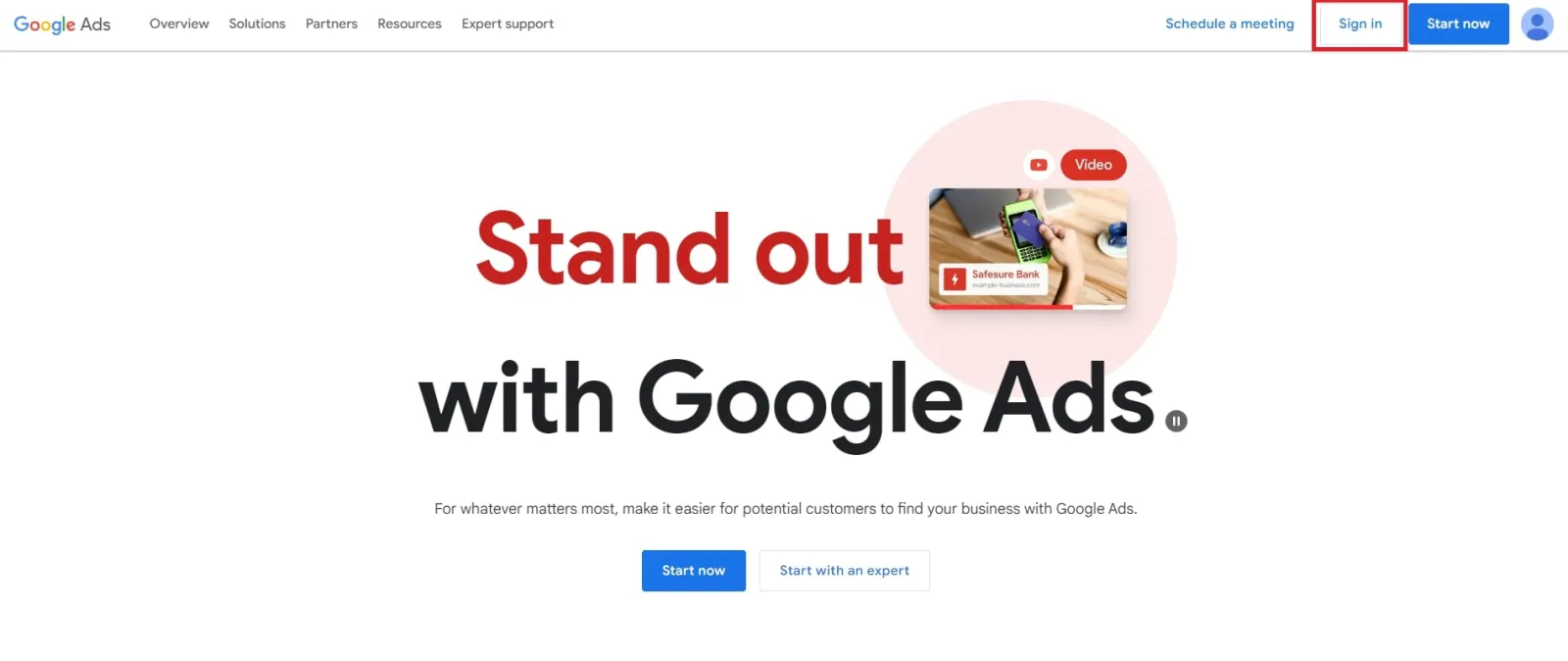
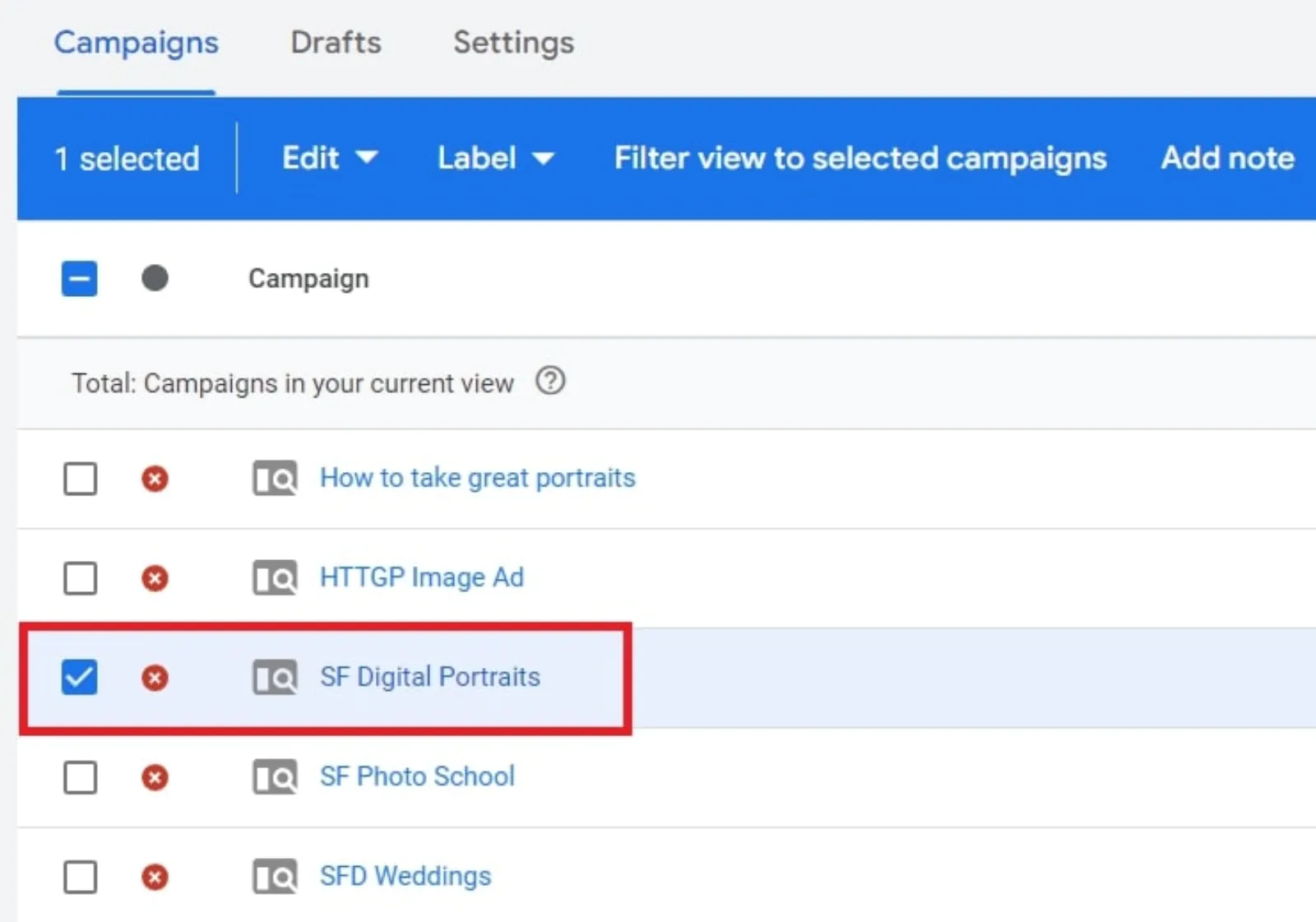
Step 2: Select Your Campaign: Go to your dashboard and choose the campaign you want to adjust.
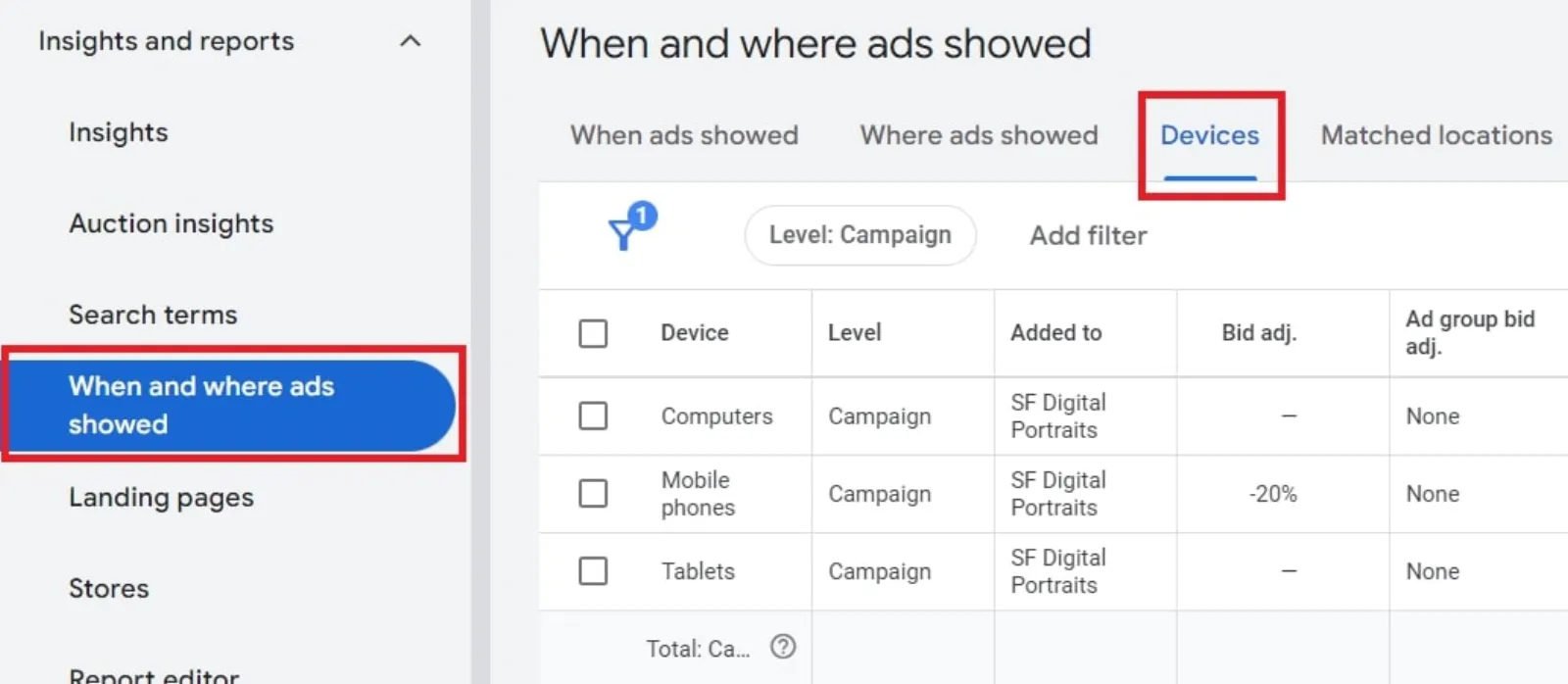
Step 3: Go to Devices: In the menu, find and click on “Devices.”
 LIVE
Live every Tuesday at 2pm UK. Bring your marketing questions.
Get your Google, local SEO and AI questions answered live.
Step 4: Adjust Bids: You’ll see options for computers, mobiles, and tablets. Here’s what you can do: Increase or Decrease Bids: You can adjust the percentage of your bids for each device type. For example, if you find that ads on computers are 30% more expensive than average, you might reduce bids for computers by 30%.
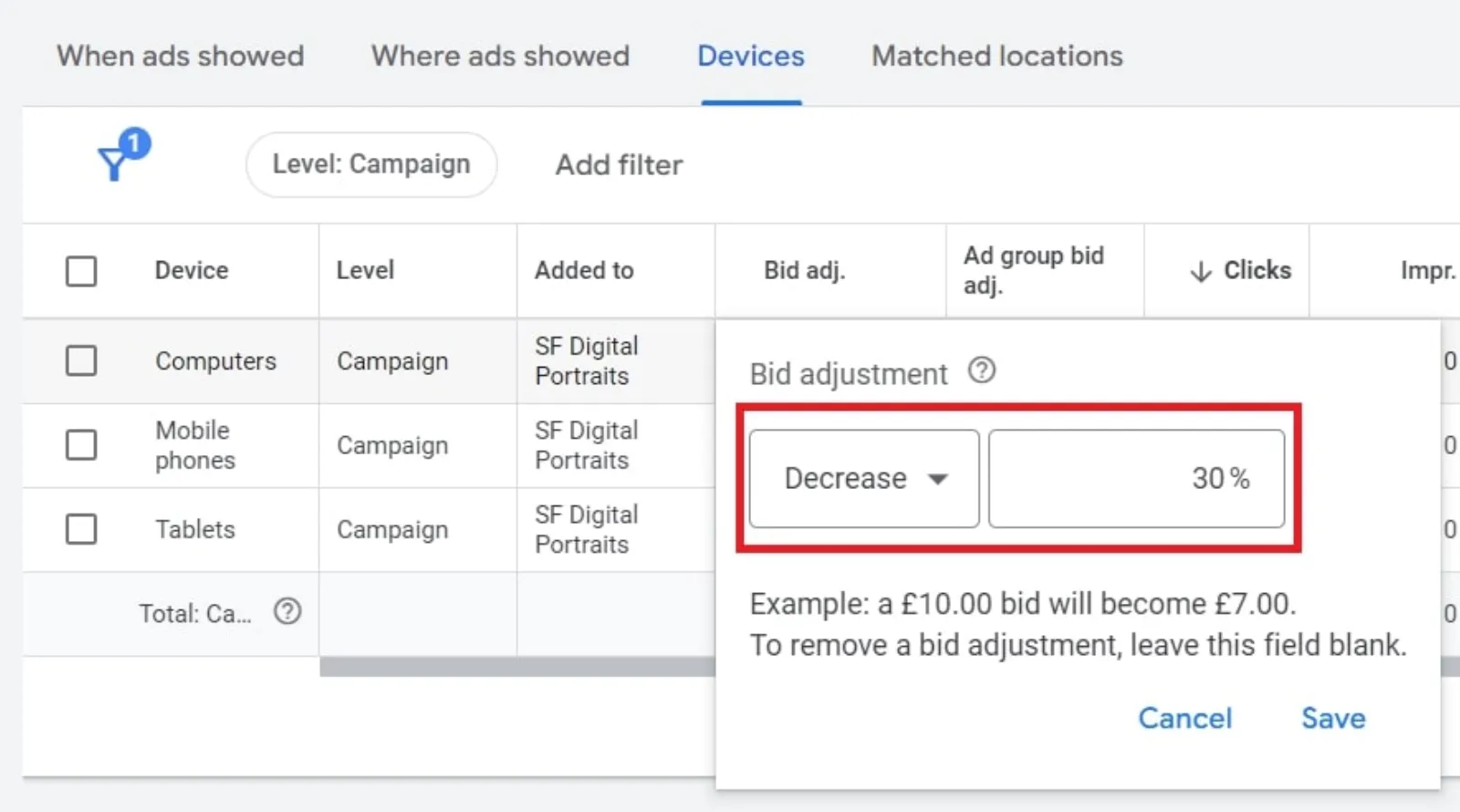
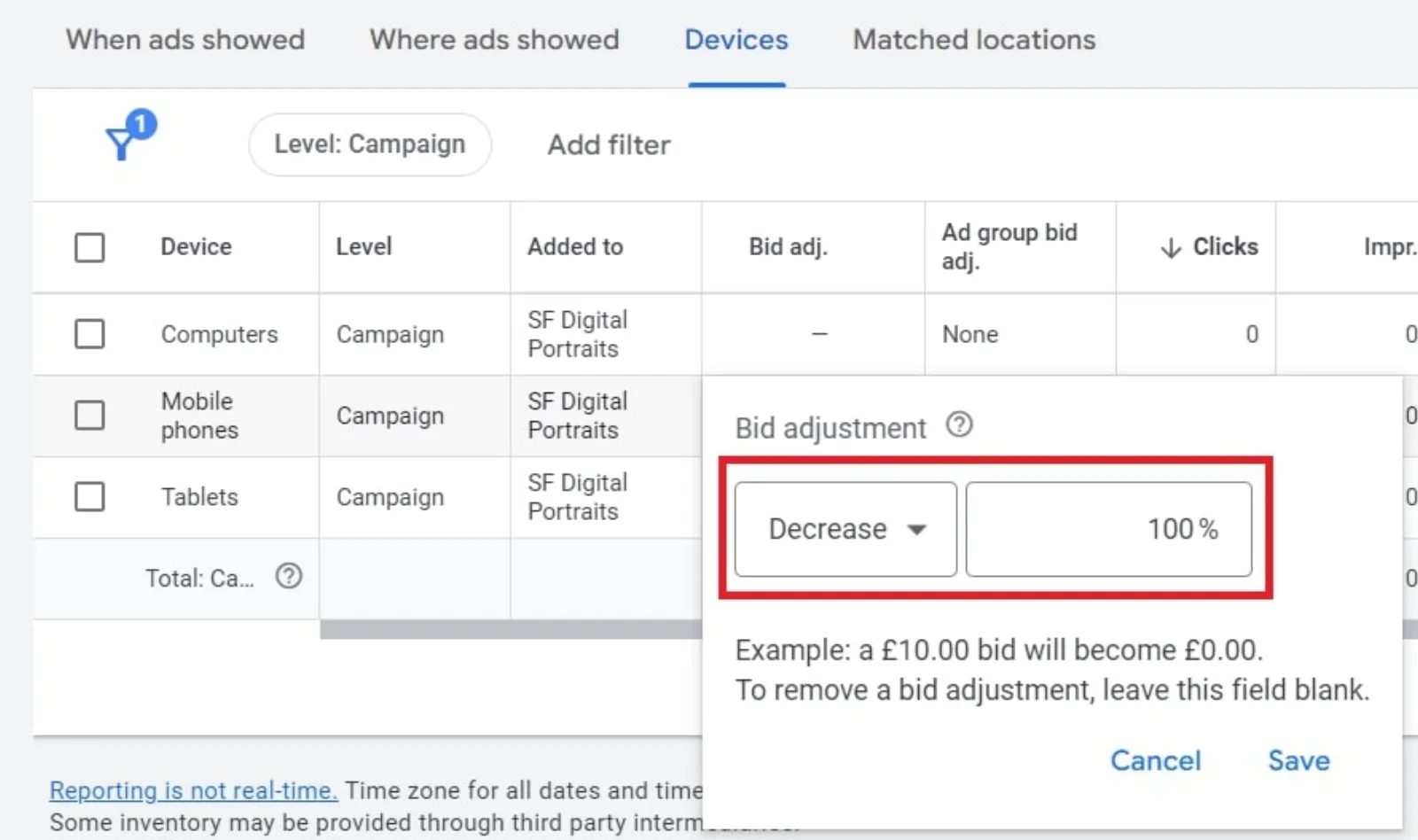
Disable Ads on a Device: To stop ads from showing on a specific device, set the bid adjustment to -100%. For instance, if you don’t want your ads to appear on mobile devices, set the mobile bid adjustment to -100%.
Example Scenario
Let’s say you want to disable ads on mobile devices. Here’s a step-by-step example:
- Select Your Campaign: Choose the campaign you want to adjust.
- Go to Devices: Click on “Devices” in the menu.
- Adjust Mobile Bids: Find the mobile row and set the bid adjustment to -100%.
Now, your ads will no longer appear on mobile devices. You can do the same for computers and tablets if needed.
Regular Adjustments
The performance and cost of ads can change over time. It’s a good idea to check your device targeting regularly:
- Small Budgets: If you’re spending less than $50 a day, check your device settings once a month.
- Large Budgets: If you’re spending thousands of dollars daily, monitor your settings more frequently.
By making regular adjustments, you can ensure your ads are cost-effective across different devices.
Conclusion
Device targeting in Google Ads is a straightforward way to control where your ads appear. By adjusting bids for computers, mobiles, and tablets, you can optimise your ad spend and improve your campaign performance. Regularly reviewing and adjusting your device settings will help you stay on top of your advertising game.

Written by Uzair Kharawala
Partner at SF Digital Studios, a Google Premier Partner agency. Uzair has been helping businesses grow with Google Ads since 2002 and teaches it every week on YouTube.
Get our best Google Ads tips by email
New articles and videos, straight to your inbox. Unsubscribe any time.