
Imagine this: you’ve built a brand new website. It’s beautiful, fast, and completely free of any shady stuff. You’ve checked everything. The code is clean, you’re using a trusted theme, and all your plugins are from reputable sources. You create a new Google Ads campaign, excited to get your product or service in front of the right people. Then, the worst happens.
“Disapproved: Malicious or unwanted software.”
Your heart sinks. You’re confused. “Malware? On my site? No way!” you think. You recheck everything. You run every scanner you can find. Your site is clean, but Google’s automated system says otherwise. This isn’t a rare or isolated incident. It’s a surprisingly common and frustrating problem for many website owners. So, what’s going on? And more importantly, how do you fix it?
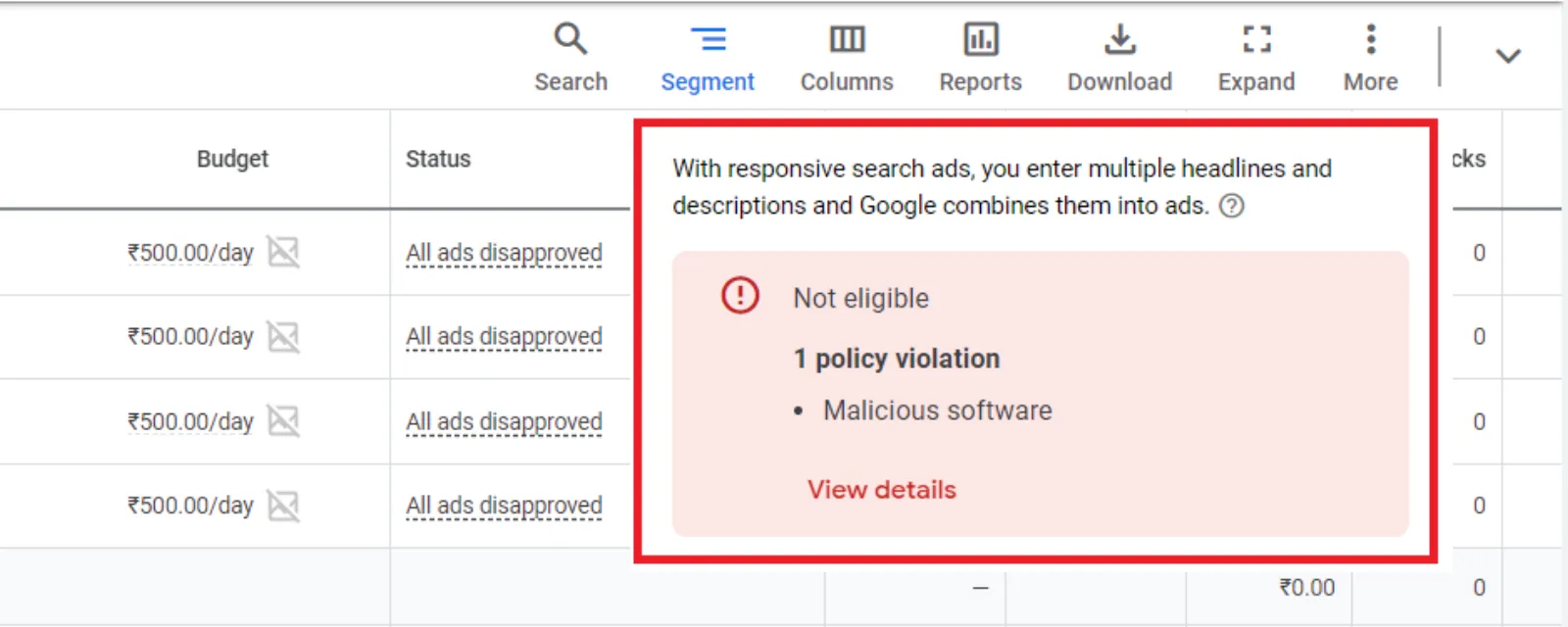
The truth is, a “malicious software” flag from Google isn’t always about a traditional virus or Trojan. The definition is much broader, and it’s designed to protect users from a wide range of unwanted online experiences. Google is playing it safe, and sometimes, a “safe” move means flagging a legitimate site.
Beyond the Obvious: Why Your “Clean” Site Looks Dirty to Google
Think of Google’s ad review and safety system as a hyper-vigilant security guard. It’s not just looking for a guy with a ski mask and a crowbar; it’s looking for anyone who even looks a little suspicious. Here are some of the less-obvious reasons why your clean site might get flagged:
1. Third-Party Code and Scripts
This is the most common culprit. A lot of websites use third-party tools for things like advertising, analytics, or social media sharing. While you trust the company you got the code from, you can’t always guarantee that their code is perfectly clean.
What if one of their ad partners got hacked? What if an old version of a script has a vulnerability? When Google’s bots crawl your site, they’re not just looking at your code; they’re following every link and every piece of code that loads from somewhere else. If that chain leads to a malicious domain, even for a split second, your site can be flagged. This is known as “malvertising”, and it’s a huge problem. You might not even see it, as sometimes these malicious redirects are only triggered for certain types of users or at certain times.
2. Outdated Plugins and Themes
You’re a responsible website owner. You keep your WordPress core updated. But what about that old plugin you installed three years ago and forgot about? Hackers love outdated software. A vulnerability in an old plugin is like an unlocked back door to your site. A hacker can use it to inject malicious code, often a hidden redirect that only activates under specific conditions. By the time you find it, Google has already seen it and flagged your site.
Even if you have no malicious files on your server, if you’re running a known vulnerable version of a plugin or theme, Google might flag you preemptively. They’re trying to prevent future problems for users.
3. Cross-Contamination on Shared Hosting
This is a really frustrating one, and it’s completely out of your control. If your website is on a shared hosting plan, you’re sharing a server with dozens, or even hundreds, of other websites. If one of those other sites gets hacked and infected with malware, it can sometimes “cross-contaminate” other sites on the same server, including yours. Google might scan the server, find the malicious code on a neighbouring site, and mistakenly flag your entire IP address or a range of websites that share that server.
4. False Positives from Normal Functionality
Sometimes, what you think is a normal part of your website’s functionality, Google’s bots see as a red flag. For example, some perfectly harmless custom scripts can look like a malicious redirect to an automated scanner. A script that redirects users from an old page to a new one, while completely innocent, could be seen as a “sneaky redirect.” A well-intentioned pop-up to get an email subscription could be seen as a deceptive or intrusive element. Google’s rules are very strict about user experience, and anything that goes against that, even unintentionally, can cause problems.
5. Hosting Issues and DNS Poisoning
Sometimes the issue isn’t even in your website files. The problem could be with your hosting provider. If your hosting company’s network or servers are compromised, hackers could mess with your DNS settings. This can cause your domain to point to a different, malicious server, even though all your website files are perfectly fine. Google sees the final destination as the problem and flags you.
Okay, I’m Flagged. Now What?
Don’t panic. Getting your Google Ads approved again is a process, and it takes patience and careful work.
Step 1: Don’t just appeal. This is the biggest mistake people make. Simply clicking “appeal” without fixing the problem will get you nowhere. You must clean up the issue first.
Step 2: Check Google Search Console. If you haven’t already, link your website to Google Search Console. Google will provide a “Security Issues” report that can often tell you exactly which pages or files have been flagged. This is your most important tool. It will give you a list of problematic URLs.
Step 3: Scan Your Entire Site. Use a reliable, professional security scanner to do a full scan of your site. Don’t just rely on free, online scanners. You need a tool that can check your core files, themes, and plugins for any hidden code, backdoors, or malicious redirects.
Step 4: Clean Up and Update. Once you’ve identified the problem, fix it. Delete any malicious files, remove any bad code, and update all your software—themes, plugins, and the CMS itself. Change all your passwords, too. Your hosting account, your FTP, your database, everything. This is crucial.
Step 5: Request a Review. After you are 100% confident that your site is clean, go back to Google Search Console and request a review. Be specific. Tell them what you found and how you fixed it. This shows you’ve done your homework.
Step 6: Resubmit Your Ads. Once Google has successfully reviewed your site and removed the security warning, you can resubmit your ads for approval.
Getting a “malicious software” flag is frustrating, but it’s not the end of the world. By understanding that Google’s definition of “malware” is broader than you might think and by being methodical in your cleanup, you can get back to advertising and running your business smoothly.

Written by Uzair Kharawala
Founder of SF Digital Studios, a Google Premier Partner agency. Uzair has been helping businesses grow with Google Ads since 2002 and teaches it every week on YouTube.
Get our best Google Ads tips by email
New articles and videos, straight to your inbox. Unsubscribe any time.