
You’ve got a fantastic product, a killer ad copy, and a budget ready to go. You launch your Google Ads campaign with a sense of excitement and anticipation. Then, it happens. A dreaded email notification or a big red “Disapproved” message in your account. The reason? “Unverified phone number.”
It’s frustrating, right? You put in the effort, and a seemingly small detail like a phone number stops you in your tracks. This isn’t just a minor hiccup; it’s a roadblock that can completely derail your campaign, kill your ad performance, and waste valuable time. So, what’s the big deal with a phone number, and more importantly, how do you fix it?
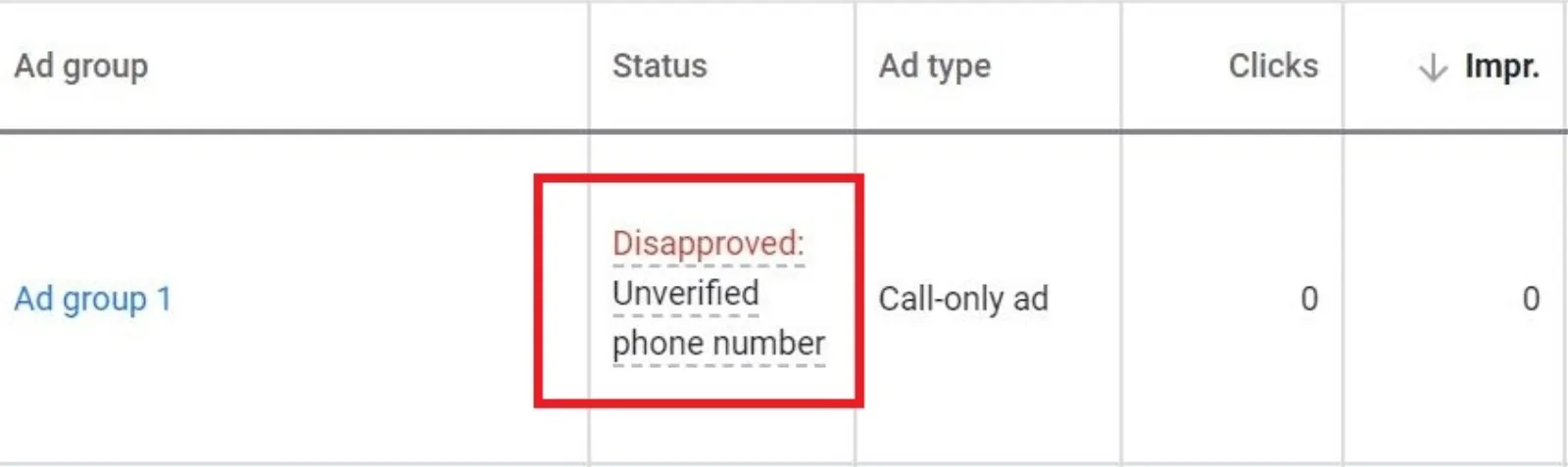
Let’s break down what’s actually going on.
The “Unverified Phone Number” Problem
Google is all about user experience and trust. They want to make sure that when someone clicks on a call ad or a call extension, they’re connecting with a real, legitimate business. This is why they require phone numbers to be verified.
When Google sees a phone number in your ad, they don’t just take your word for it. They run a check to confirm that the number is actually associated with your business and is listed on your website. If they can’t find a match, your ad gets disapproved. It’s their way of protecting users from spam and misleading ads.
This issue is especially common if you’re using a third-party call tracking number, like a number from a service that records or forwards calls. These numbers are often different from the main number on your website, which creates a mismatch that Google’s automated systems are designed to flag.
So, what’s the simple, yet crucial, step you’re missing?
The One Thing You Need to Do
The solution isn’t about changing your number or giving up on call tracking. The key is to prove to Google that your website and your ad account are linked, and that you have control over both.
The easiest, most effective way to do this is by linking your Google Ads account with your Google Search Console account.
I know what you’re thinking. “What does Search Console have to do with my ads?” A lot, actually.
Google Search Console is a free tool that helps you monitor your website’s performance in Google search results. By linking it to your Google Ads account, you’re essentially telling Google, “Hey, I own this website, and this ad account belongs to me. You can trust that the phone number I’m using is legitimate, even if it’s a call tracking number that’s not physically on my site.”
Linking the two accounts creates a signal of trust. It bypasses the need for Google’s bots to crawl your website and find a matching phone number, because you’ve already verified ownership of the domain.
Think of it like this: Without the link, Google is just seeing a phone number that doesn’t match the one on your site, so they get suspicious. With the link, you’re giving them a backstage pass. They can see that you’re the real deal and that your ad account and your website are part of the same operation.
How to Link Your Accounts and Get Your Ads Approved
Don’t worry, this isn’t a complicated process. It’s just a few clicks away.
- Log in to your Google Ads account.
- Go to “Tools and Settings” in the top menu.
- Under “Setup,” click on “Linked accounts.”
- Find “Search Console” and click on “Details.”
- Click “Link” and follow the prompts to connect your website. If you’ve already verified your site on Search Console, the process is almost instant.
Once you’ve done this, it might take a little while for Google to process the change. You can then go back to your disapproved ad, make a small edit (like adding a space or a punctuation mark), and resubmit it. This will prompt Google to review the ad again. Now that you’ve given them the green light with Search Console, they should see that everything checks out and approve your ad.
A Few Other Things to Check
While linking your Search Console is the most common fix, there are a couple of other things that can cause this issue.
- Phone Number on Website: Make sure the phone number you’re using in your ad is clearly and prominently displayed as text on your website. It should be easy for both a human and Google’s crawlers to find.
- Correct Format: Double-check that you’ve entered the phone number in the correct format in Google Ads. Don’t add any extra characters or use a different format than what’s on your site.
- Third-Party Tracking: If you’re using a call tracking service, make sure the service is set up correctly. Some services have specific instructions or code snippets that need to be on your website for proper verification.
The “unverified phone number” disapproval is a common but easily solvable problem. By taking the simple step of linking your Google Ads and Google Search Console accounts, you can build trust with Google’s systems and get your ads back on track. It’s a small change that can make a huge difference in your ad performance. Don’t let this simple oversight kill your campaigns again.

Written by Uzair Kharawala
Founder of SF Digital Studios, a Google Premier Partner agency. Uzair has been helping businesses grow with Google Ads since 2002 and teaches it every week on YouTube.
Get our best Google Ads tips by email
New articles and videos, straight to your inbox. Unsubscribe any time.