
You read the ad twice. No odd punctuation. No banned words. You click the link and the page loads perfectly. And still, Google Ads has disapproved it.
That is one of the most maddening moments in running your own ads. Everything you can see looks fine. So what is Google looking at? That is the question this guide answers.
Usually, something you cannot see. A security setting that blocks Google's checker. A line in your footer. A hacked page three clicks away. An unverified phone number sitting in an asset.
Get your free Marketing Action PlanNot sure where to start? Answer a few questions and get your plan in about a minute. No email needed.
Get my plan →This guide shows you the five places a Google Ads disapproval tends to hide, how to see your page the way Google sees it, and how to fix it without wasting an appeal.
What A Disapproval Actually Means
A disapproved ad is an ad Google will not show, because something about it breaks a policy. It stays switched off until you fix the problem and Google reviews it again.
It is not the same as a suspension. A suspension shuts down your whole account. A disapproval stops one ad, one asset or everything pointing at one landing page. The rest of the account keeps running.
It is also not the same as eligible limited. Google's help page draws the line clearly. A disapproved ad cannot run. An eligible limited ad can run, but only in some places, on some devices or for some audiences.
Google says disapprovals come from three kinds of problem.
- The ad content, such as repeated punctuation or a banned product mention
- The destination, meaning the landing page
- Other policy issues that need content changes before the ad can be reviewed again
The first kind is easy to spot. You can read your own ad. The second and third are where the invisible problems live.
Why It Looks Fine To You And Wrong To Google
Google does not look at your website the way you do. You open it in your browser, on your wifi, from your town, probably logged in or with cookies already saved. Google checks it with an automated crawler called AdsBot.
That crawler has none of your advantages. It is a bot, so security tools treat it with suspicion. It may connect from a different country. It has no cookies. It does not click through pop-ups.
So a page can load perfectly for you and fail completely for Google. Google's own help page says a destination can be disapproved because it is not crawlable by Google Ads. That one line covers a lot of ground.
The fix starts with a change of mindset. Stop asking whether the page works. Start asking whether it works for a robot, in another country, with no cookies.
There is a second reason things look fine to you. Google reviews the whole destination, not just the bit you designed for the ad. A claim in the footer, an old pop-up, a page linked from the menu or a hacked file on the server can all count.
Why This Matters More Than One Ad
It is tempting to treat a disapproval as a small admin job. One ad is down, the others are running, you will get to it.
But disapprovals rarely hit just one ad. A landing page problem disapproves every ad that points to that page. On a small account, that can be most of your spend.
And while an ad is disapproved, it earns nothing. You still pay for the time you spend working out why. You may also lose the learning your campaign built up while it was running.
Leave a destination problem long enough and it can spread. A hacked website can move from ad disapprovals to account-level trouble. Repeated breaches of some policies can lead to strikes, and strikes can lead to suspension.
That is why the order you work in matters. Look in the right place first, fix it once and get the ad back up quickly.
There is a cost in stress, too. Most owners who run their own ads do it between jobs, at the kitchen table or late at night. An unexplained disapproval eats that time with guesswork. A clear method turns an evening of guessing into twenty minutes of checking. That is what the rest of this guide gives you.
The Five Places A Disapproval Hides
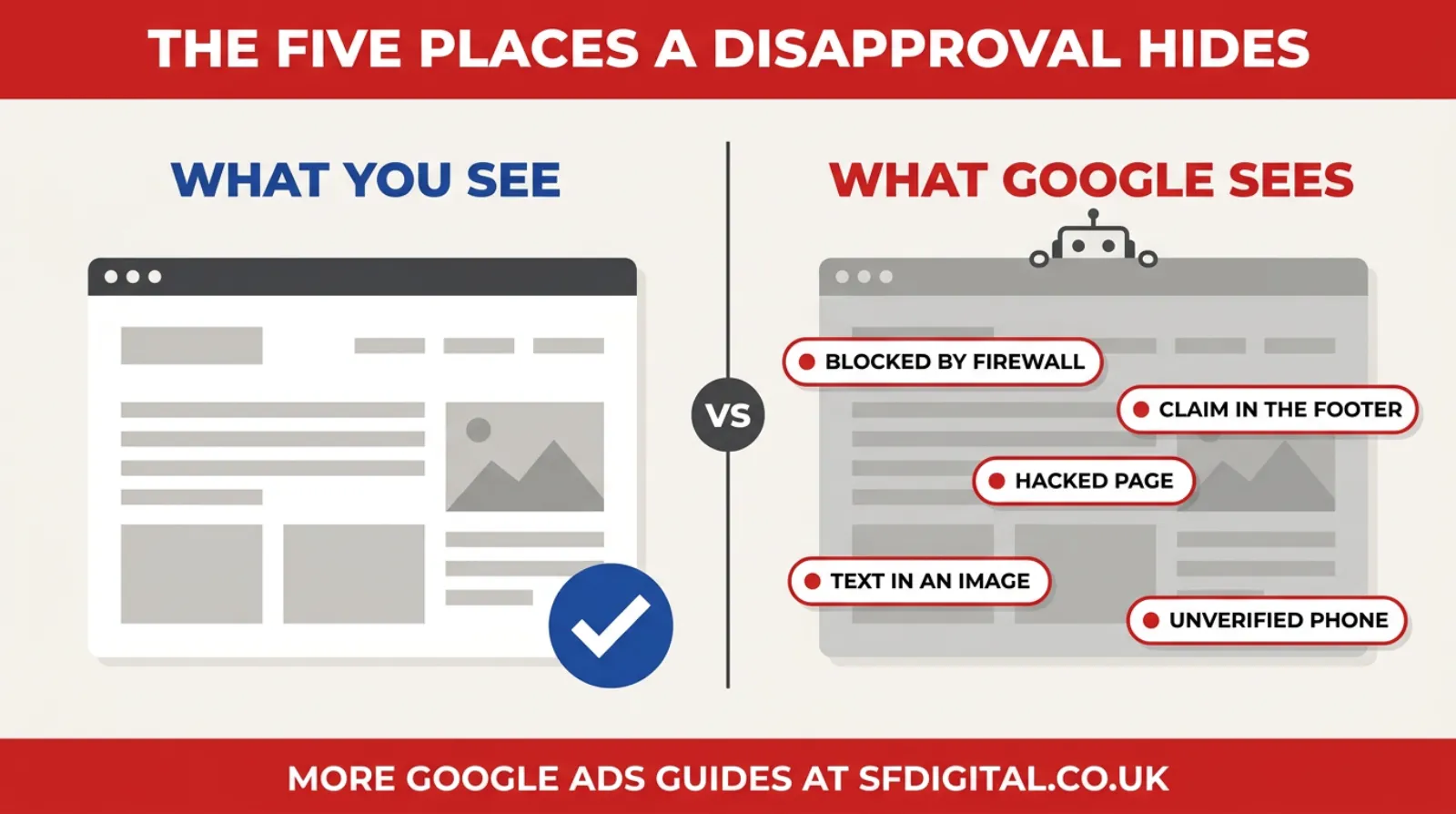
When the ad text is clean, the cause is almost always in one of five places. Work through them in this order, because it runs from most common to least.
Place One, What Google's Crawler Sees
This is the big one, and the one most guides skip. The page works for you, but Google's crawler cannot load it properly.
The usual culprits are listed below.
- Firewalls and bot protection. Tools like Cloudflare and many WordPress security plugins block or challenge unknown bots by default. If AdsBot gets a challenge page or a 403 error, Google sees a broken destination.
- Country blocking. Some businesses block visitors from outside the UK to cut spam. Google's crawler does not always connect from your target country.
- Cookie walls and age gates. If the page hides everything behind a pop-up the bot cannot click, the bot sees nothing useful.
- Redirect chains. Tracking links that bounce through several addresses can time out, or land somewhere unexpected.
- Slow or failing servers. If your server times out or throws a 500 error when Google checks, the ad fails. Search Engine Land has reported waves of disapprovals tied to server and DNS errors on sites that looked fine to their owners.
There is one technical trap worth knowing. Google's ads crawler ignores the general rules in your robots.txt file, but it obeys rules that name it directly. If a developer ever blocked AdsBot by name, Google cannot review your pages.
What to do: ask your web developer or host to allow Google's ads crawler through the firewall, using Google's verified crawler signals. Check your security plugin's blocked log for AdsBot. Turn off country blocking for your landing pages, or make an exception for Google.
Place Two, Elsewhere On The Page
Google reviews the whole landing page, not just the part your ad talks about.
That means the footer, the pop-ups, the sidebar and anything else on the page count. A weight-loss claim in a testimonial, a "guaranteed results" line in the footer or an out-of-date offer can all trigger a policy.
What to do: read the full landing page, top to bottom, as if you were a strict inspector. Look at every pop-up. Look at the footer. Anything you would struggle to prove, remove or soften.
Place Three, Elsewhere On The Site
Some policies look at the whole website. Malicious software and compromised site are the two big ones.
A hacked website is often invisible to its owner. An old plugin gets exploited, a script gets added, and the site looks normal. Google's scanners find it first.
What to do: check the Security issues report in Google Search Console. Ask your host or developer to run a malware scan. Update or remove old plugins. Clean the site before you ask Google to review anything.
Place Four, Inside Your Images
Image assets carry their own risks. Small text overlays, logos placed over photos, before-and-after pictures and blurry images can all cause problems.
These often show up as a limited or disapproved asset rather than a disapproved ad, which makes them easy to miss.
What to do: open the asset report and sort by status. Replace any flagged images with clean photos, and move the words into your headlines.
Place Five, Attached To Your Account
Some disapprovals have nothing to do with the ad or the page. They come from things attached to the account.
- A phone number in a call asset that Google cannot verify
- A trademark another company has registered with Google
- A restricted category, such as financial services or healthcare, that needs certification first
- Business details that do not match your advertiser verification
What to do: read the policy name carefully. If it mentions verification, certification or trademarks, the fix is paperwork, not copy.
What The Common Disapproval Messages Usually Mean
The status column gives you a short policy name. Here is what the ones small businesses see most often tend to mean in practice.
Destination Not Working
What it says: Google could not load your landing page.
What it usually means: the page works for you but not for Google's crawler. Firewalls, bot protection, country blocking, redirects and server errors are the usual causes. Start with place one above.
Destination Mismatch
What it says: the web address people see in your ad does not match where they end up.
What it usually means: a tracking link or redirect sends people to a different domain from the one in your final URL. It can also happen after a website move, when old addresses redirect somewhere new. Keep the display domain and the landing page domain the same.
Malicious Software Or Compromised Site
What it says: your site may harm visitors, or someone else may have taken control of part of it.
What it usually means: the site has been hacked, often through an old plugin or theme. The owner rarely knows. Check Search Console's Security issues report and get a proper clean-up before you ask for a review.
Unverified Phone Number
What it says: Google cannot confirm the phone number in your ad or call asset belongs to you.
What it usually means: the number is not shown on your website, or does not match the one on your site and Business Profile. Put the exact number, in the same format, clearly on the landing page.
Misleading Or Unreliable Claims
What it says: something on the ad or page promises more than you can prove.
What it usually means: words like "guaranteed", "best in the UK" or "cure" without evidence to back them up. They are often in testimonials or footers the owner has stopped noticing.
Healthcare And Medicines
What it says: the ad or page touches a restricted health topic.
What it usually means: a treatment, drug or health claim that Google restricts. Some of these need certification before they can run at all. Weight-loss wording is a common trigger for beauty and fitness businesses.
The Disapprovals You Can See, In Brief
Not every disapproval is hidden. Some sit right there in the ad text, and they are quick to fix once you know the rule. These are the editorial ones small businesses hit most.
Punctuation And Symbols
Google does not allow repeated punctuation or unusual symbols used for attention. "Call now!!!" or stars and arrows in a headline will be rejected. One exclamation mark in the whole ad, and never in a headline, is the safe rule.
Capitalisation
Words in all capitals, like "FREE" or "SALE", are not allowed for emphasis. Standard capitals for proper names and accepted abbreviations are fine. Title case, where each word starts with a capital, is also fine.
Clickbait
Headlines that tease without saying anything, such as "You won't believe this", fall foul of Google's rules. So do fake urgency and alarming claims. Say what you offer, plainly.
Unsupported Language
The ad and the landing page need to be in a language Google supports, and they need to match. An English ad pointing to a page mostly in another language can be disapproved.
Text In Images
Images with heavy text, logos placed over photos, or graphic overlays such as fake buttons can be limited or disapproved. Keep images clean and put your words in the headlines.
These are the easy ones. Fix the text, save the ad and it goes back into review. If the ad reads cleanly and is still disapproved, go back to the five hidden places above.
When It Is Not You
Sometimes the problem really is on Google's side. Search Engine Land has reported waves of disapprovals, with many advertisers hit at once by server and DNS errors on sites that seemed fine.
If a lot of your ads are disapproved at the same moment, and you changed nothing, check whether others are seeing the same. The Google Ads community forums and industry news sites usually pick these up quickly.
If it does look like a wider issue, still run the crawler checks above, because a real problem can hide behind a coincidence. If everything checks out, appeal with "dispute decision" and explain calmly that the page loads correctly and the crawler is allowed through.
How To See Your Page The Way Google Sees It
You cannot borrow Google's crawler. But you can get close with a few simple checks.
Use Search Console
Google Search Console has a URL Inspection tool. It shows whether Google can fetch your page and what it sees when it does. It uses Google's search crawler rather than the ads one, but a page that fails here will almost certainly fail for ads too.
Test From Somewhere Else
Open the landing page on your phone with wifi switched off, so you are on mobile data. Try it in a private browsing window, with no cookies. If you can, ask someone outside the UK to open it.
If any of those show a challenge page, a pop-up that will not close or an error, you have probably found your problem.
Time how long the page takes to load on mobile data as well. If you are staring at a blank screen for several seconds, Google's crawler may give up before the page arrives. A faster page helps your ads in other ways too.
Check Your Security Logs
If you use Cloudflare or a security plugin, look at the blocked requests log. Search for AdsBot. If it appears as blocked or challenged, that is your answer.
Follow The Whole Redirect Chain
Paste your final URL, including any tracking, into a redirect checker. Count the hops. Every step is another chance to fail. One clean hop is ideal.
Edit Or Appeal? Getting The Order Right
Once you know the cause, you have two ways to get the ad reviewed again. Picking the right one saves time and protects your appeals.
When To Edit
If you changed something, edit and save the ad. Google says that saving an edited ad sends it for review again automatically.
That applies even if the fix was on your website. Make the change on the site first, then open the ad, make a small edit if needed and save it. That tells Google to look again.
When To Appeal
Appeal when you believe Google got it wrong, or when you fixed the cause and want a formal review. You do it through Policy Manager. Google gives you two options, dispute the decision or tell Google you made changes to comply.
Appeals are limited. Google allows three appeals per ad and asks you to wait at least 24 hours between them. It also warns that misusing appeals can lead it to pause appeal processing for your account.
So never appeal before you have looked. An appeal on an unfixed problem uses up one of your three chances and teaches you nothing.
What A Good Appeal Says
When you do appeal, keep it short and specific. The reviewer wants to know three things.
- What you checked. For example, the landing page loads, the crawler is allowed through and the security log shows no blocks.
- What you changed. For example, you removed a claim from the footer or cleaned a hacked plugin, and on which date.
- Why you think the ad now meets the policy. One sentence is enough.
Here is a made-up example. "Our landing page was blocking Google's ads crawler through a new bot protection setting. We have allowed the crawler through as of 24 September, confirmed it in our security log, and the page now loads for all visitors. We believe the ad now meets the destination requirements."
That is under 60 words, and it gives the reviewer everything they need. Long, angry or vague appeals take longer and fail more often.
Choose the right option too. If you changed something, pick the option saying you made changes to comply. If you changed nothing because you believe Google made a mistake, pick dispute decision and explain why.
A Worked Example, From Disapproval To Live
Here is how it fits together for one made-up business. Picture a small dental practice in Milton Keynes. On Monday morning, every ad pointing to the Invisalign page shows Disapproved, destination not working.
The practice manager opens the page. It loads instantly. The ads have not changed in months.
So she works through the five places. The crawler check comes first. Last week, the web developer switched on a new bot protection setting to cut spam form entries. The security log shows AdsBot being challenged every time it visits.
She asks the developer to allow Google's ads crawler through. It takes ten minutes. She then opens one of the disapproved ads, makes no real change, and saves it to trigger a review.
While she waits, she reads the rest of the page as a strict inspector would. There is a line in a patient review saying the treatment is "completely painless". She asks the dentist, and they agree to take it out, because it is not something they can promise.
By the next morning, the ads are back. No appeal was used.
Nothing in that story was visible from the ad itself. That is the whole point.
If Someone Else Looks After Your Website
Many small businesses have a web developer, a host or an agency who looks after the site. They are often the ones who make the change that causes an invisible disapproval. It is rarely their fault. Security work is supposed to block bots, and Google's crawler is a bot.
The answer is to connect the two jobs. Whoever touches the website needs to know that Google Ads depends on it.
Give them three simple instructions, in writing.
- Always allow Google's ads crawler through any firewall or bot protection
- Tell us before changing security settings, redirects or the hosting set-up
- Tell us after any website move, so we can check every ad still lands correctly
And ask one question after any website change. Did anything change about how bots or visitors from other countries reach the site? If the answer is yes, check your ads the same day.
That one conversation prevents most invisible disapprovals before they start.
How To Stop Disapprovals Coming Back
A few habits remove most of the repeat problems.
- Tell your web developer that Google's ads crawler must always be allowed through, and put it in writing
- Check the security log after any change to your firewall, host or security plugin
- Keep landing pages simple, with one clean redirect at most
- Read every landing page top to bottom once a quarter, including footers and pop-ups
- Keep plugins updated and check Search Console's security report each month
- Verify phone numbers before you add them to call assets
- Check the status column weekly, and deal with disapprovals the same day
The single best habit is the first one. Most invisible disapprovals come from a well-meant security change that nobody linked to the ads.
Frequently asked questions
Why was my Google ad disapproved?
Google disapproves an ad when the ad, one of its assets or its landing page breaks a policy. Hover over the Disapproved status to see which policy. If the ad text looks fine, the cause is often on the landing page or in how Google's checker sees it.
Why does Google say destination not working when my site works?
Google checks your page with its own crawler, not a normal browser. Firewalls, bot protection, country blocking, cookie walls and slow servers can block that crawler while the page works for you. Allow Google's ads crawler through, then edit and save the ad.
How do I fix a disapproved ad in Google Ads?
Find the policy by hovering over the status, fix the cause in the ad, asset or landing page, then edit and save the ad. Saving sends it for review again automatically. If you think Google got it wrong, appeal through Policy Manager instead.
How many times can I appeal a disapproved Google ad?
Google allows three appeals per ad and asks you to wait at least 24 hours between them. Repeated or duplicate appeals can lead Google to pause appeal processing, so fix the cause before you appeal.
What is the difference between disapproved and eligible limited?
A disapproved ad cannot run at all. An eligible limited ad can run, but only in some places, on some devices or to some audiences. Limited ads are worth checking, but they are not switched off.
Can a disapproved ad lead to an account suspension?
It can. Repeated breaches of some policies earn strikes, and strikes can lead to suspension. A hacked website can also move from ad disapprovals to account-level action. Deal with disapprovals quickly rather than letting them sit.
Do I need to create a new ad after fixing the problem?
No. Edit the existing ad and save it, and Google reviews it again automatically. Creating new ads to get round a disapproval does not help and can look like an attempt to avoid review.
How long does Google take to review a disapproved ad again?
Most reviews are quick, often within a day, but some take longer, especially in restricted categories. Editing and saving the ad starts a new review straight away. If an ad has been under review for several days, contact Google Ads support.
Keep Reading
If you are chasing a disapproval, these four cover the tools and fixes that come up most often.
- Google Search Console - What Is Google Search Console, And How Do You Use It?
- Google Ads Landing Page Best Practices
- Google Ads Image Assets - How Google Ads Image Assets Turned My Boring Text Ad Into A Click Magnet
- How To Complete Advertiser Identity Verification For Google Ads
Search Console is the closest free tool to seeing what Google sees. The landing page guide covers the page itself. The last two cover the image and verification problems behind many account-level disapprovals.
The Problem Is Rarely Where You Are Looking
Most people fix disapprovals by staring at the ad. They change a word, save it and hope.
That works when the problem is in the ad. It does nothing when the problem is somewhere you cannot see.
So change where you look. Start with what Google's crawler sees. Then check the rest of the page, the rest of the site, your images and your account. Edit and save when you have fixed something. Appeal only when you are sure.
Do that, and a disapproval stops being a mystery and becomes a checklist.
And if you would rather have someone who knows where these problems hide do the digging, that is exactly the kind of fix we help businesses with every week.

Written by Uzair Kharawala
Partner at SF Digital Studios, a Google Premier Partner agency. Uzair has been helping businesses grow with Google Ads since 2002 and teaches it every week on YouTube.
Get our best Google Ads tips by email
New articles and videos, straight to your inbox. Unsubscribe any time.