
Tracking the performance of your Google Ads campaigns is crucial for optimising your advertising efforts and maximising your return on investment (ROI). One valuable aspect of monitoring is individual form submissions. By tracking these submissions, you can gain valuable insights into user behaviour and identify which campaigns are generating the most qualified leads. In this blog post, we will guide you through the process of tracking individual form submissions in Google Ads, enabling you to make data-driven decisions and improve your campaign’s effectiveness.
Setup Conversion Tracking
To begin tracking individual form submissions in Google Ads, you need to set up conversion tracking. Conversion tracking allows you to monitor the actions users take after clicking on your ads. Here’s how to get started:
Get Found, Get Chosen, Get Your Time Back
A free one-day marketing seminar in Milton Keynes · 10 November 2026

Step 1: Log in to your Google Ads account and navigate to the “Tools & Settings” menu.
Get your free Marketing Action PlanNot sure where to start? Answer a few questions and get your plan in about a minute. No email needed.
Get my plan →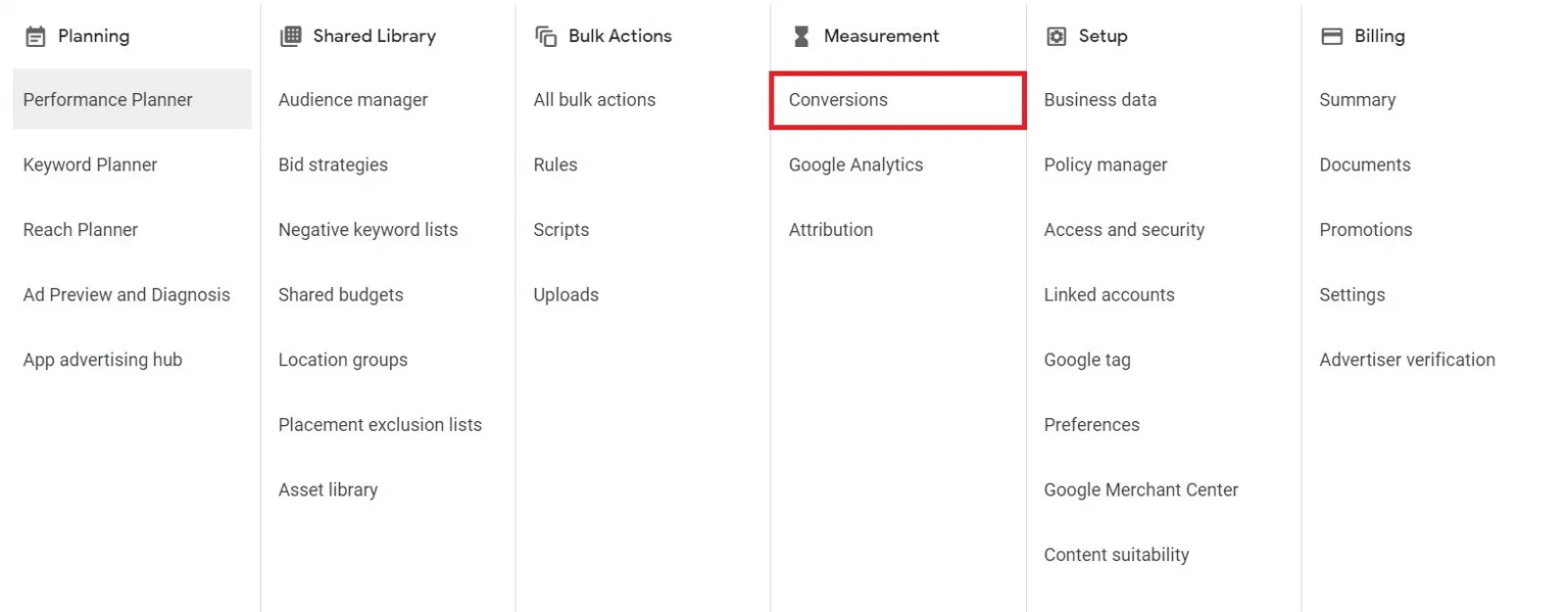
Step 2: Under the “Measurement” section, select “Conversions” to create a new conversion action.
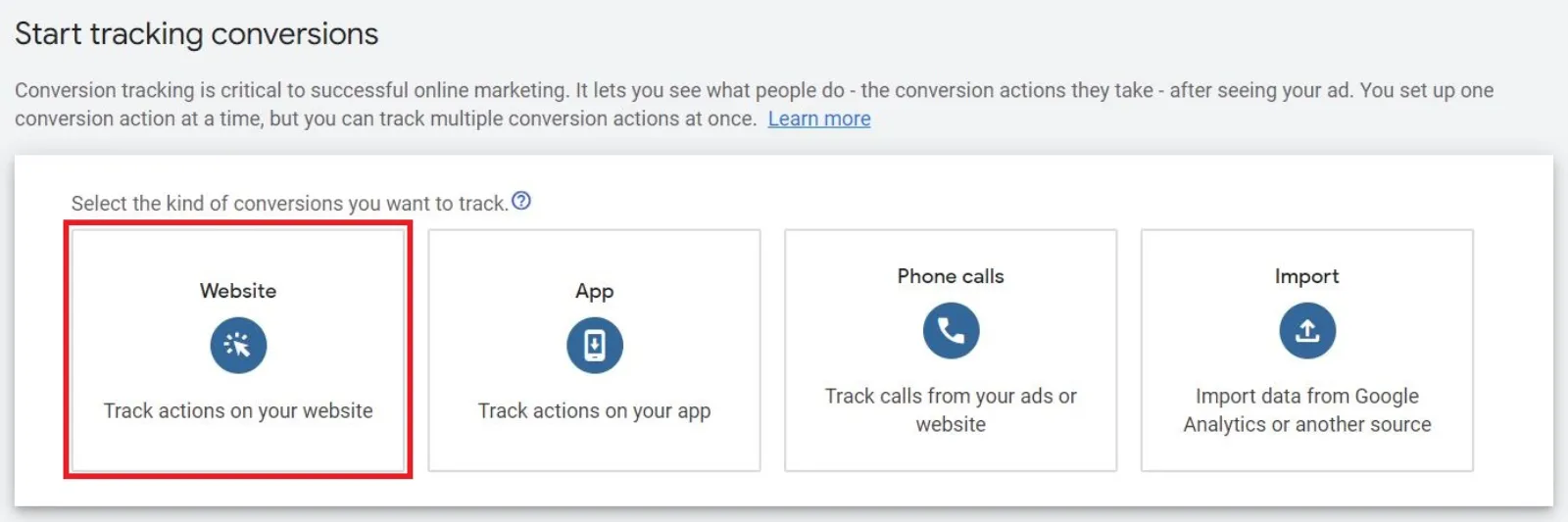
Step 3: Select the appropriate conversion action type. For tracking form submissions, choose “Website.”
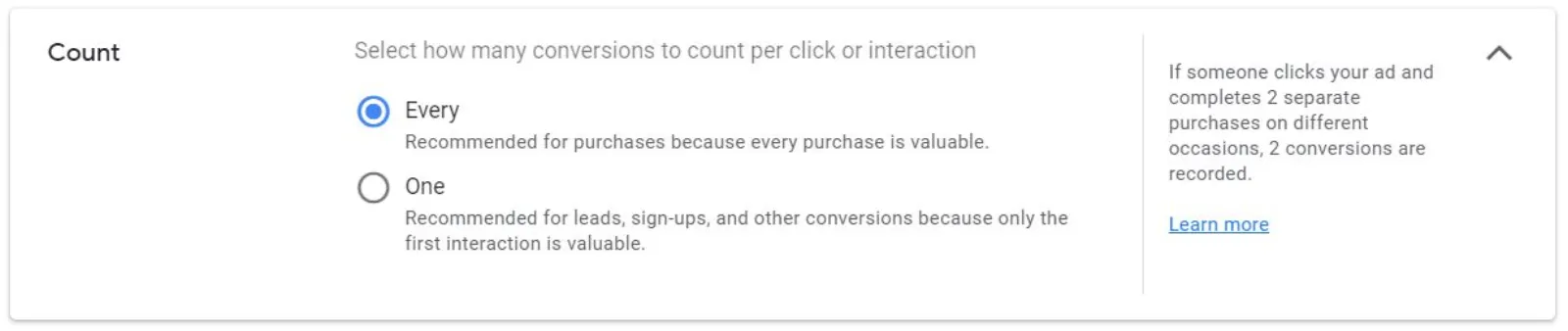
Step 4: Fill in the required information, including the conversion name, value, and counting option. Set the counting option to “Every” to track each individual form submission.
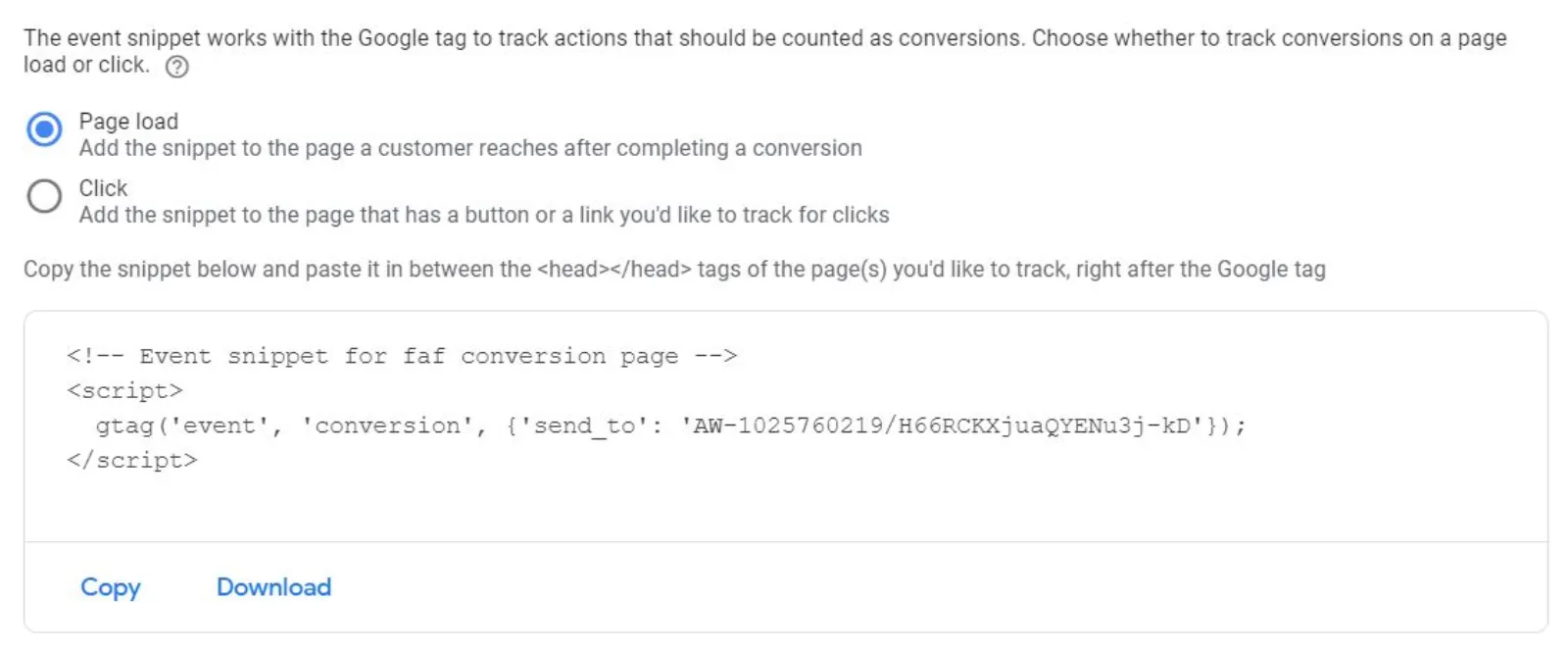
Step 5: Follow the provided instructions to add the generated conversion tracking code to the relevant page on your website, preferably on the confirmation or thank you page that users see after submitting a form.
Enable Auto-Tagging
To link your form submission data with your Google Ads campaigns, it is essential to enable auto-tagging. Auto-tagging automatically appends a unique parameter to your landing page URLs, which helps Google Ads collect data accurately. Here’s how to enable auto-tagging:
Step 1: From your Google Ads account, go to the “Settings” menu.
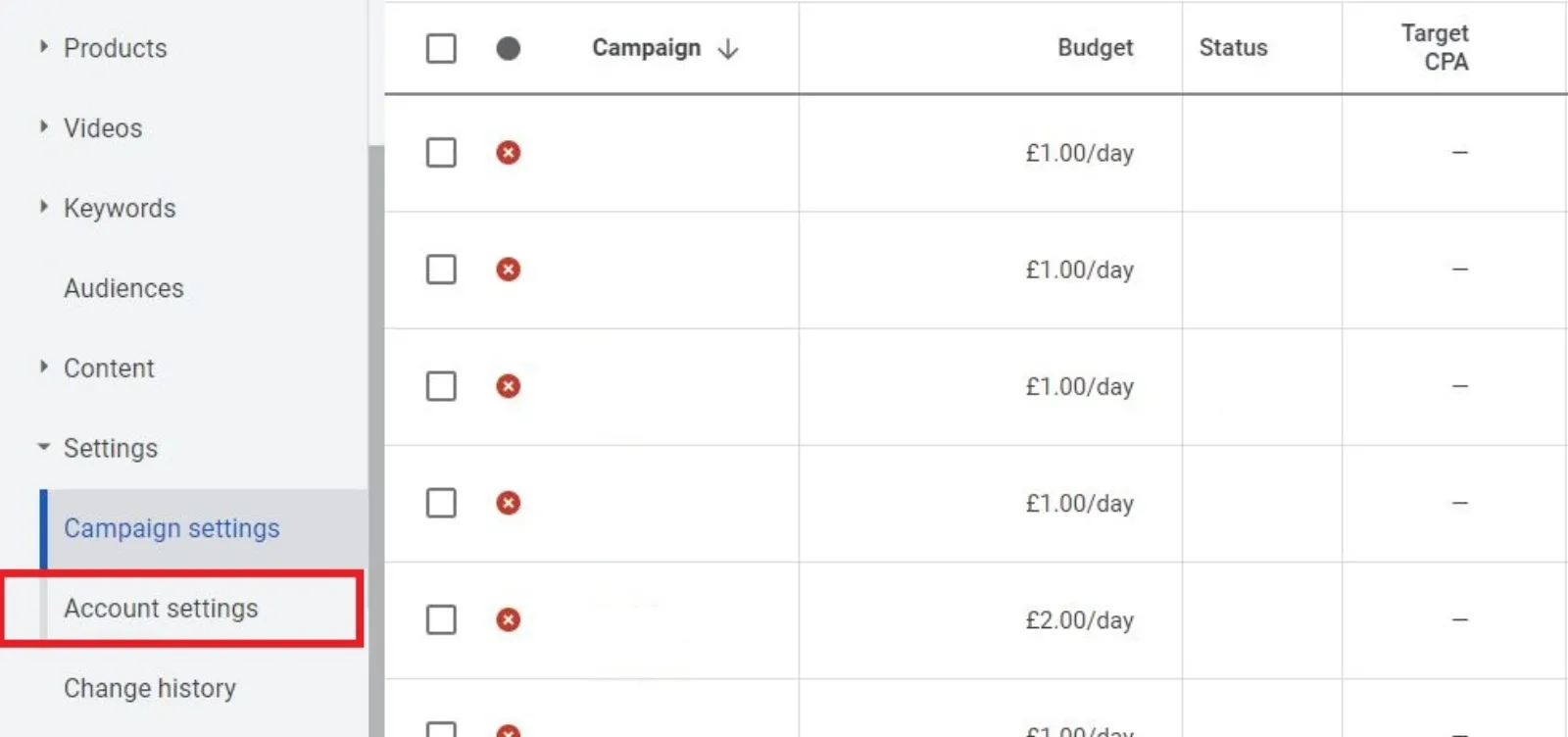
Step 2: Under the “Account” settings, select “Account Settings” to open the account preferences page.

Step 3: Scroll down to the “Tracking“ section and toggle the switch to enable auto-tagging.
Step 4: Click on the “Save” button to apply the changes.
Setup Goals In Google Analytics
By integrating Google Analytics with your Google Ads account, you can gain deeper insights into user behaviour and track individual form submissions. To set up goals in Google Analytics:
Step 1: Log in to your Google Analytics account and select the relevant website property.
Step 2: From the bottom-left corner, click on the “Admin” button to access the administration settings.
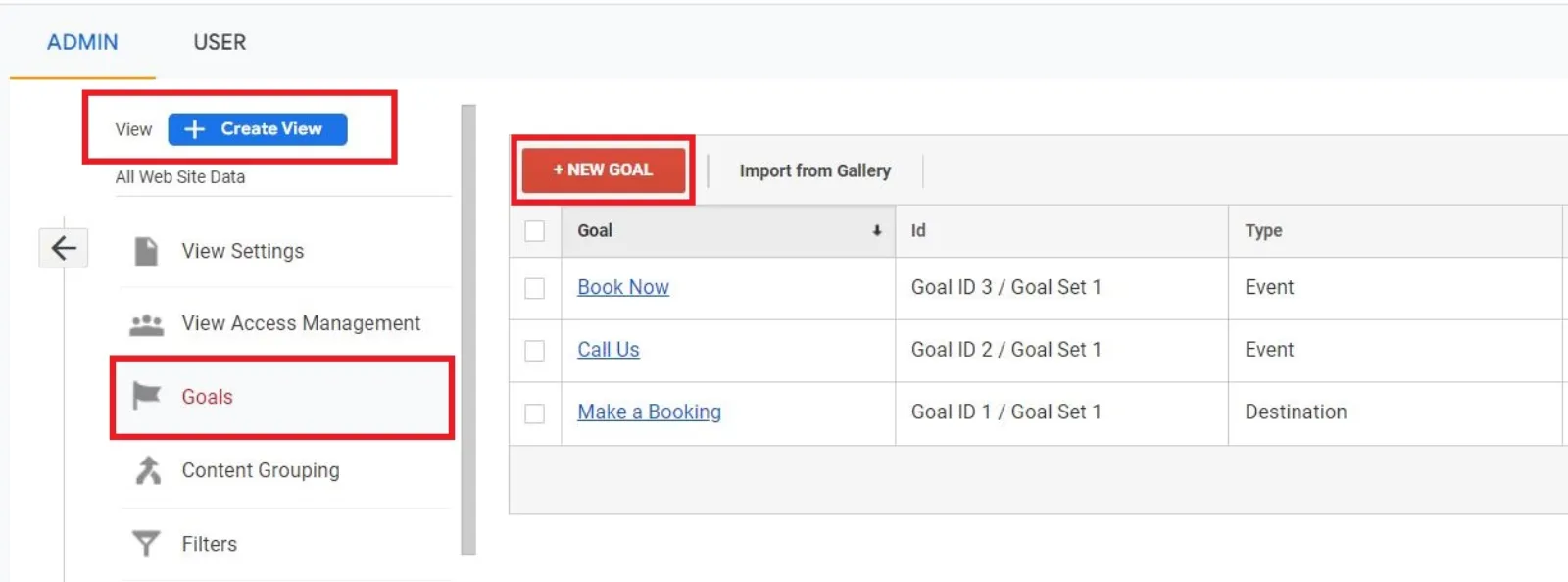
Step 3: Under the “View” column, select “Goals” and click on the “+ New Goal” button.
 LIVE
Live every Tuesday at 2pm UK. Bring your marketing questions.
Get your Google, local SEO and AI questions answered live.
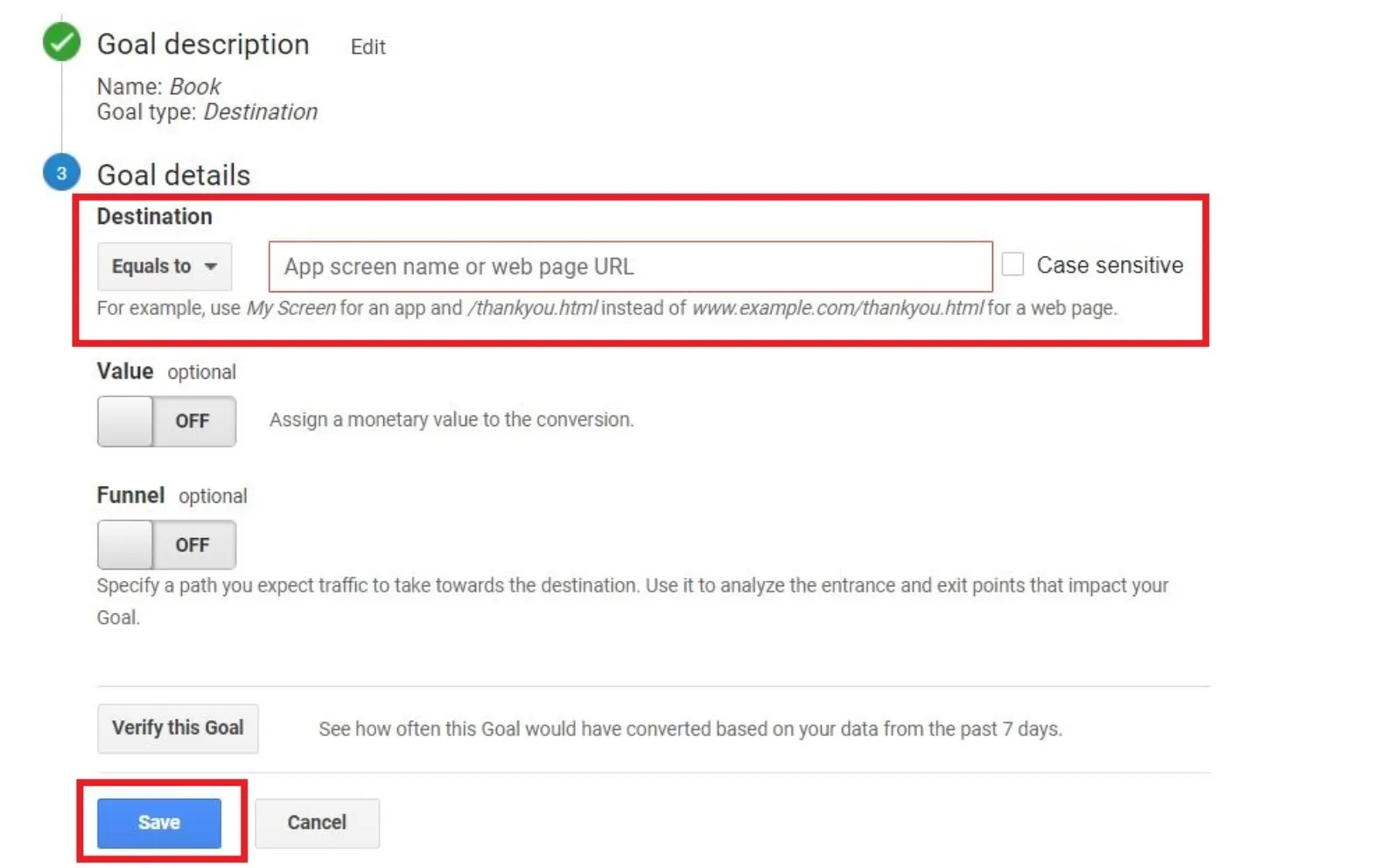
Step 4: Choose the “Custom” option and provide a name for your goal. Select “Destination” as the goal type and input the URL of your form submission confirmation page.
Step 5: Click on the “Save” button to save the newly created goal.
Import Google Analytics Goals To Google Ads
To link your Google Analytics goals with your Google Ads account, follow these steps:
Step 1: Go to your Google Ads account and navigate to the “Tools & Settings” menu.
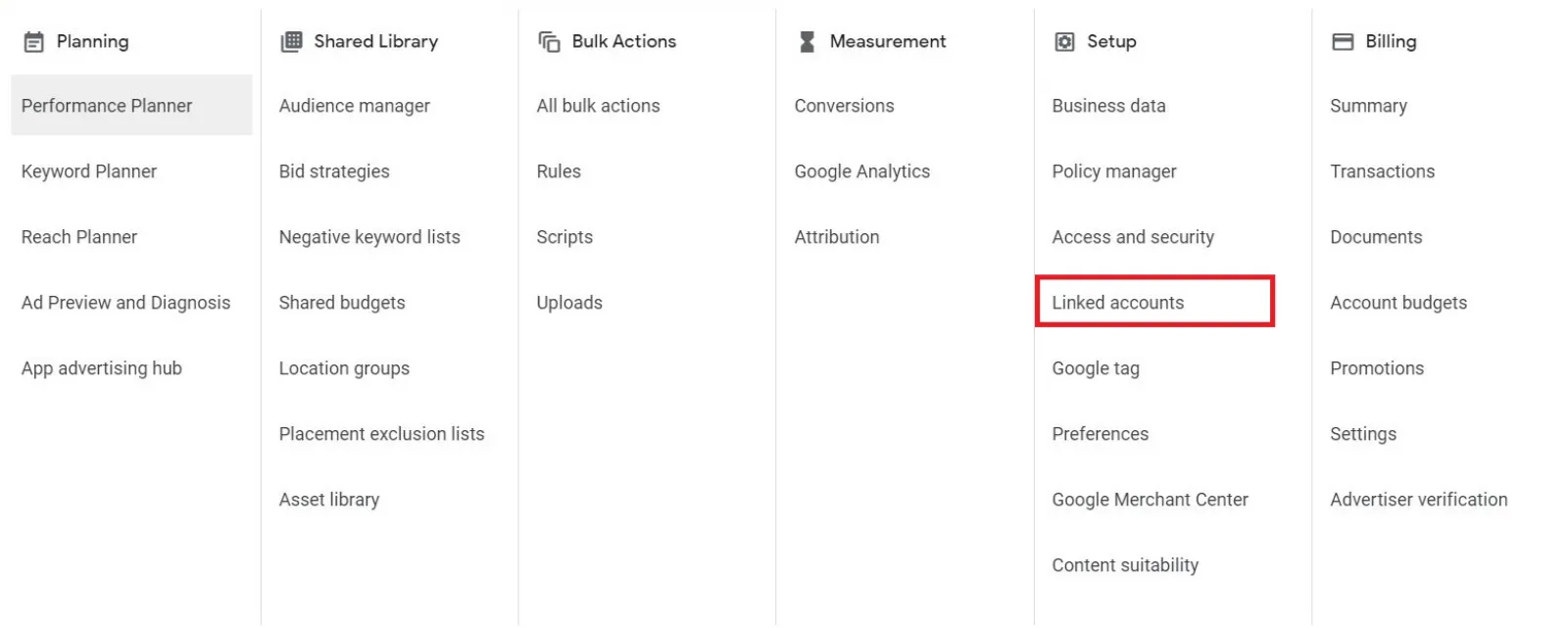
Step 2: Under the “Setup” section, select “Linked accounts” to open the account linking page.
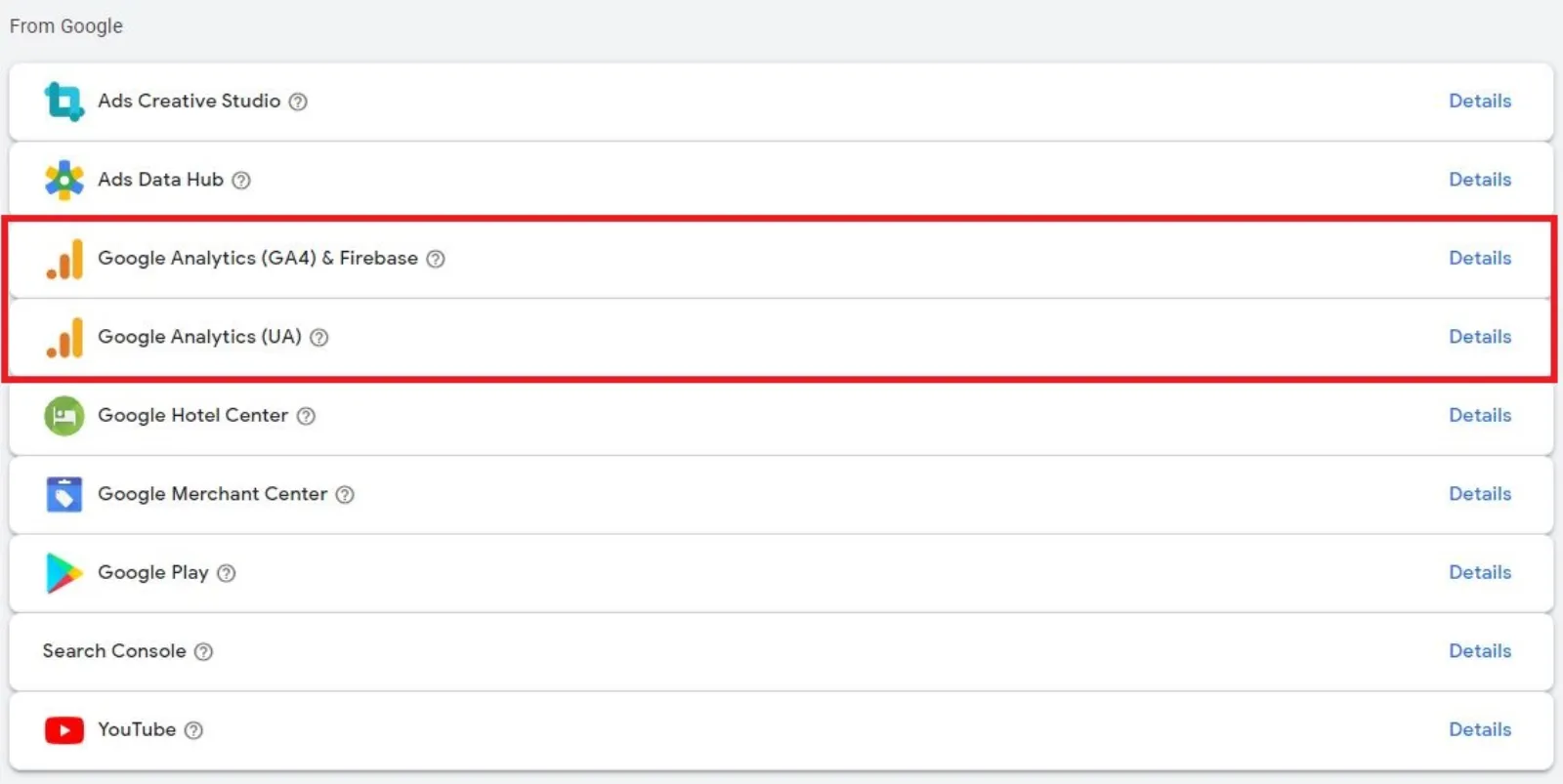
Step 3: Click on the “+ Link Account” button and select “Google Analytics” from the options.
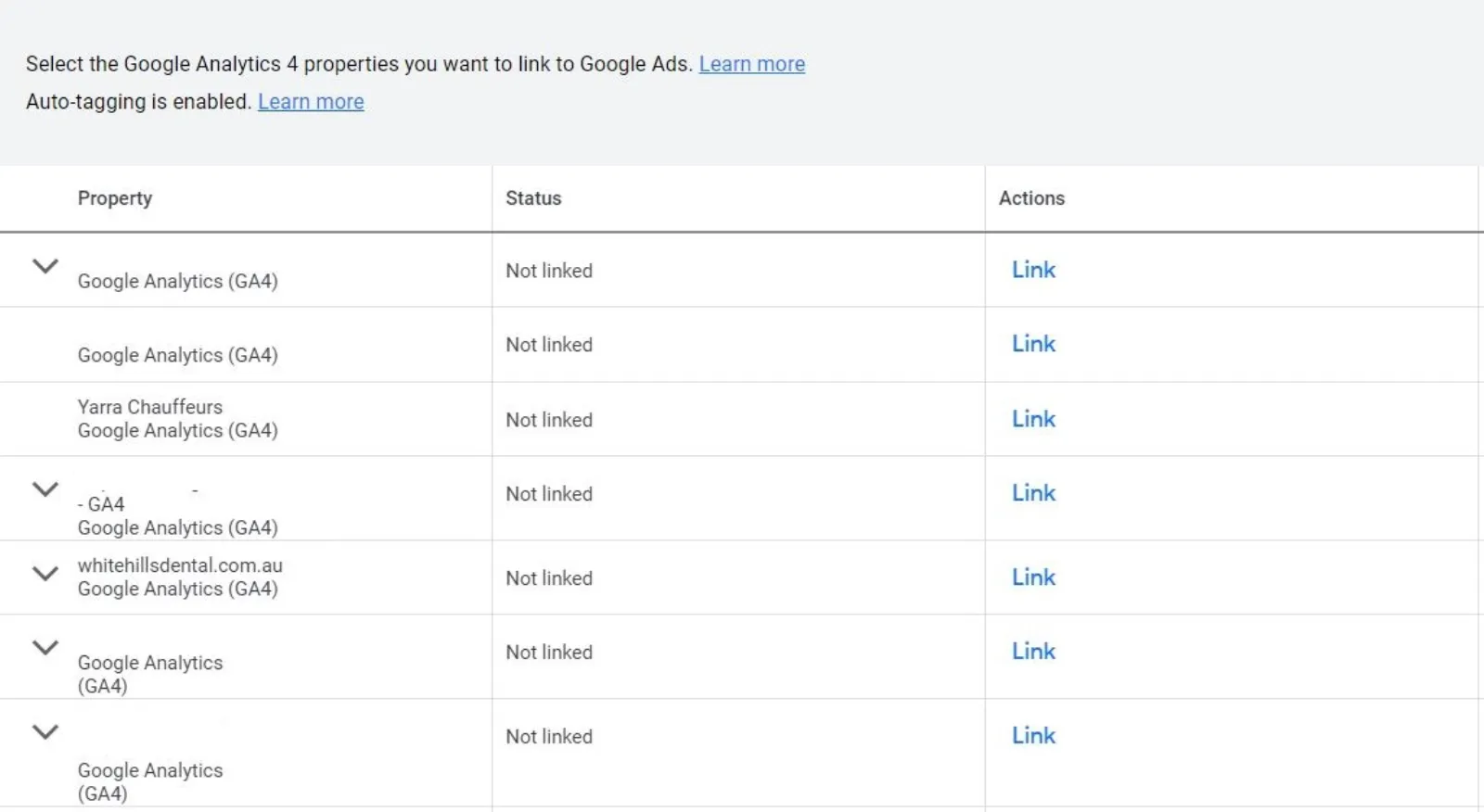
Step 4: Follow the provided instructions to link your Google Analytics account to Google Ads.
Step 5: In the “Import From” section, select your Google Analytics account and choose the goals you want to import. Ensure that you select the goals related to tracking form submissions.
Step 6: Click on the “Save” button to finalise the goal import.
View Conversion Data In Google Ads
Once you have completed the previous steps, you can now start tracking individual form submissions within your Google Ads account. Here’s how to view the conversion data:
Step 1: Log in to your Google Ads account and go to the “Campaigns” tab.
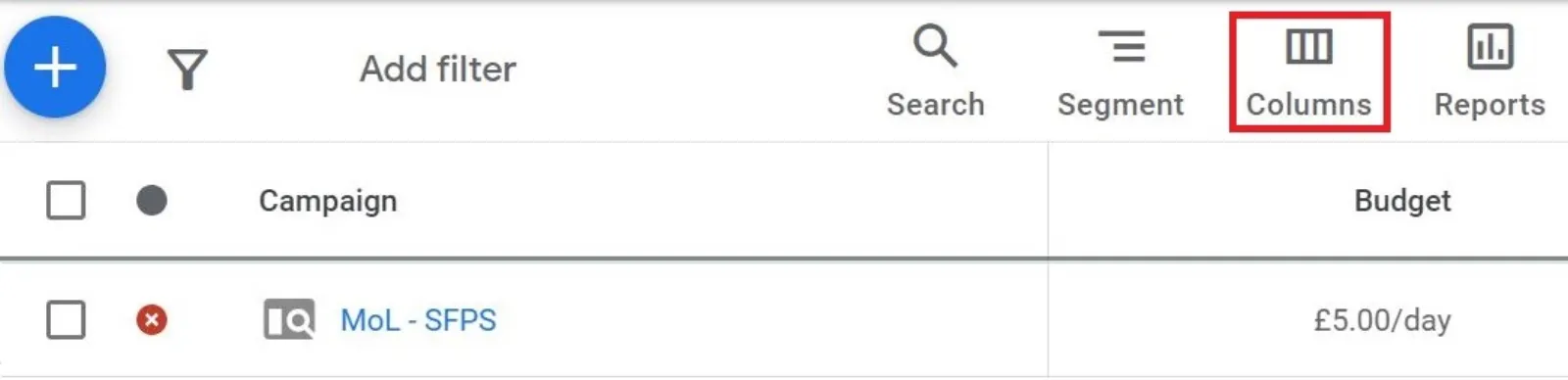
Step 2: Click on the “Columns” button and select “Conversions” from the drop-down menu. Choose the specific conversion actions you want to track, including the form submission goal you set up.
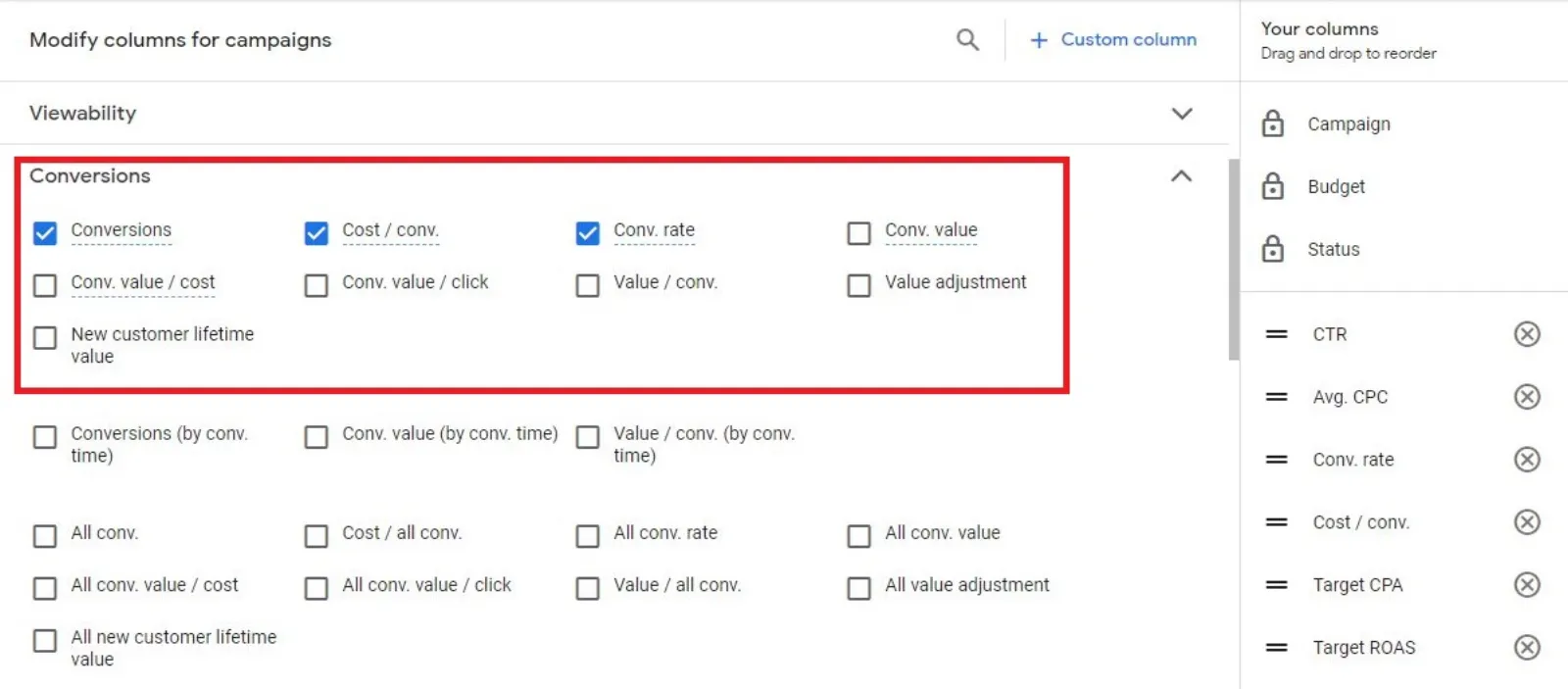
Step 3: Analyse the performance of your campaigns based on individual form submissions. Monitor metrics such as conversion rate, cost per conversion, and the number of conversions to gauge the effectiveness of your advertising efforts.
Optimise Your Campaigns
Tracking individual form submissions empowers you to optimise your Google Ads campaigns and improve your ROI. Here are a few optimisation strategies you can implement:
- Identify High-Performing Campaigns: Analyse the data to identify campaigns that generate a higher number of form submissions. Allocate more budget and resources to these campaigns to maximise your results.
- Refine Ad Copy and Landing Pages: Evaluate the performance of your ad copy and landing pages for campaigns with lower form submission rates. Experiment with different messaging, call-to-action buttons, and landing page layouts to improve user engagement and conversion rates.
- Implement A/B Testing: Test different variations of your ads and landing pages to identify which elements drive the highest number of form submissions. Continuously optimise your campaigns based on the insights gained from A/B testing.
- Consider Audience Targeting: Review your audience targeting settings to ensure that you are reaching the right audience for your form submissions. Refine your targeting parameters based on the demographics, interests, and behaviours of users who are more likely to convert.
Conclusion:
Tracking individual form submissions in Google Ads is essential for measuring the effectiveness of your campaigns and optimising your advertising strategy. By following the steps outlined in this blog post, you can set up conversion tracking, enable auto-tagging, and integrate Google Analytics goals to gain valuable insights into user behaviour. With accurate conversion data at your disposal, you can make data-driven decisions, refine your campaigns, and drive higher-quality leads. Stay proactive in monitoring and optimising your Google Ads campaigns to achieve better results and maximise your advertising ROI.

Written by Uzair Kharawala
Partner at SF Digital Studios, a Google Premier Partner agency. Uzair has been helping businesses grow with Google Ads since 2002 and teaches it every week on YouTube.
Get our best Google Ads tips by email
New articles and videos, straight to your inbox. Unsubscribe any time.