
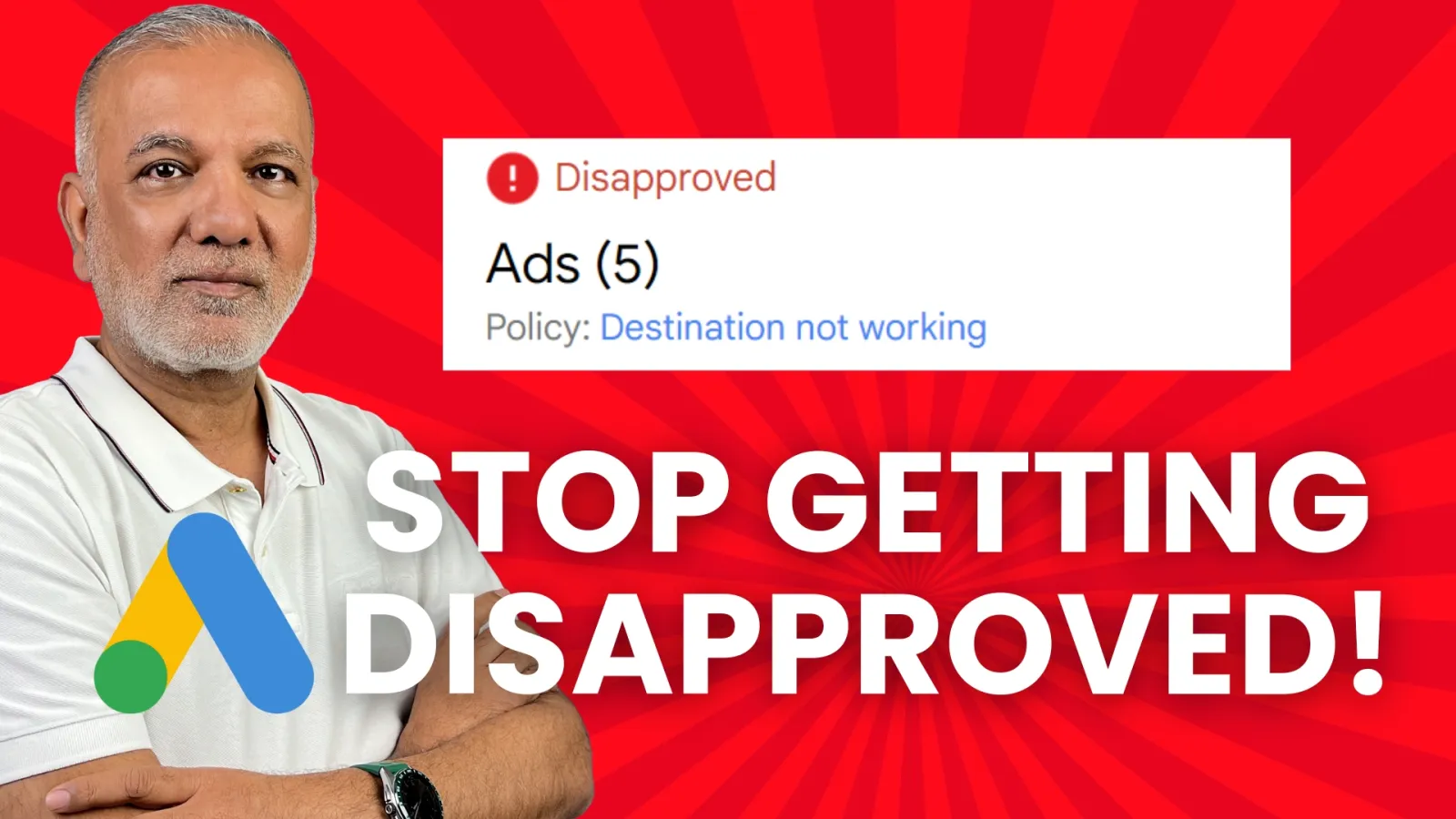
It’s happened to all of us. You hit “enable” on a new Google Ad, eager to see your campaigns take off, only to be met with that dreaded “Disapproved” status. Frustrating, right? Especially when you’re on a tight schedule. But before you panic and start rewriting everything, take a deep breath. Most Google Ads disapprovals can be fixed much faster than you think.
This isn’t about deep-diving into policy documents (though those are helpful in the long run). This is about quick, actionable steps to get your ads live again.

Get Found, Get Chosen, Get Your Time Back
A free one-day marketing seminar in Milton Keynes · 10 November 2026
Step 1: Don’t Guess – Check the “Status” Column
Your first move is always to look directly at the disapproval message. In your Google Ads interface, navigate to “Ads & assets” in the left-hand menu, then “Ads.” You’ll see a “Status” column. If your ad is disapproved, it won’t just say “Disapproved”; it will usually tell you why.
Get your free Marketing Action PlanNot sure where to start? Answer a few questions and get your plan in about a minute. No email needed.
Get my plan →It might say something like “Malicious software,” “Trademark,” “Unacceptable business practices,” or “Misleading content.” This message is your primary clue. Don’t ignore it and try to guess what’s wrong. Google is telling you what to fix.
Step 2: Click the “Disapproved” Status for Details
Often, the initial “why” is just the tip of the iceberg. Clicking on the “Disapproved” status itself will usually pop up a window with more information. This is crucial.
 LIVE
Live every Tuesday at 2pm UK. Bring your marketing questions.
Get your Google, local SEO and AI questions answered live.
For instance, if it says “Misleading content,” clicking it might reveal: “Your ad or landing page contains claims that cannot be substantiated, such as ‘Lose 10 lbs in 1 day!'” This level of detail helps you pinpoint the exact issue. Sometimes it will even highlight the problematic text directly within your ad copy or a link to a specific policy.
Step 3: Head Straight to the Source (of the Problem)
Once you know what the problem is and why it’s a problem, you need to fix it.
- Is it the ad copy? If the disapproval points to specific text in your headline, description, or path, edit it directly. If it’s something like “Capitalisation” or “Punctuation,” that’s an easy fix. If it’s “Misleading content,” you’ll need to rephrase or remove the claim.
- Is it the landing page? Many disapprovals are actually about your landing page, not the ad itself. Common issues include:
- Broken links: Make sure your final URL works. Test it!
- Slow loading speed: Google wants a good user experience. Optimise your page.
- Lack of transparency: Is your privacy policy easily accessible? Do you have contact information?
- Security issues (HTTP vs. HTTPS): Ensure your site is secure (HTTPS).
- Content that doesn’t match the ad: If your ad promises X, but your landing page delivers Y, that’s a problem.
- Is it a policy violation you weren’t aware of? Sometimes, especially with sensitive topics like healthcare, finance, or gambling, specific policies apply. The detailed disapproval message often links directly to the relevant Google Ads policy. Skim it to understand the rule you’ve broken.
Step 4: Make the Fix and Resubmit
Once you’ve made the necessary changes, don’t forget the most important step: resubmit your ad!
- If you edited the ad directly in the interface, it usually resubmits automatically after you save.
- If the issue was on your landing page, simply fixing the page doesn’t tell Google your ad is now compliant. You’ll often need to go back into the ad, make a tiny, non-impactful edit (like adding a space and deleting it), and then save it. This “trick” will get Google to re-review the ad and, by extension, your landing page.
A Few Bonus Tips for Speedy Resolutions:
- Don’t create a new ad: Unless the existing ad is completely unsalvageable, edit the disapproved one. This preserves its history and any potential quality score benefits.
- Clear your cache: Sometimes, browser issues can cause display problems. A quick cache clear can help ensure you’re seeing the most up-to-date information.
- Use the “Policy Manager”: In Google Ads, under “Tools and settings” > “Policy manager,” you can see a consolidated list of all disapprovals across your account. This is a great place to spot recurring issues.
- If all else fails, contact support: If you’ve tried everything and are still stumped, don’t hesitate to reach out to Google Ads support. They can often provide specific insights that the automated system might not.
Troubleshooting Google Ads disapprovals doesn’t have to be a major roadblock. By systematically checking the disapproval message, understanding the root cause, and making targeted fixes, you can often get your ads back on track in mere minutes. So next time you see that red “Disapproved,” remember these steps and get ready to turn it green!

Written by Uzair Kharawala
Partner at SF Digital Studios, a Google Premier Partner agency. Uzair has been helping businesses grow with Google Ads since 2002 and teaches it every week on YouTube.
Get our best Google Ads tips by email
New articles and videos, straight to your inbox. Unsubscribe any time.