
For anyone who’s spent time managing Google Ads campaigns, especially Performance Max (PMax), this update feels like a long-awaited sigh of relief. Campaign-level negative keywords are finally here, and they’re a game-changer.
In this post, we’ll explain what this update means, how to implement it, and why it matters for advertisers who’ve struggled with PMax’s limitations. Don’t worry, this won’t be packed with jargon or AI-sounding lingo, just clear, practical advice from one advertiser to another.
So, What’s the Big Deal?
Until recently, if you wanted to stop your Performance Max campaign from showing up for specific search terms, your only option was account-level negative keywords. That might sound okay, but here’s the problem: it lacked flexibility.
If you wanted to block a brand name in one campaign but keep it in another? Nope. You’d have to either live with it or get help from a Google rep. Not ideal. But now, you can add negative keywords at the campaign level, which opens the door to way more control and strategy.
How to Add Campaign-Level Negative Keywords
Let’s keep this simple. If you’re ready to give it a try, here’s how to do it:
Open Your Campaign: Head to the specific Performance Max campaign you want to manage.
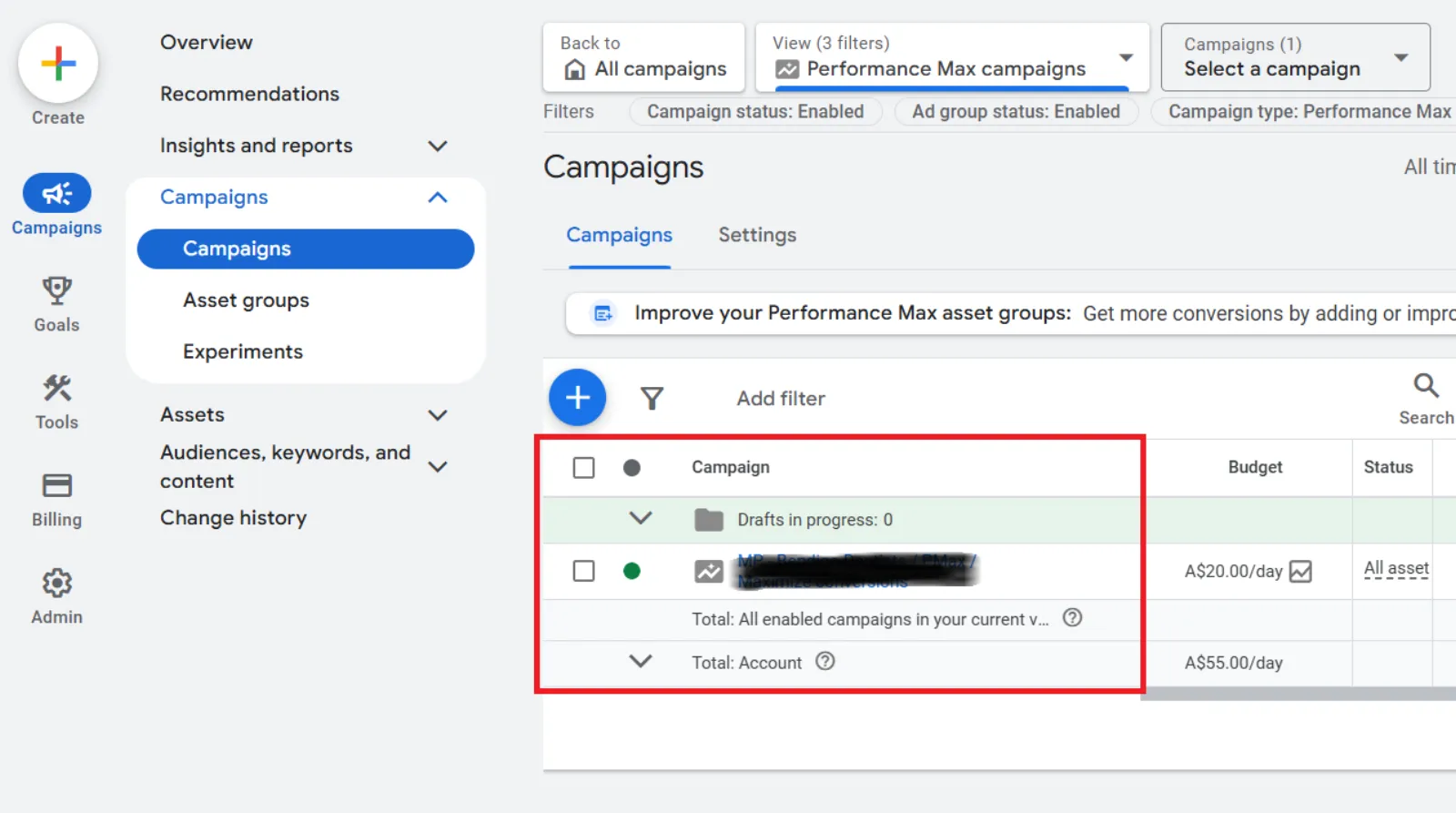
Find the Right Section: Click on “Audiences, keywords and content” from the menu on the left.
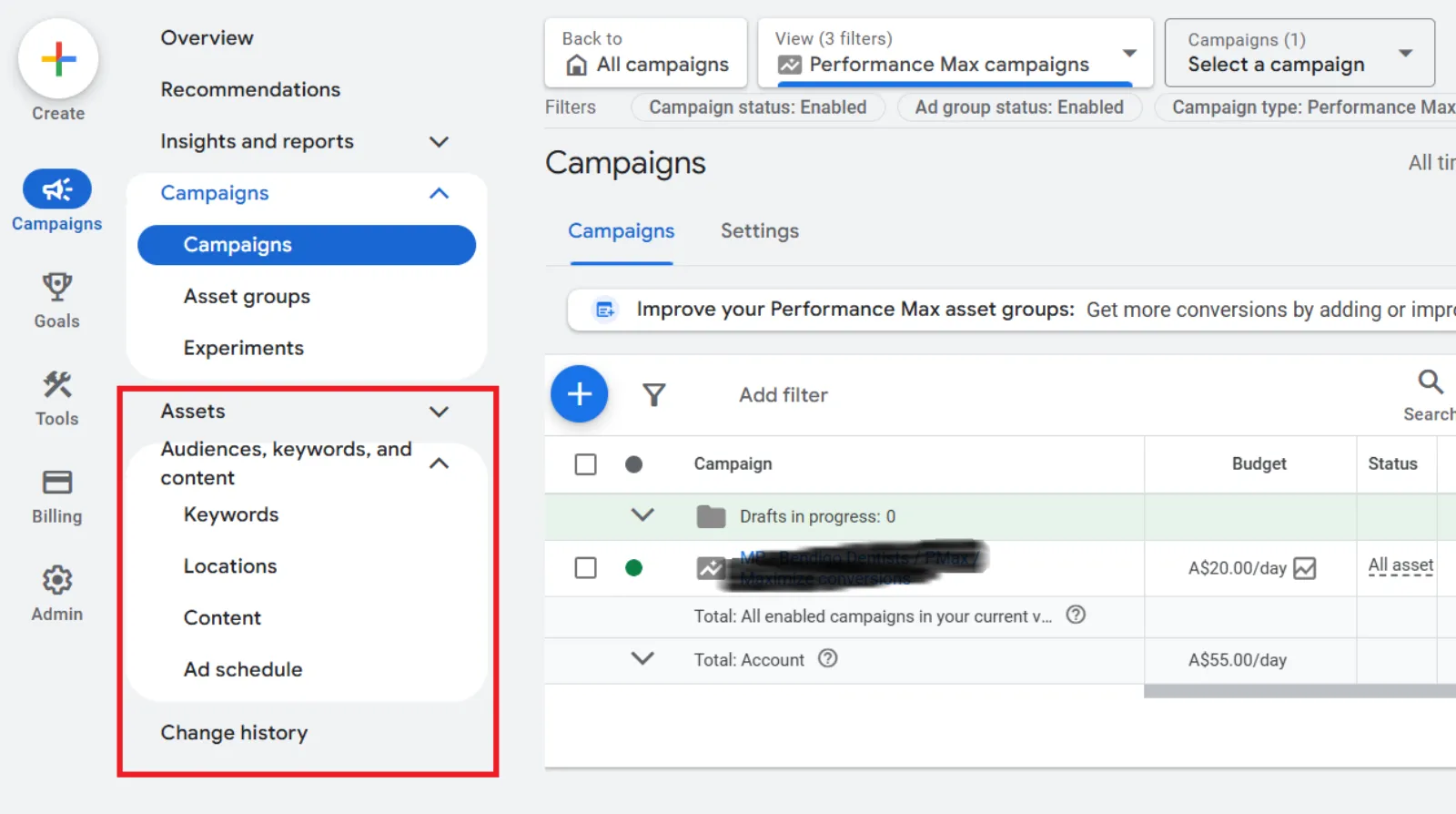
Look for the “Keywords” Tab: If you see a tab called “Keywords”, congrats, you’ve got access. If it’s not there yet, don’t stress. Google is still rolling it out.
Click the Tab: Go ahead and click on the “Keywords” tab.
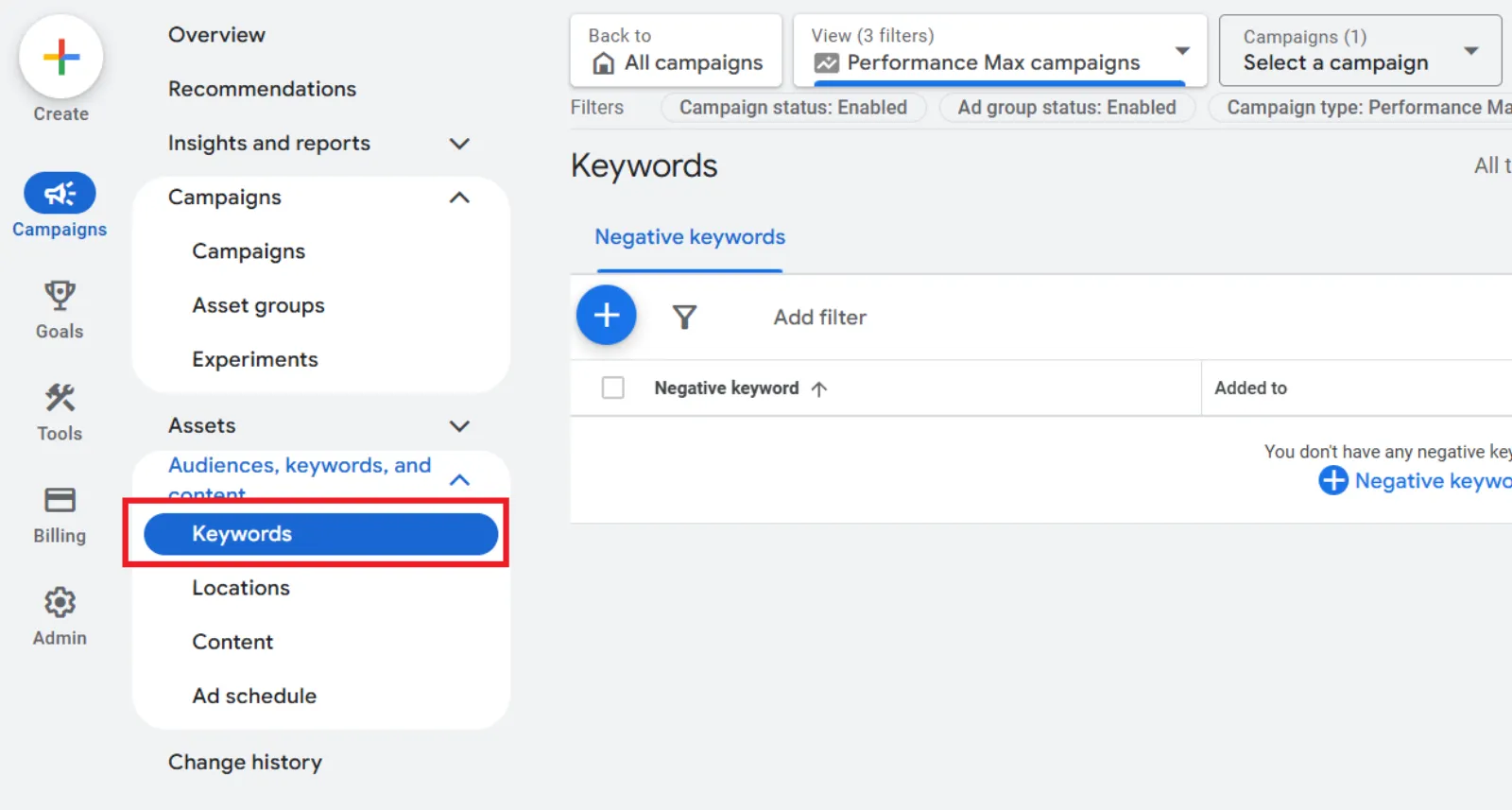
Add Your Negatives: Hit the blue plus button. You’ll see “Add to campaign” as your only option. This confirms you’re in the right spot; asset group and account-level options won’t show here.
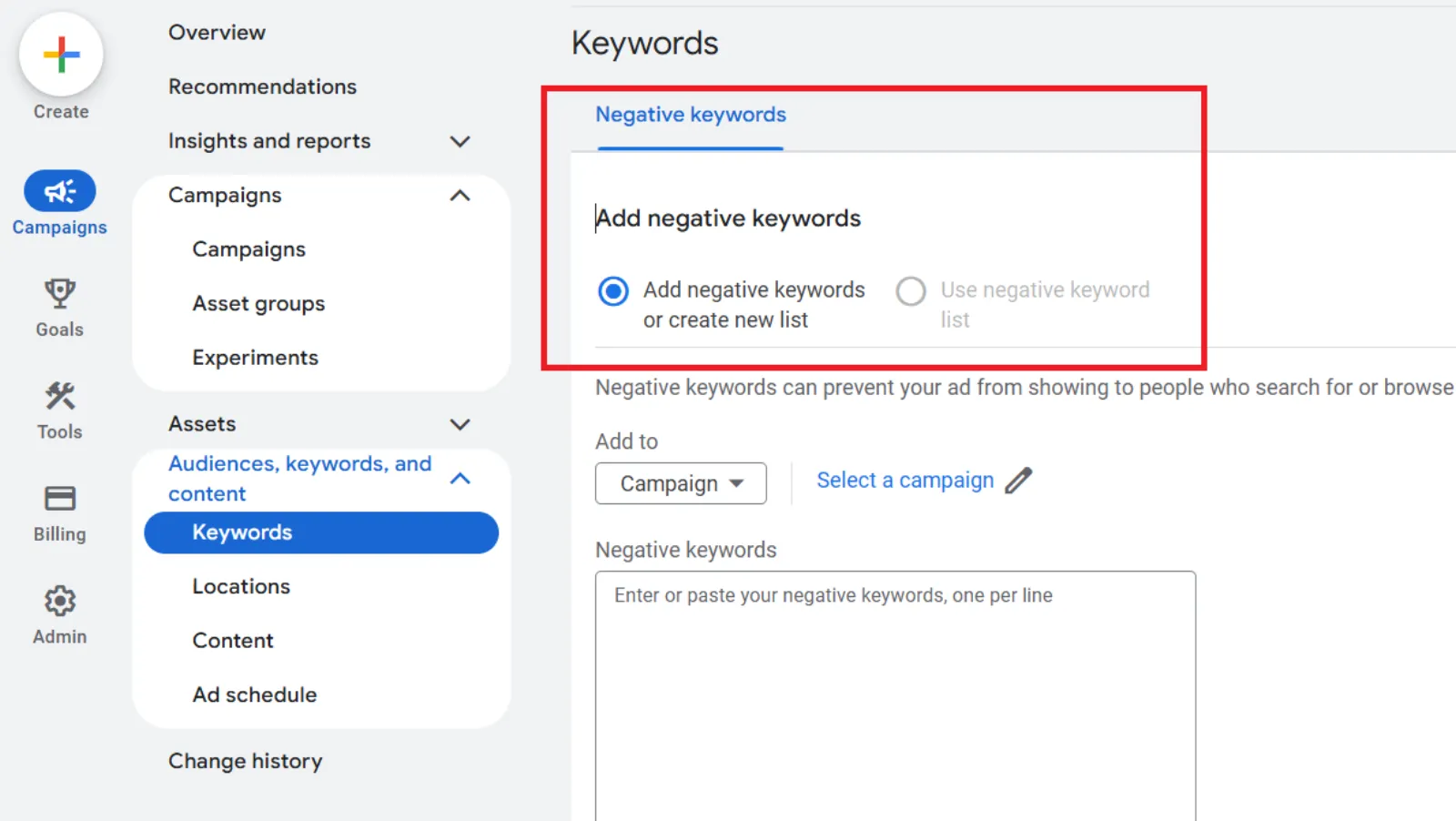
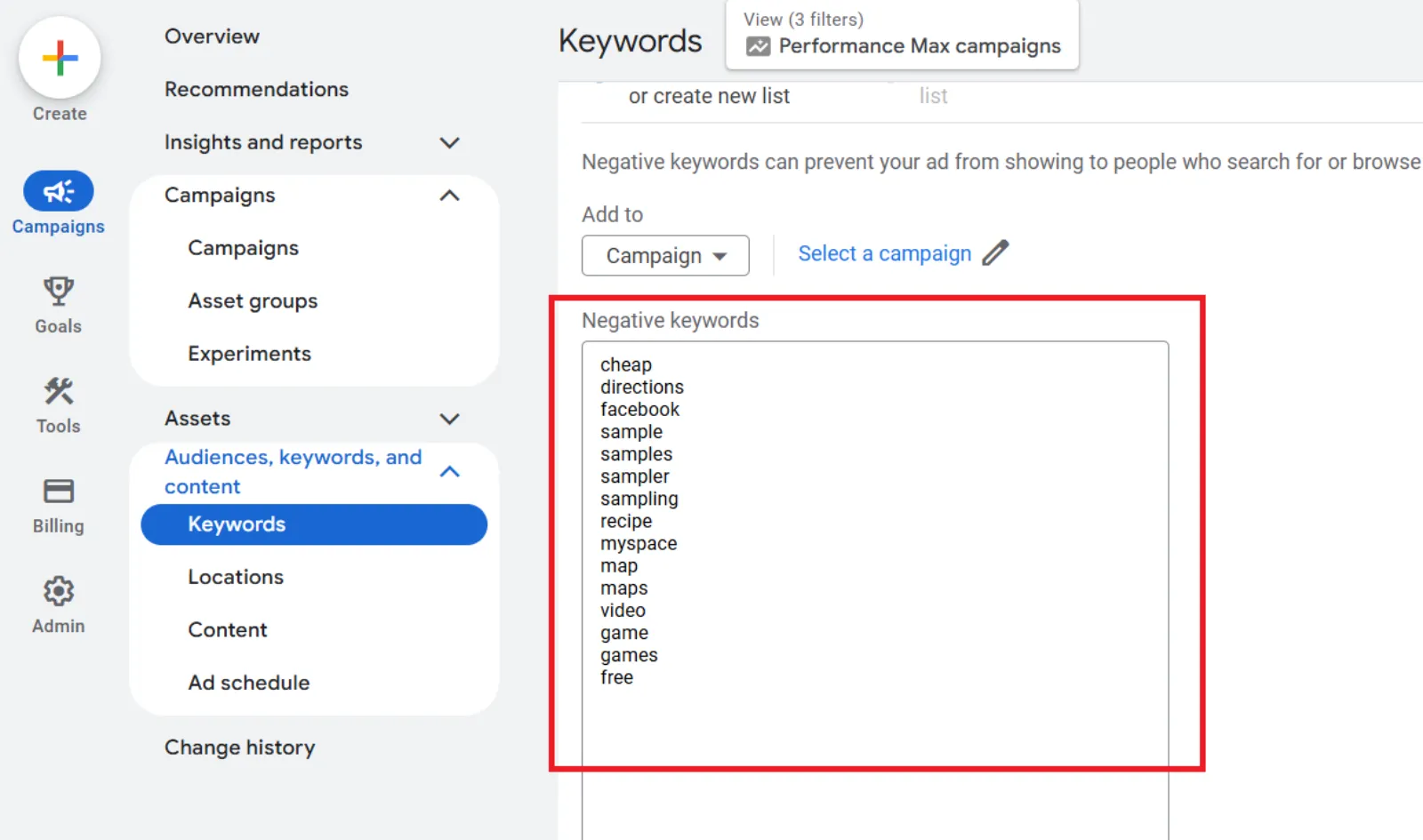
Type in Your Keywords: Just like you would in a search campaign. You can use broad, phrase, or exact match; the same rules apply.
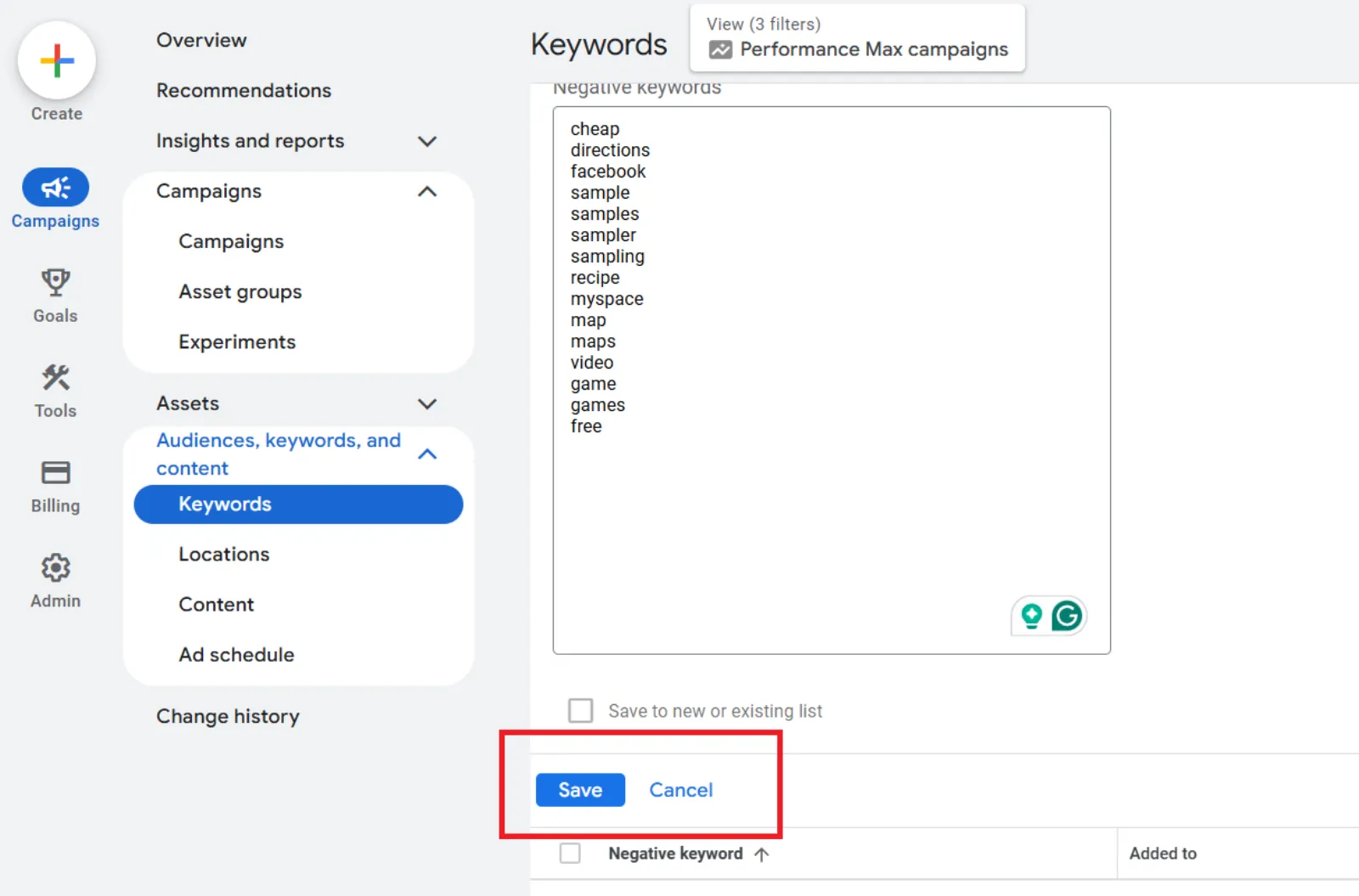
Save: Once you’re done, hit Save. You’ll now see your negative keywords listed, with “campaign level” clearly marked.
A Few Things to Keep in Mind
Before you go adding negatives like it’s spring cleaning, here are some important details:
- Search & Shopping Only: Campaign-level negative keywords only impact Search and Shopping placements, not YouTube or Display.
- Account-Level Negatives Still Work: Whatever you’ve added at the account level will still apply across all campaigns. These new ones just give you more granular control.
- Lists Aren’t Here Yet: You can’t use keyword lists for campaign-level negatives (yet). But Google says they’re coming, which will make life way easier, especially for large accounts.
- The Keyword Limit Is Increasing: Initially, Google capped this at 100 keywords per PMax campaign. That’s changing. Soon, you’ll be able to add up to 10,000 negative keywords—same as Search campaigns. If you’re still seeing the lower limit, just hang tight.
Why This Update Matters
Let’s break this down in real terms. Here’s why campaign-level negatives are such a big deal for Performance Max:
You Get More Control Over Campaign Strategy
Before this, PMax campaigns could sometimes compete with your Search campaigns, especially if they were targeting the same queries. Now, you can keep that from happening by blocking keywords in PMax and letting them flow to your more specific campaigns.
You Can Manage Brand Terms Better
If you’ve ever had a headache trying to keep brand searches out of PMax (but still want them in your branded search campaign), this is your fix. Add brand terms as campaign-level negatives to keep PMax from swooping in and showing ads where you don’t want them.
It’s Easier to Focus Campaigns on Specific Products or Services
Maybe you’ve got one PMax campaign for high-end products and another for entry-level ones. You don’t want to overlap. Negative keywords help you keep those lines clean.
You Can Refine Messaging Based on Intent
Let’s say someone searches for “affordable software” vs “enterprise software.” You might want each query to trigger a different campaign with its own tailored messaging. With campaign-level negatives, you can steer those queries exactly where you want them to go.
Final Thoughts
This update might not sound flashy at first, but for advertisers who use Performance Max seriously, it’s a big deal. Google is finally giving us the tools we need to shape how our ads behave, and that means better ROI, better targeting, and less wasted spend.
There’s still room for improvement (we’re looking at you, keyword lists), but this is a huge step in the right direction. If you’re running PMax campaigns, now’s the time to jump into your account, check for the “Keywords” tab, and start testing campaign-level negatives.
Simple changes like this can make a big difference, and now, you’ve got one more lever to pull.

Written by Uzair Kharawala
Founder of SF Digital Studios, a Google Premier Partner agency. Uzair has been helping businesses grow with Google Ads since 2002 and teaches it every week on YouTube.
Get our best Google Ads tips by email
New articles and videos, straight to your inbox. Unsubscribe any time.