
Waking up to a notification that Google has flagged your site as “compromised” is a truly awful feeling. It can cause a sudden, sharp drop in organic traffic. Your search results might show a scary warning to users, and if you’re running Google Ads, you’ll see a swift and punishing disapproval of your ads. It feels like your digital world is falling apart.
But take a deep breath. While it’s serious, a compromised site isn’t the end of the world. It’s a problem that can be fixed. The key is to act quickly and methodically. Here’s a straightforward guide on how to handle the situation and get your site back in Google’s good graces.

Get Found, Get Chosen, Get Your Time Back
A free one-day marketing seminar in Milton Keynes · 10 November 2026
Step 1: Confirm the Problem
First, you need to understand exactly what’s wrong. Google is usually pretty good at telling you. The most common place to find this information is in Google Search Console. If you don’t have an account, get one set up right away. It’s a critical tool for any site owner.
Get your free Marketing Action PlanNot sure where to start? Answer a few questions and get your plan in about a minute. No email needed.
Get my plan →In Search Console, go to the “Security & Manual Actions” section and click on “Security Issues.” This report will give you a list of problems Google has detected, such as malware, phishing attempts, or “social engineering” content. It will even provide a few example URLs to show you where the bad stuff is hiding.
If you don’t see anything in Search Console, but you have a “Google Ads disapproved” notice for a “compromised site,” there’s another place to check. Use Google’s Safe Browsing Site Status tool. Just enter your domain, and it will give you a public-facing report on any security issues it has found.
Step 2: Take Your Site Offline (Or at least Isolate It)
This might sound drastic, but it’s a crucial step. You need to stop the bleeding. The compromised code could be harming your visitors—stealing their information, redirecting them to malicious sites, or infecting their computers.
The best way to do this is to take your site down temporarily. Most hosting providers have a way to do this from their control panel (like cPanel). You can set up a simple “under maintenance” page. This stops the spread of the infection and prevents further harm to your users. It also prevents the hackers from doing more damage while you work on a fix. If you can’t take the site completely offline, consider putting it in maintenance mode and using a 503 status code to tell Google you’re doing maintenance.
 LIVE
Live every Tuesday at 2pm UK. Bring your marketing questions.
Get your Google, local SEO and AI questions answered live.
Step 3: Scan and Clean Your Site
Now for the hard part: finding and removing the malicious code. There are two main ways to do this.
Option A: The DIY Route (If You’re Tech-Savvy)
If you know your way around website files and databases, you can clean it yourself. This involves a lot of detective work.
- Change All Your Passwords: This is non-negotiable. Change every password related to your site—your hosting account, FTP, CMS (like WordPress admin), and database. Make them long, strong, and unique.
- Run a Scan: Use a security plugin or a service that scans your site for malware. These tools can often pinpoint infected files.
- Manual Inspection: This is the most painstaking part. Look for files that don’t belong, especially in core folders. Check file dates for anything that was recently modified without your knowledge. Scrutinise your theme and plugin files for suspicious-looking code. Malicious code is often disguised or hidden in plain sight.
Option B: The Easier Route (Recommended for Most)
For most people, a professional security service or a dedicated security plugin is the way to go. These tools are designed for exactly this situation. They can scan your entire site, including the database, and often offer one-click removal of the malicious code. This is faster and much more reliable than trying to do it manually. Many of these services, like Sucuri or MalCare, specialise in cleaning up hacked websites and will even submit the site for review with Google for you.
Step 4: Secure Your Site and Prevent Future Attacks
Cleaning the site is only half the battle. If you don’t patch the vulnerability that allowed the hack in the first place, you’ll just get reinfected.
- Update Everything: This is probably the number one reason websites get compromised. Update your CMS (WordPress, Joomla, etc.), themes, and all plugins to their latest versions. Outdated software is a hacker’s best friend.
- Remove Unused Items: Delete any old themes or plugins you aren’t actively using. They are potential security holes.
- Install a Firewall: A Web Application Firewall (WAF) can block malicious traffic before it ever reaches your site.
- Use Two-Factor Authentication (2FA): This adds an extra layer of security to your admin login. Even if a hacker gets your password, they can’t log in without the second authentication step.
- Review User Accounts: Check for any unknown or suspicious user accounts that might have been created.
Step 5: Request a Review from Google
Once you are certain the site is clean and secure, you need to tell Google.
- For Organic Search: Go back to the “Security Issues” report in Google Search Console. Click on “Request Review.” You’ll need to explain the steps you took to fix the problem. Be detailed and honest. Mention the steps you followed, like “We cleaned the malware using [Tool Name], updated all plugins, and changed all passwords.”
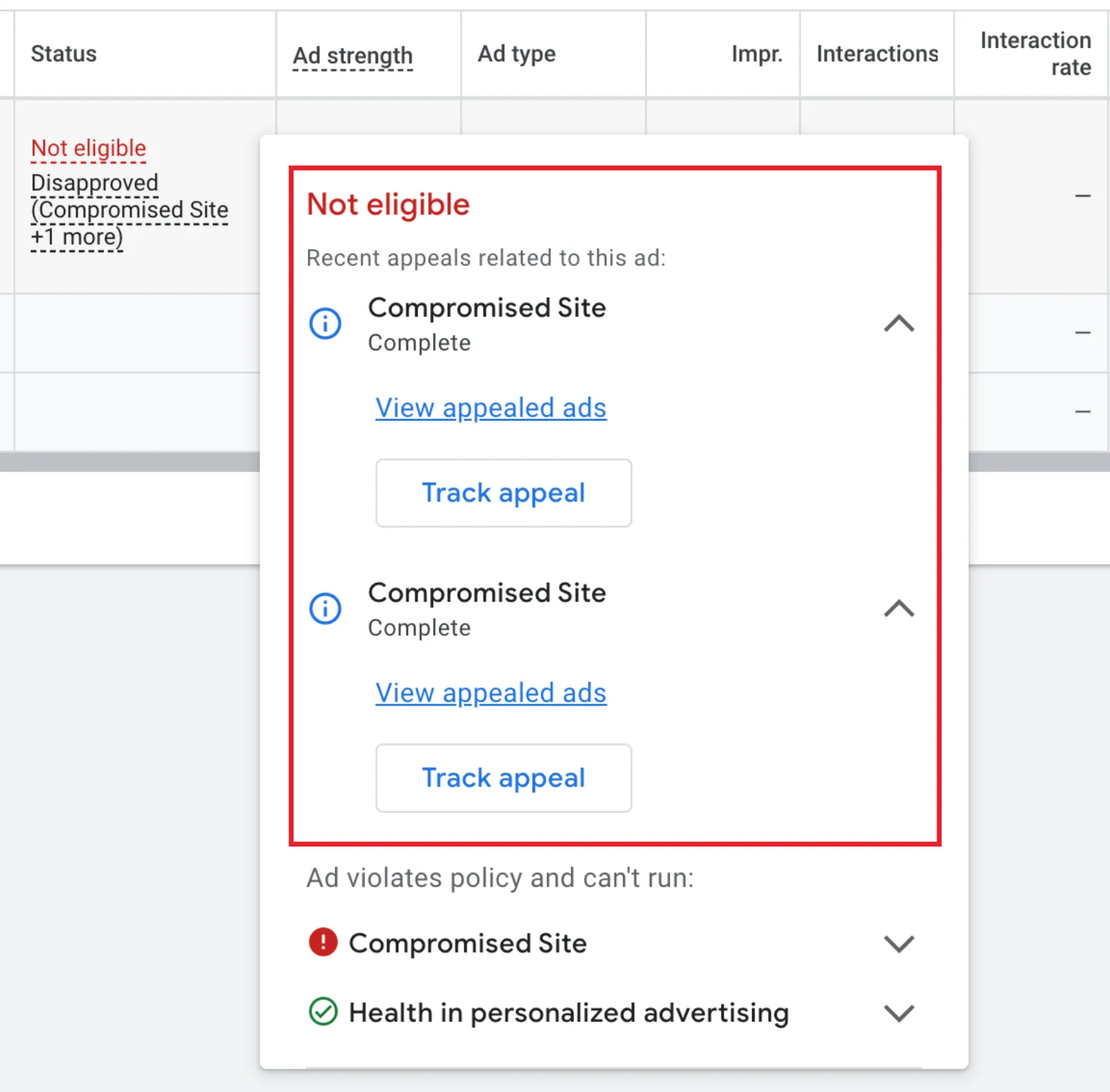
- For Google Ads Disapprovals: After the Search Console review is approved, your Google Ads should automatically be re-evaluated. If they aren’t, or if you need to act faster, you can manually appeal the disapproval in your Google Ads account. Go to the “Policy Manager” and submit an appeal, again explaining the issue and the steps you took to resolve it.
This whole process can feel overwhelming, but by following these steps, you can get your website—and your business—back on track. It’s a wake-up call to take website security seriously, and once you’ve gone through it, you’ll be much better prepared to prevent it from happening again.

Written by Uzair Kharawala
Partner at SF Digital Studios, a Google Premier Partner agency. Uzair has been helping businesses grow with Google Ads since 2002 and teaches it every week on YouTube.
Get our best Google Ads tips by email
New articles and videos, straight to your inbox. Unsubscribe any time.