
You’ve spent hours crafting the perfect ad campaign. The copy is tight, the keywords are spot-on, and the targeting is flawless. You hit “save,” and moments later, you get the dreaded email: “Your ad has been disapproved.” The reason? “Unsupported Language.”
It’s a frustrating and surprisingly common problem. You know your ad is in English (or Spanish, or French, or whatever language you chose), and you’re sure it’s a supported language. So what gives?

Get Found, Get Chosen, Get Your Time Back
A free one-day marketing seminar in Milton Keynes · 10 November 2026
The good news is, this isn’t a dead end. In most cases, it’s not a person at Google manually reviewing your ad and deciding your language is no good. It’s an automated system that flagged something it didn’t like. Think of it as a strict, slightly overzealous grammar teacher who sometimes gets it wrong. The fix is often much simpler than you might expect.
Get your free Marketing Action PlanNot sure where to start? Answer a few questions and get your plan in about a minute. No email needed.
Get my plan →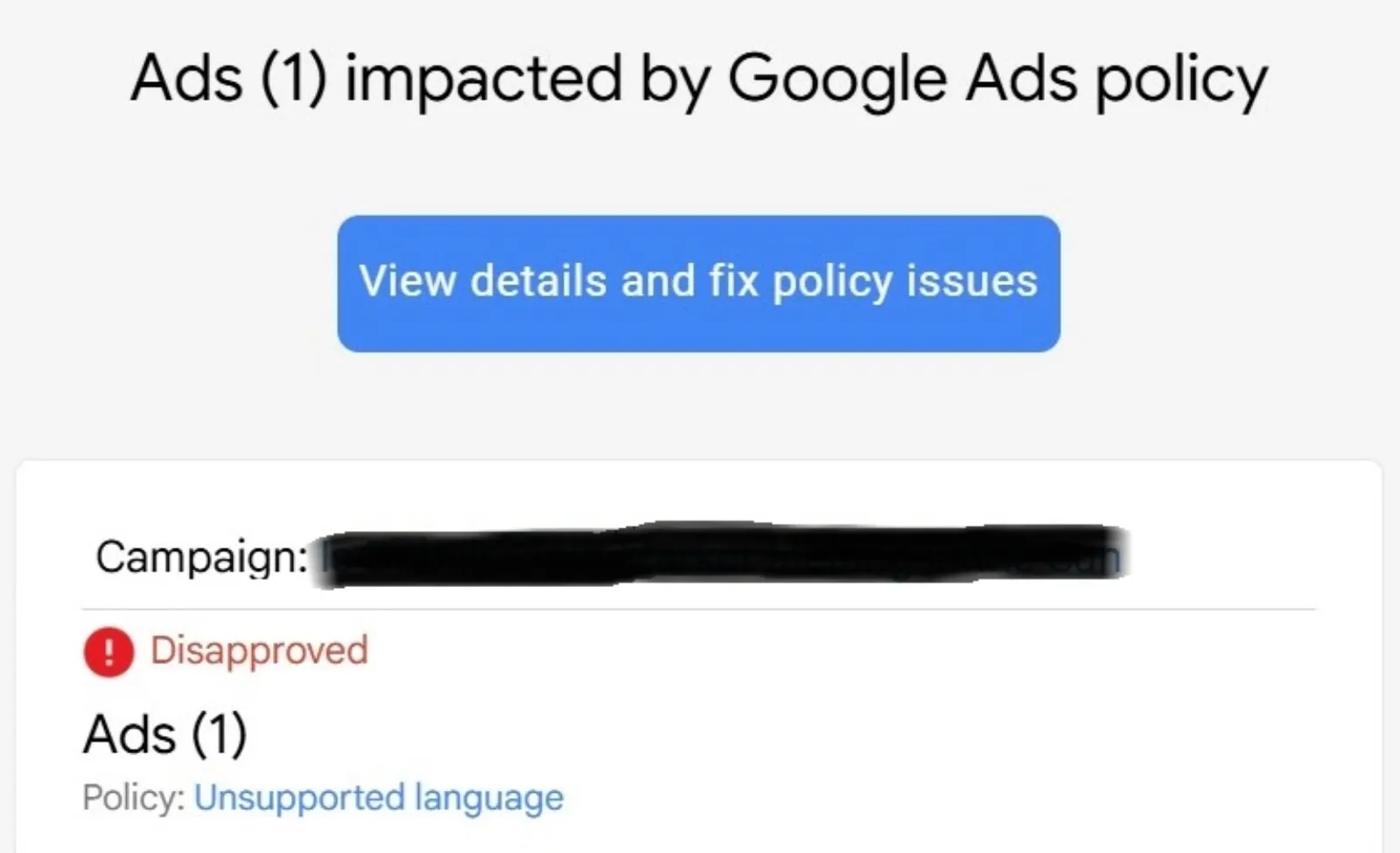
Let’s break down why this happens and, more importantly, how you can get your ad back on track.
The Usual Suspects: Why Google Flags Your Ad
When the Google Ads system sees “unsupported language,” it’s not just looking at the primary language of your ad text. It’s also scanning your entire ad and even the landing page you’re linking to. Here are a few common reasons for the flag:
1. Mixed Languages: This is a big one. Even if your ad is primarily in English, a single phrase or word in another language—like a brand name, a slogan, or even a foreign quote—can trigger the system. If you’re targeting a specific language, all parts of your ad and landing page need to be consistent. For example, if your ad is for a French-speaking audience, but your landing page has an English product review at the bottom, that can be enough to cause a problem.
2. Non-Standard Characters or Symbols: Are you using any special characters, symbols, or emojis in your ad copy? The Google system is designed to read standard text. An emoji, a non-standard currency symbol, or a quirky font might look like “unsupported language” to the automated reviewer. Double-check that your ad copy only uses standard letters, numbers, and punctuation.
3. Landing Page Mismatch: This is a crucial, often overlooked point. Google’s ad policy states that your ad and your landing page must be in the same language. If your ad is in Spanish but the page it leads to is in English, you’ll get a disapproval. This can also happen if your landing page has a pop-up or a small section of text in a different language that the system picks up on.
 LIVE
Live every Tuesday at 2pm UK. Bring your marketing questions.
Get your Google, local SEO and AI questions answered live.
4. The System Made a Mistake: Sometimes, there’s no rhyme or reason. The automated system just gets it wrong. Maybe it misread a legitimate word as a foreign one, or perhaps there’s a minor technical glitch. It happens. Don’t take it personally.
The Simple Fix: A Step-by-Step Guide
Now for the part you’ve been waiting for. Here’s what you need to do to fix the “Unsupported Language” issue and get your ad approved.
Step 1: The Quick Review
First, go back to your ad and read it with a fine-tooth comb. Look for anything that isn’t a standard word in your target language.
- Check the Ad Copy: Scan the headlines, descriptions, and all ad extensions. Are there any foreign words? Any symbols or characters that might be confusing?
- Check the URL: Make sure your display URL and final URL are correct and lead to the right page.
- Check the Landing Page: This is often the real source of the problem. Go to the landing page and read every bit of text on it. Look for any snippets of code, a footer in another language, or a sidebar widget that might be causing a conflict. Even a single word can be the culprit.
Step 2: Edit and Re-Submit
Once you’ve identified the potential issue, make the necessary changes. If you found a mixed-language phrase, either translate it or remove it. If you’re using special characters, replace them with standard ones. After you’ve made your changes, save the ad. It will automatically go back into the review process.
In many cases, this is all it takes. The system will review the corrected ad, and it will be approved within a few hours.
Step 3: If That Doesn’t Work… Appeal.
If you’ve reviewed your ad and your landing page and you are certain that there’s no foreign language content, it’s time to appeal the disapproval. This is where you get a human being to look at your ad.
- In your Google Ads account, go to the disapproved ad.
- Hover over the status to see the policy violation.
- You should see an option to “Appeal” or “Request a Review.” Click it.
- In the appeal form, you can provide a short, clear explanation. Something like, “My ad was disapproved for Unsupported Language. I have reviewed the ad and the landing page, and all content is in [Your Language]. I believe this is an error and request a manual review.”
Don’t be long-winded or emotional. Just state the facts and be polite. The appeal process usually takes a few business days, but it’s often the fastest way to get a human to override the automated system’s mistake.
A Final Thought on Strategy
If you’re running campaigns for different languages, a good practice is to create separate campaigns for each. This ensures your language targeting settings, keywords, and ad copy are all aligned and prevents these kinds of mix-ups from happening in the first place. Getting a Google Ads disapproval is never fun, but an “Unsupported Language” flag is one of the more manageable issues. By understanding what the system is looking for and knowing how to either fix it yourself or escalate it, you can get your campaign back on track quickly and without a major headache.

Written by Uzair Kharawala
Partner at SF Digital Studios, a Google Premier Partner agency. Uzair has been helping businesses grow with Google Ads since 2002 and teaches it every week on YouTube.
Get our best Google Ads tips by email
New articles and videos, straight to your inbox. Unsubscribe any time.